Image
FW Food Menu tutorial for WordPress
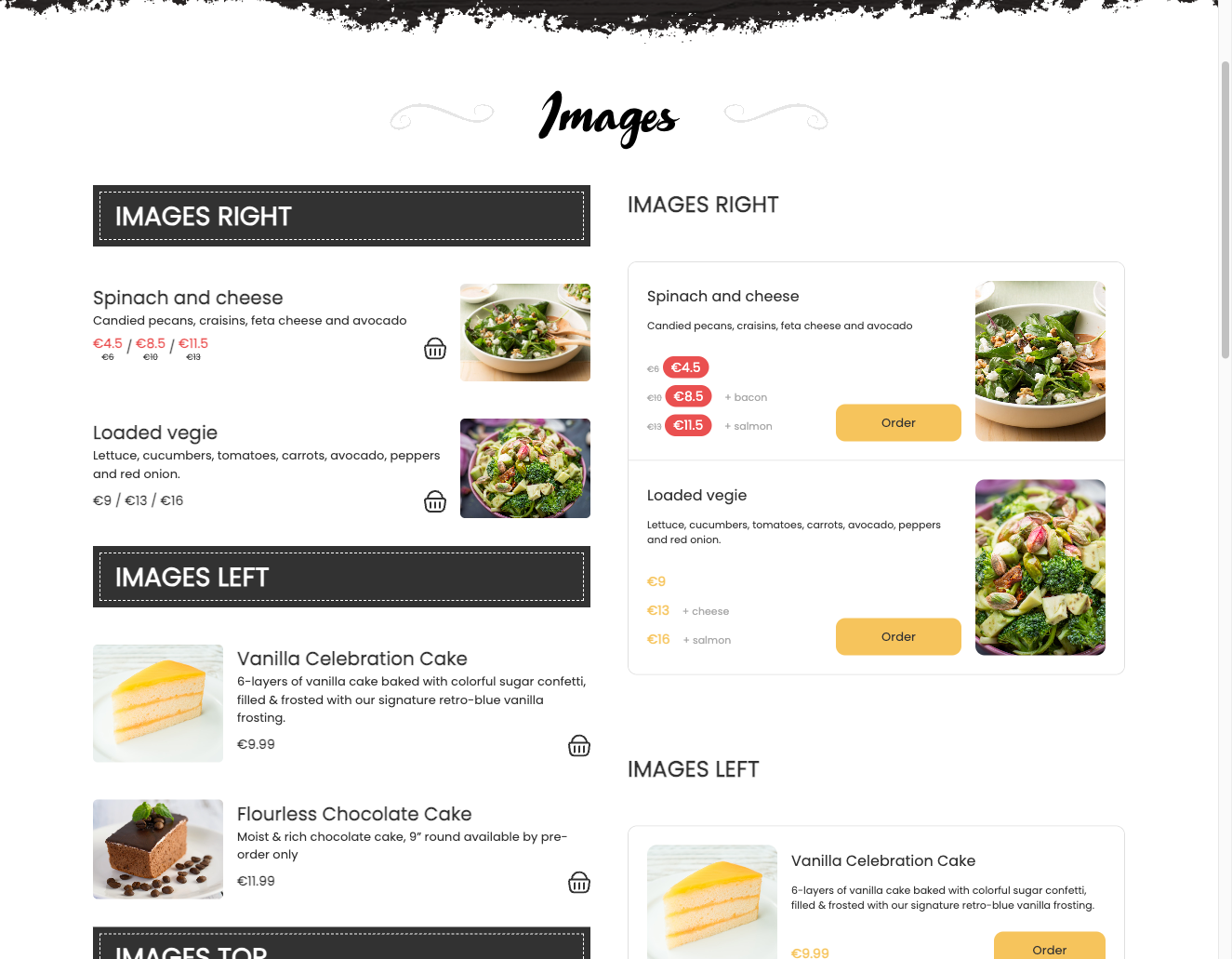
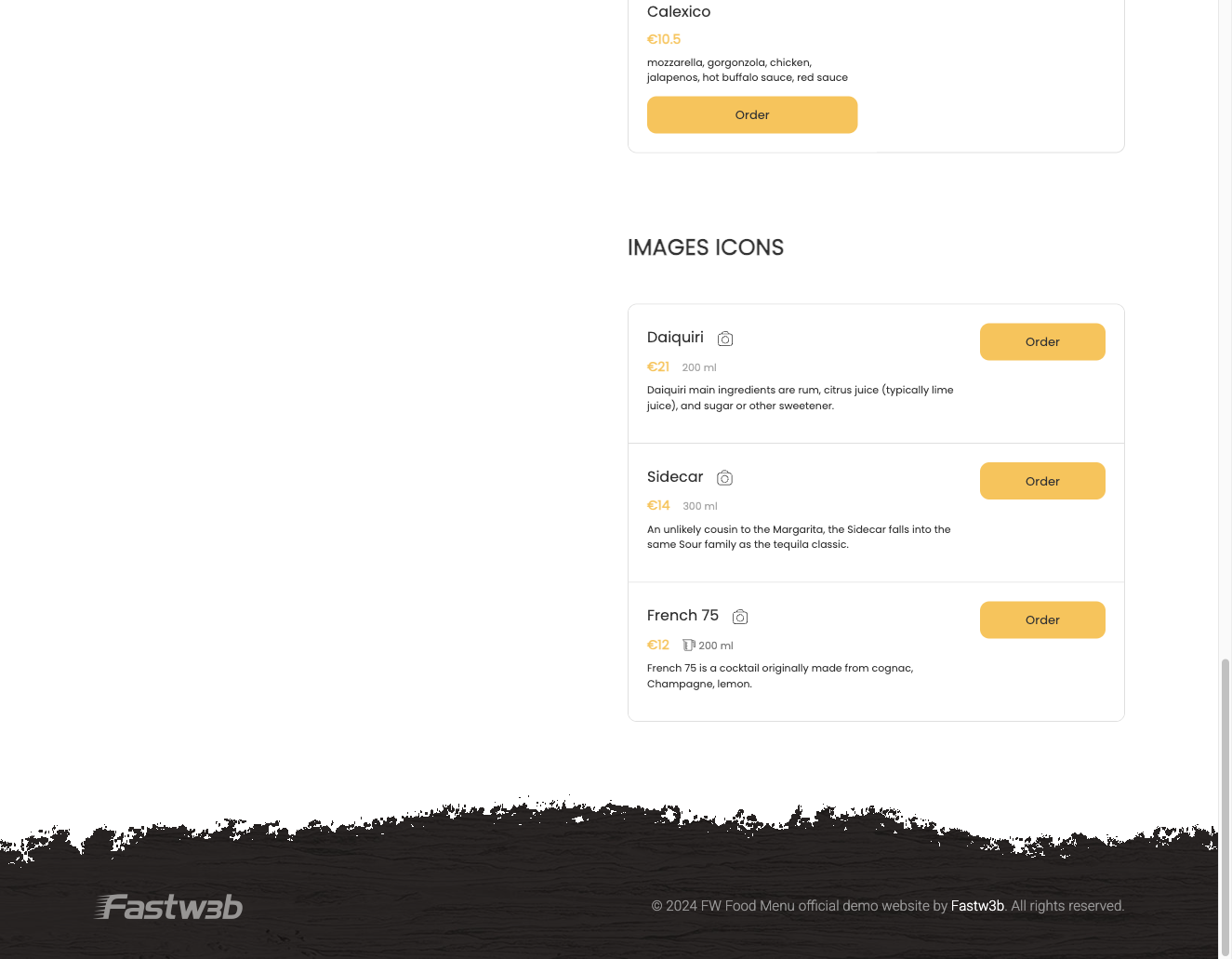
The FWFM Image addon adds image upload and display support to FW Food Menu. Without it, menus are text-only. Once active, each meal item can carry one or more photos, and each category can display a header image.
Use Cases
- Visual menu cards — upload a hero photo per meal so guests can see each dish on the listing page before clicking through.
- Per-meal gallery — upload multiple photos for a dish and display them in a gallery or slideshow on the meal detail page.
- Category banners — add a banner or header image to each menu category section.
Fields Added to the Menu Item Form
When the addon is active, an Images tab appears in the menu item edit form with the following fields:
- Images — upload zone accepting one or multiple meal photos; supports drag-to-sort reordering to control display order.
- Image alt text — alt text for each photo, used for SEO and accessibility.
The first uploaded image is used as the primary thumbnail everywhere the meal appears. Image order is controlled entirely by drag-to-sort in the edit form.
Fields Added to the Category Form
A category image field is added to the category edit form:
- Category image — a single image displayed as a section header or banner for that category.
- Image alignment — controls the position of the category image relative to the category title. Available alignment options depend on the active design template.
Frontend Display
Images appear across the menu in three places:
- Listing page — the first meal image is shown as a thumbnail on each meal card.
- Meal detail page — the first image is displayed full-size; any additional images appear in a gallery or slideshow below it.
- Category section — the category image is shown above or beside the category title.
Notes
- No server-side image resizing is applied by default — upload images at an appropriate size and resolution for your layout.
- Image ordering is set by drag-to-sort in the edit form; the first image always acts as the primary thumbnail.
- Category image alignment options may vary depending on which design template plugin is active.
To install this addon, open the Add-ons panel inside FW Food Menu. See Getting Started → Add-ons for details on free addons, paid addons, and site verification.
Was this article helpful?