Prices
The FWFM Prices addon extends the standard single-price field on each menu item with modifier groups — structured sets of options that adjust the base price before the item is added to the cart. This lets you model common pricing patterns such as size upgrades, customisation choices, and paid add-ons without creating separate menu items for each variant.
Use Cases
- Pizza sizes — a "Size" group with Small (+$0), Medium (+$3), and Large (+$5) options forces the customer to choose a size before ordering.
- Coffee customisation — a "Milk" group with Whole, Oat, and Soy options, each carrying its own price differential.
- Meal extras — a multi-select "Extras" group lets customers tick paid add-ons such as extra toppings or sides.
Setting Up Modifier Groups
Once the addon is active, a Modifiers section appears at the bottom of every menu item edit form. You can add one or more modifier groups to a single item.
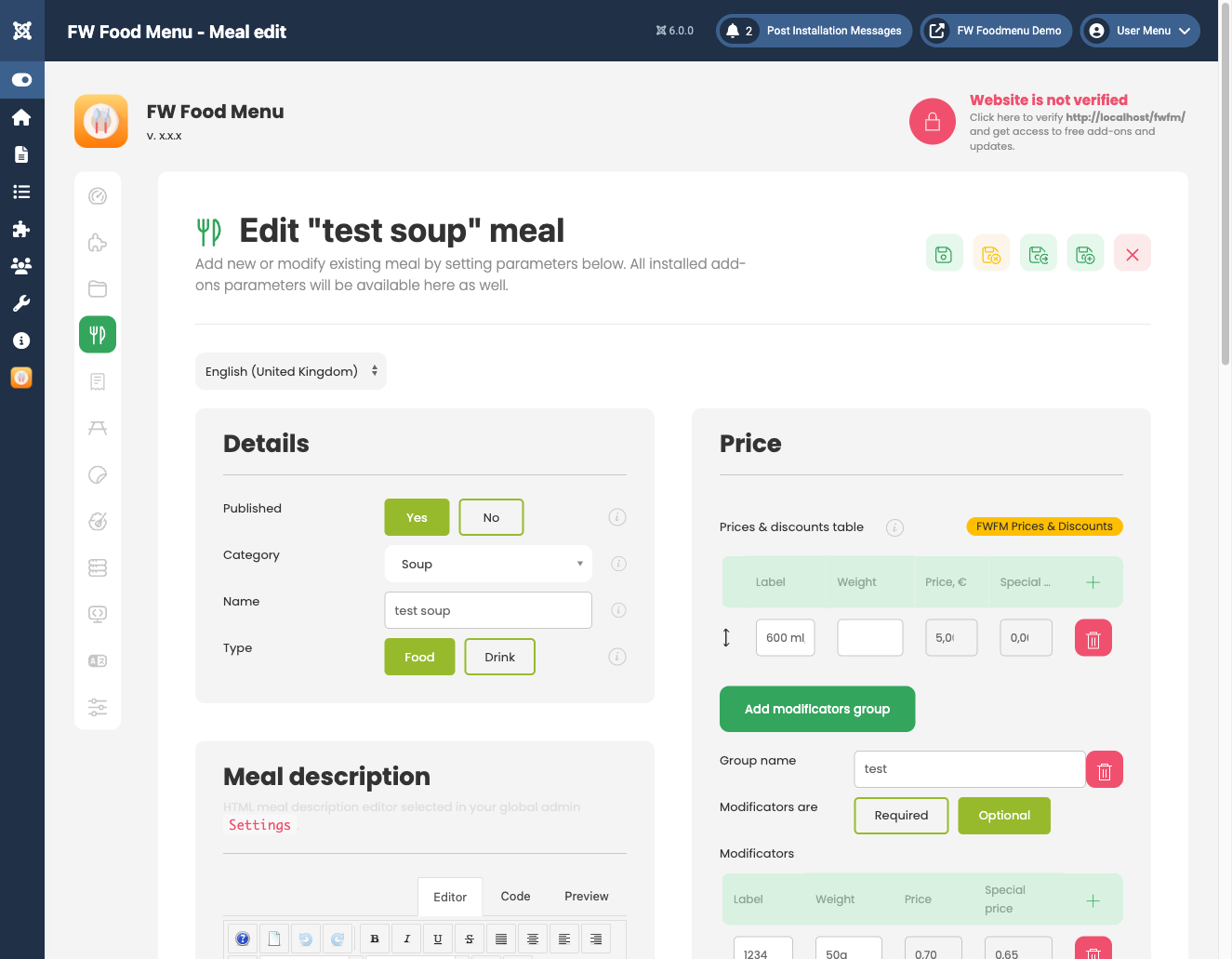
Each modifier group has the following fields:
- Group name — the label shown to the customer, for example "Size" or "Extras".
- Required — when enabled, the customer must select at least one option in this group before they can add the item to the cart.
- Multi-select — when enabled, options are presented as checkboxes so the customer can choose more than one (useful for toppings). When disabled, options appear as radio buttons allowing only a single choice.
Setting Up Modifier Options
Each group contains one or more individual options. Add as many options as the group requires:
- Option name — the display label shown to the customer, for example "Large" or "Extra Cheese".
- Price modifier — the amount added to or subtracted from the base price. Use a positive value for a surcharge and a negative value for a discount. Enter 0 for no price change.
- Default — marks this option as pre-selected when the item is first displayed.
Frontend Behaviour
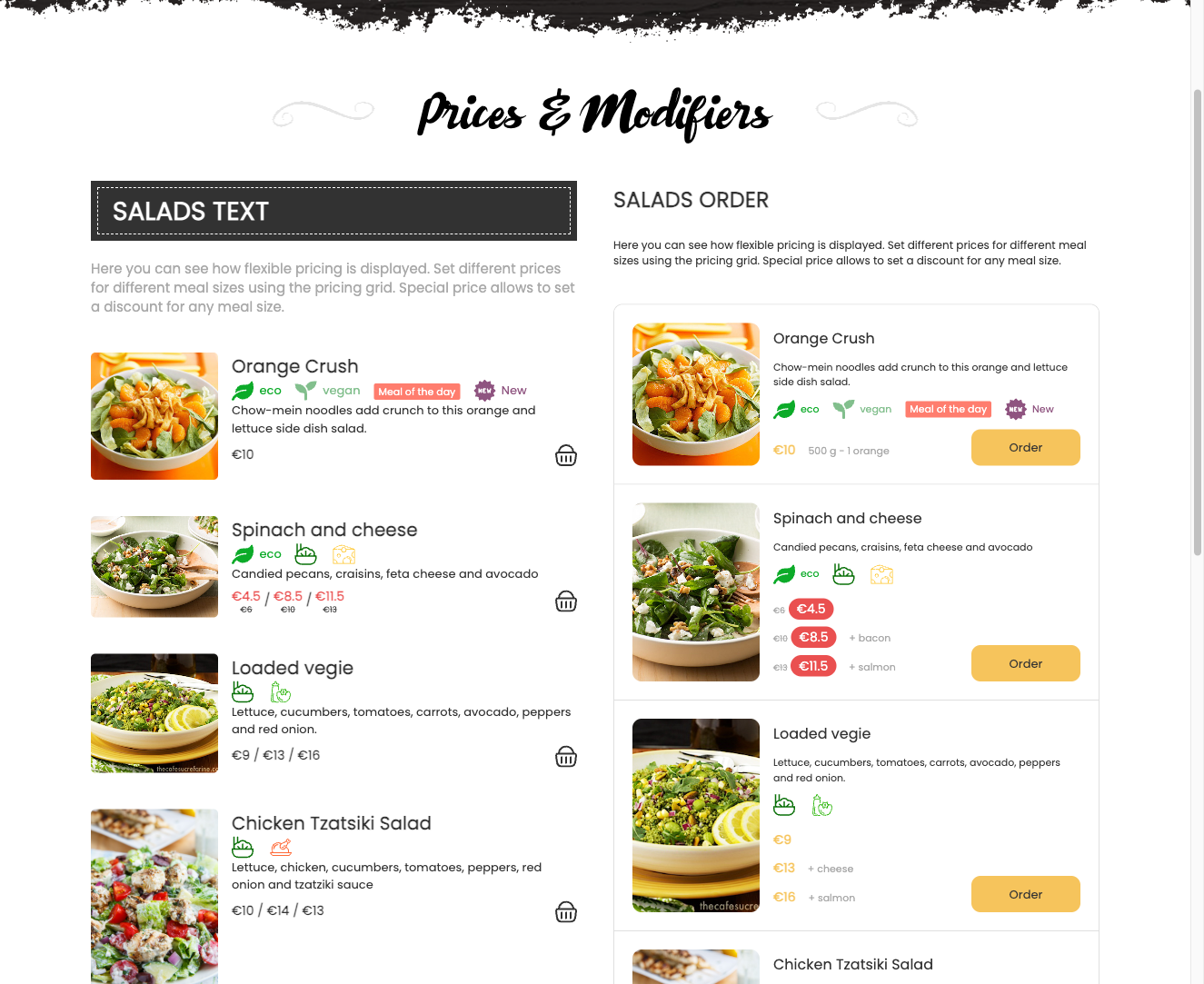
When a customer views a meal detail or initiates adding an item to the cart, all modifier groups for that item are displayed in order. Single-select groups use radio buttons; multi-select groups use checkboxes. The displayed price updates dynamically as the customer changes their selections. If a group is not marked required and the customer skips it, the base price is used. The final calculated price, including all selected modifiers, is stored against the order line item.
Requirements
- The Cart plugin must be active for modifiers to be applied to orders.
To install this addon, open the Add-ons panel inside FW Food Menu. See Getting Started → Add-ons for details on free addons, paid addons, and site verification.