Meal Badges
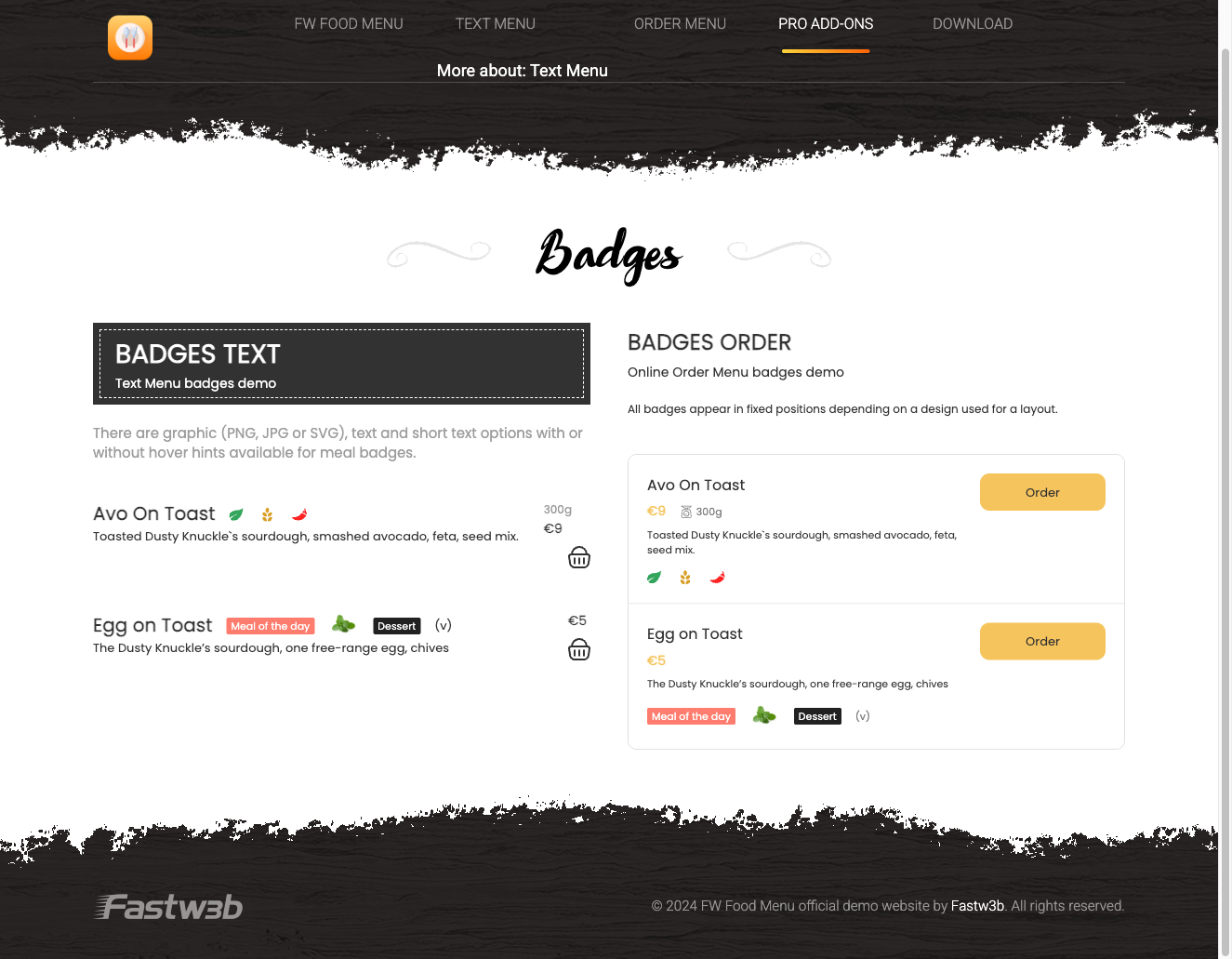
The FWFM Meal Badges addon lets you attach visual label chips — such as "New", "Spicy", "Vegan", or "Gluten Free" — directly to meal items. Badges appear overlaid on meal cards in the menu listing and on individual meal detail pages, giving guests instant visual cues about a dish's characteristics or status.
Use Cases
- Highlight special items — mark a "Chef's Special" or "Today's Deal" with a distinct badge that stands out in the listing.
- Dietary labels — create badges for "Vegan", "Vegetarian", or "Gluten Free" so guests can identify suitable options at a glance.
- Promotions — tag limited-time offers with a "Promo" or "20% Off" badge to draw attention during campaigns.
Managing Badges
Once the addon is active, a Badges section appears in the FW Food Menu admin menu. Navigate to FW Food Menu → Badges to create and manage your badge library. Each badge you define here becomes available for assignment to any meal item.
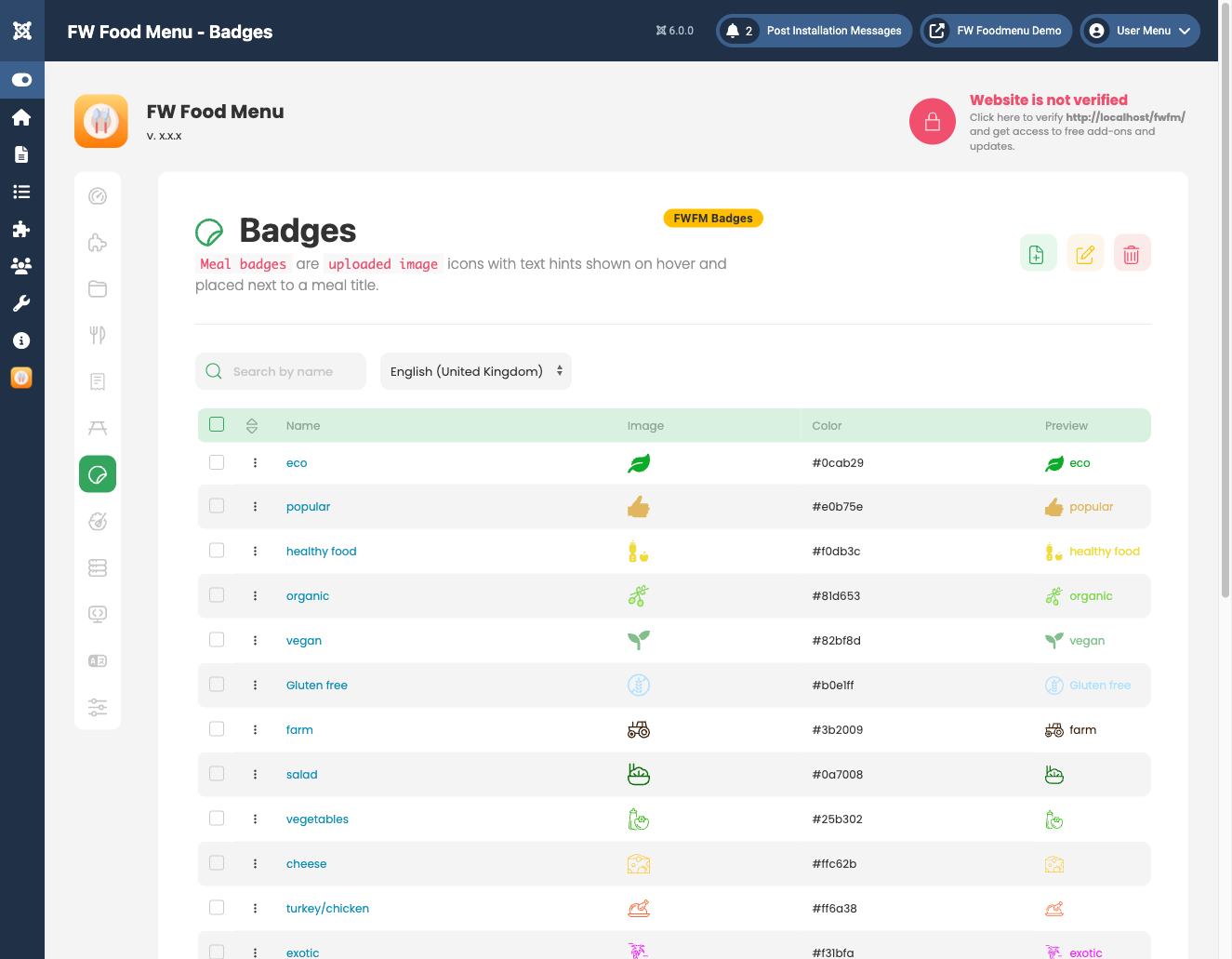
The following fields are available when creating or editing a badge:
- Title — the label text displayed on the badge (e.g. "New", "Hot", "Gluten Free").
- Icon — an optional image or icon file to accompany the badge label.
- Color — controls the badge background and text color to match your branding or category conventions.
- Status — set to Published or Unpublished. Unpublished badges are hidden on the frontend but remain stored and assigned in the database.
Assigning Badges to Meals
When editing any meal item, a Badges field appears in the edit form. Use the multi-select control to assign one or more badges to that meal. Multiple badges can be displayed simultaneously on a single meal card.
Frontend Display
Assigned badges render as label chips overlaid on meal cards in the menu listing and on the meal detail page. The exact position and visual style adapt to the active design template selected for your menu.
Dashboard
While the addon is active, the FW Food Menu admin dashboard displays a Badges stat card showing the total number of badges you have created.
To install this addon, open the Add-ons panel inside FW Food Menu. See Getting Started → Add-ons for details on free addons, paid addons, and site verification.