Map Module
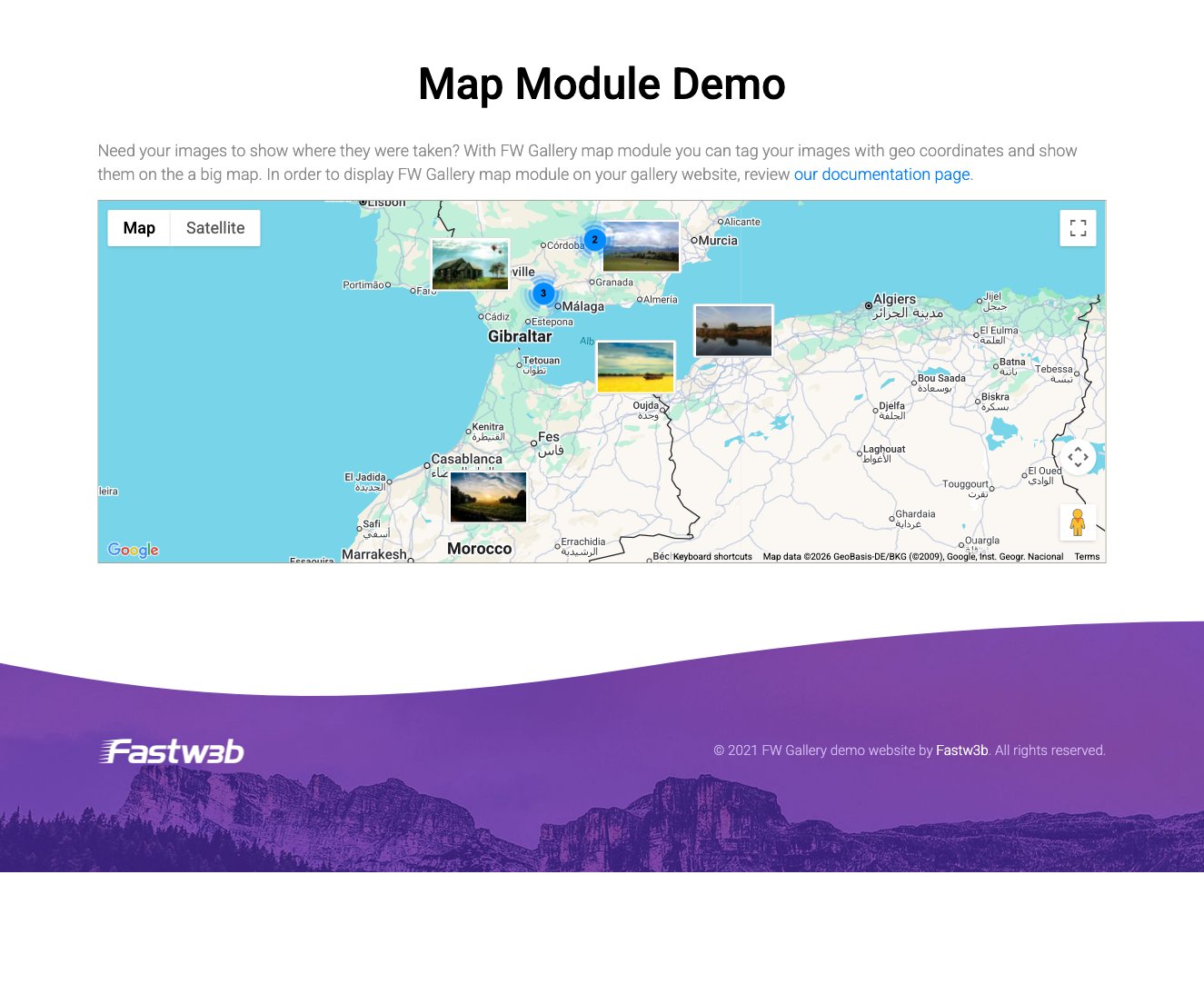
The FW Gallery Map Module embeds an interactive Google Map on any page, displaying markers for gallery files that have GPS coordinates assigned. Clicking a marker opens the associated file or shows a thumbnail popup, making it easy to build location-aware galleries, travel photo journals, or event venue maps.
Requirements
- The Map addon must be active. This addon adds geo coordinate fields to gallery files and stores latitude/longitude values.
- A valid Google Maps API key with the Maps JavaScript API enabled in Google Cloud Console. Billing must be enabled on your Google Cloud project.
Embedding the Map
Add the map to any post or page using the shortcode:
[fwmg_mod_map]
The shortcode renders the interactive map at the location it is placed in your content. Only files that have both a latitude and a longitude value stored will appear as markers on the map.
Module Parameters
The following parameters control the appearance and behaviour of the map module.
| Parameter | Type | Default | Description |
|---|---|---|---|
| Module class suffix | Text | — | A CSS class suffix appended to the module wrapper, allowing custom styling via your theme stylesheet. |
| Google Maps API key | Text | — | Your Google Maps API key. When provided here, it overrides any key configured at the FW Gallery component level. |
| Map height | Number (px) | 300 | The pixel height of the rendered map element. |
| Gallery filter | Select | — | Restricts markers to files from a specific gallery. Leave empty to display markers from all galleries. |
How It Works
The Map addon and the Map Module work in tandem. The addon is responsible for storing coordinate data on individual files — you assign GPS values to files through the gallery file editor. The module then reads those stored coordinates and renders the corresponding markers on the Google Map. Files without both a latitude and longitude value are silently skipped and will not appear on the map.
To install this addon, open the Add-ons panel inside FW Gallery. See Getting Started → Add-ons for details on free addons, paid addons, and site verification.