Polaroid Design
The Polaroid Design add-on gives your FW Gallery a retro, handmade look. Each image is presented inside a simulated Polaroid frame — white borders, a subtle drop shadow, and optional slight random rotation that makes the gallery feel like scattered physical prints laid out on a table.
Visual Style
The Polaroid template applies a consistent set of visual treatments across your gallery:
- White-bordered frames around every image, replicating the classic Polaroid photo print
- Box shadow beneath each frame to add depth and lift items off the background
- Slight random rotation per item, creating an organic, scattered-photos aesthetic
- Handwritten-style typography for captions, reinforcing the vintage feel
The overall result is a warm, nostalgic gallery presentation that works particularly well for personal photo collections, events, and portfolio displays where a casual, human touch is preferred over a rigid grid.
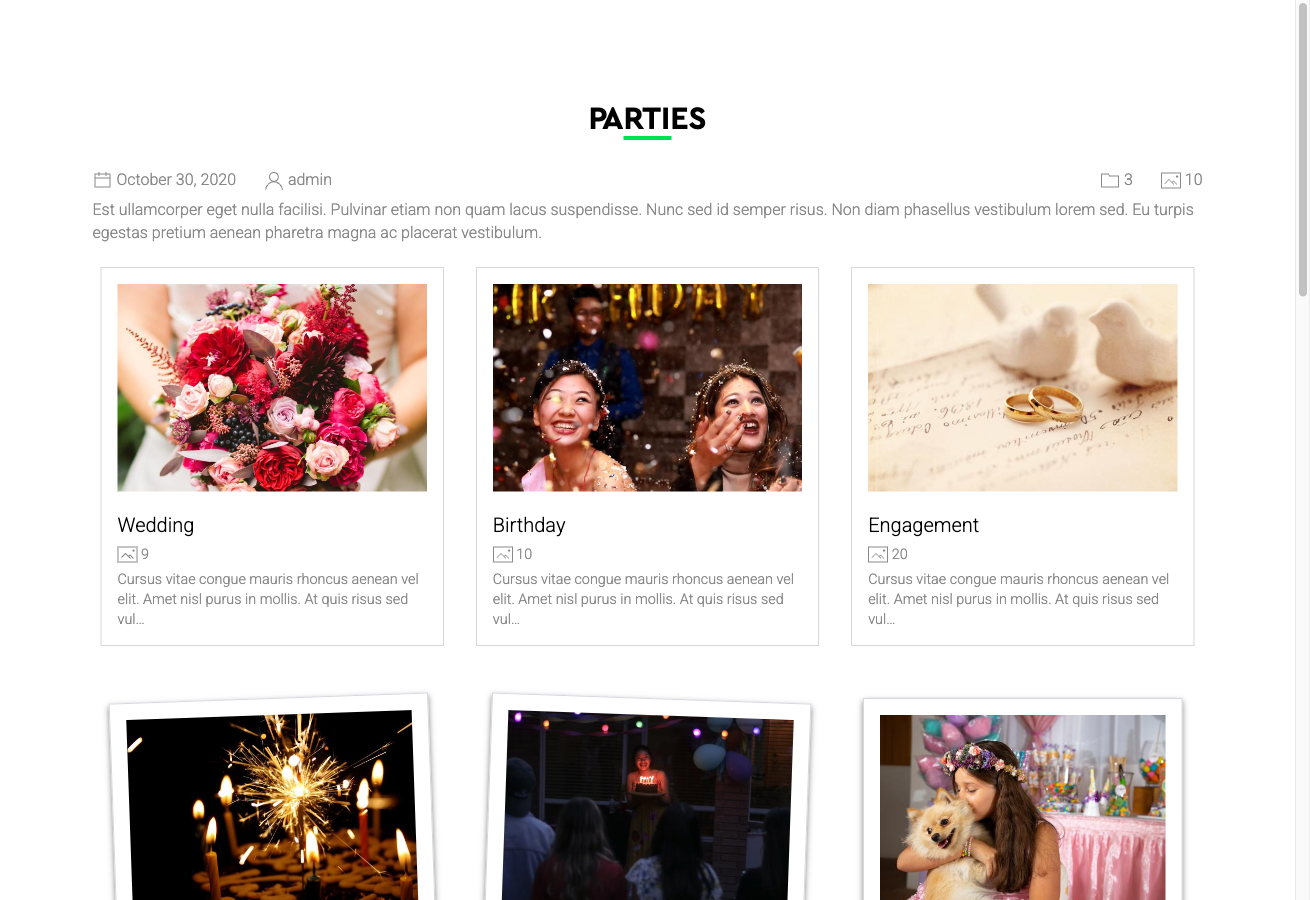
Gallery Presentation Strengths
- Stands out visually compared to standard flat grid layouts
- Suits lifestyle, travel, wedding, and personal photography galleries
- Works across gallery category pages, single file detail pages, User Section pages, and module displays
For best results, use square or near-square thumbnails. Landscape-oriented thumbnails still receive the full Polaroid frame treatment, though the proportions will differ from the classic Polaroid format.
Activating the Polaroid Design
- Install the FW Gallery – Polaroid add-on via the FW Gallery Add-ons panel.
- Once enabled, open Settings → Galleries tab and set Default design to Polaroid.
- Alternatively, assign the Polaroid design on a per-gallery or per-menu-item basis to apply it selectively rather than site-wide.
Customising the Template
The Polaroid template's CSS can be edited directly in Settings → CSS. Use this to adjust border width, shadow intensity, rotation range, caption font, or any other visual property to match your site's branding without modifying core template files.