Featured
What the Featured Add-on Does
The Featured add-on adds a featured flag to gallery files. Once marked, files can be pinned to the top of gallery grids, visually highlighted with a badge, and selectively displayed in modules by filtering to featured-only content.
Use Cases
- Highlight key images — pin the best or most important photos to the top of a gallery.
- Module filtering — use Latest or Carousel modules to show only featured images on the homepage or sidebar.
- Editor's picks — mark curated selections for special display treatment.
Marking a File as Featured
There are two ways to mark a file as featured:
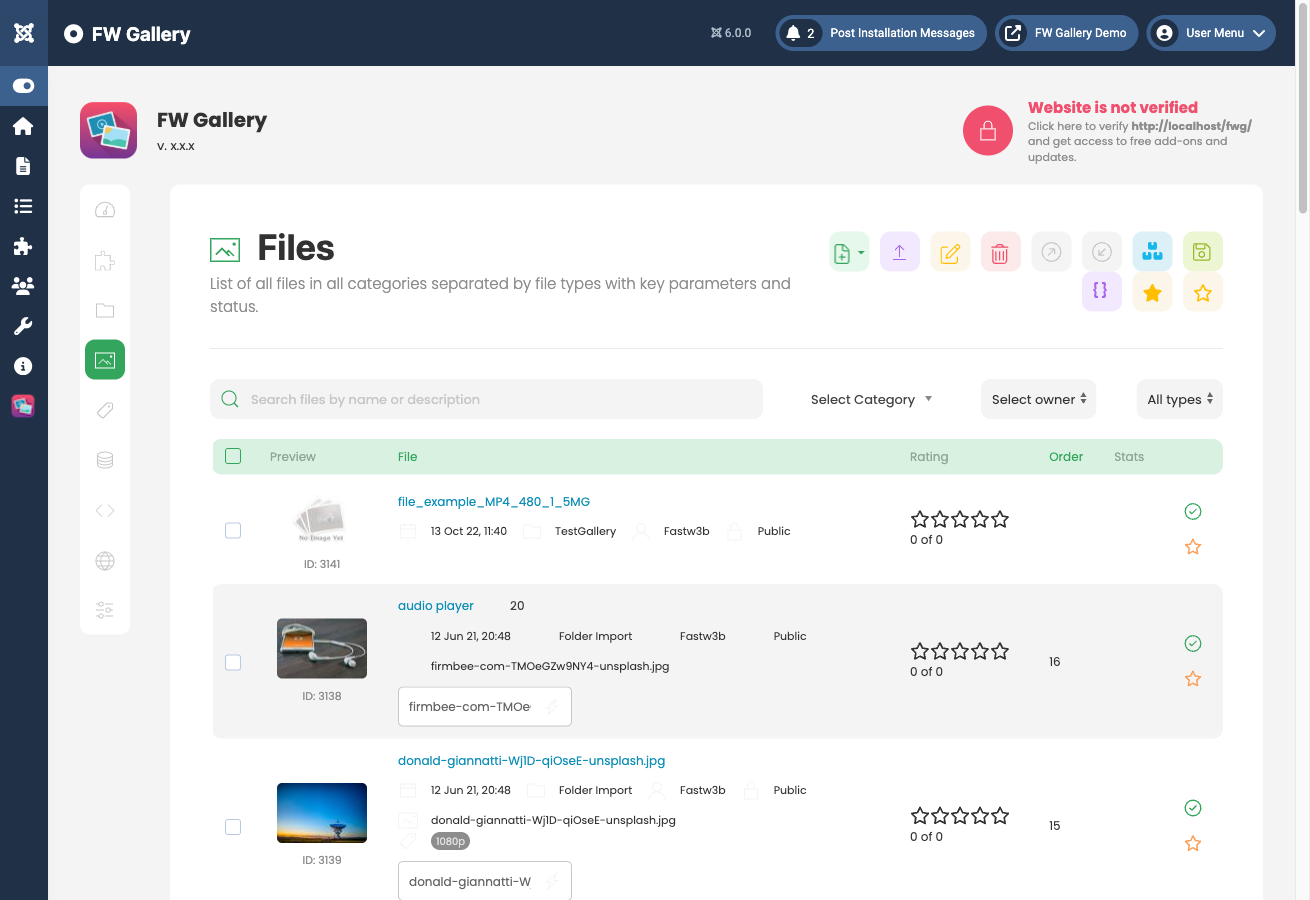
- Files list — Go to FW Gallery → Files, select one or more files, then click the Feature or Unfeature toolbar buttons.
- File edit form — Open the file editing page and toggle the Featured field directly.
Settings
Featured settings are found under Settings → Add-ons tab → Featured card.
- Featured files ordering — Controls how featured files appear relative to non-featured files in the gallery grid:
- Default — Featured files are mixed in with all other files using the standard sort order.
- Top — Featured files always appear first, before non-featured files.
- Only featured — Non-featured files are hidden; only featured files are displayed.
- Hide featured — Featured files are hidden; only non-featured files are displayed.
Frontend Display
Files marked as featured receive the CSS class fwmg-grid-item-featured, which design templates use to render a visual badge or highlight on the grid item. When the Top ordering is selected, featured files are sorted among themselves by the default ordering, followed by all non-featured files.
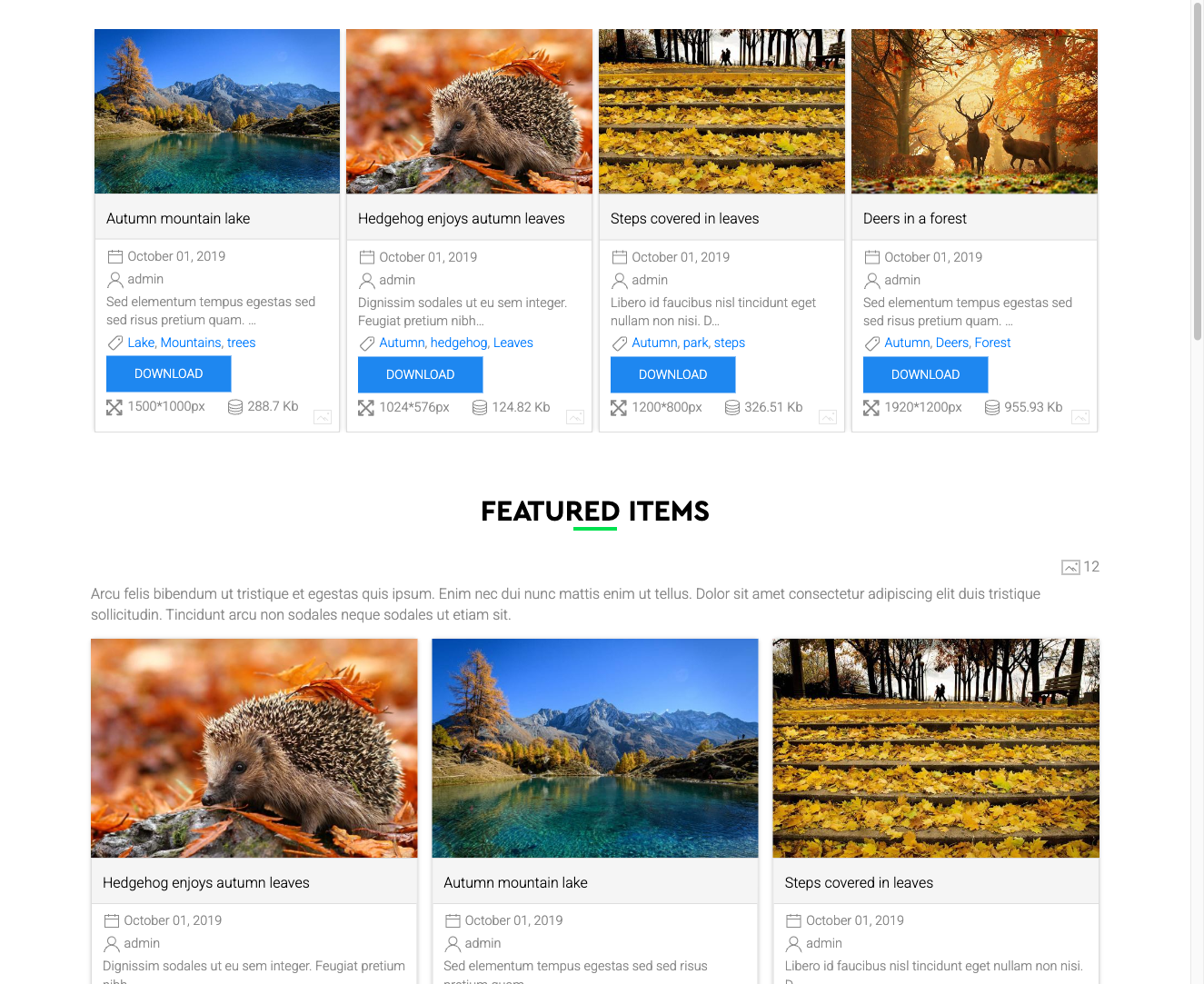
The Latest and Carousel modules include a Featured filter parameter that restricts the module output to featured files only — useful for showcasing picks on a homepage or sidebar without changing the main gallery display.
Additional Notes
- There is no limit to how many files can be marked as featured.
- Featured ordering takes priority over other sort options; featured files are ordered among themselves by the standard ordering setting, then non-featured files follow.
To install this addon, open the Add-ons panel inside FW Gallery. See Getting Started → Add-ons for details on free addons, paid addons, and site verification.