Slideshow View
FW Gallery tutorial for WordPress
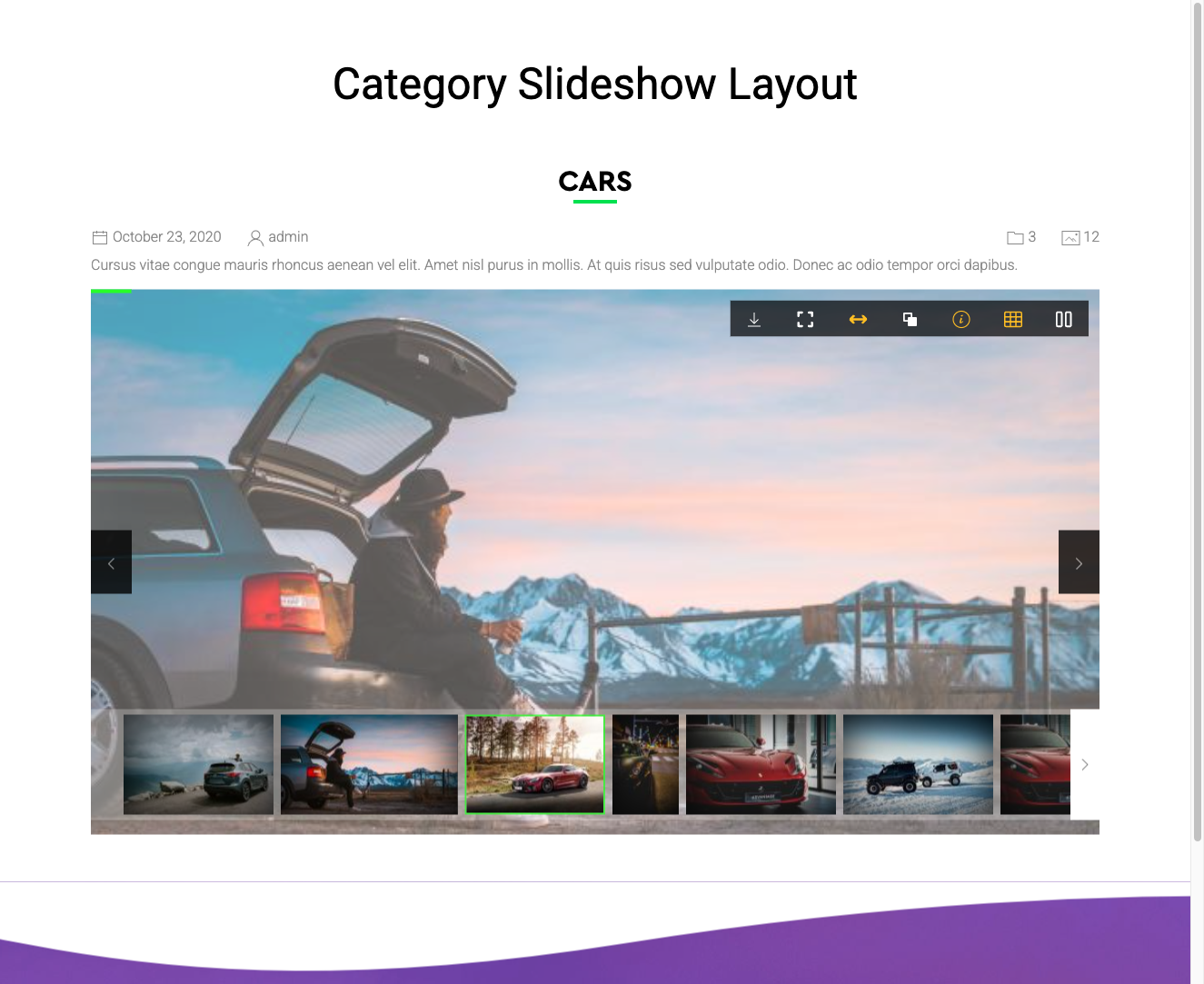
The Slideshow View addon adds a full-page slideshow layout option to your gallery pages. Instead of displaying images in a grid, visitors see one image at a time with automatic transitions and navigation controls — giving the gallery an immersive, presentation-style appearance.
Use Cases
- Event photo series — present a sequence of photos as an auto-playing slideshow.
- Portfolio showcases — give visitors a focused, distraction-free viewing experience.
- Kiosk or display screens — run a gallery continuously on an embedded screen or display.
Selecting the Slideshow Layout
Once the addon is active, a Slideshow option appears in the gallery layout selector. You can apply it at three levels:
- Global default — go to Settings → Galleries → Default design and choose Slideshow to apply it across all galleries.
- Per-gallery override — open an individual gallery and set its layout field to Slideshow.
- Menu item — set the Slideshow layout within a specific gallery menu item's parameters.
Frontend Features
When the Slideshow layout is active, the gallery page displays the following controls and behaviour:
- Auto-play with a configurable transition interval
- Previous / Next arrows for manual navigation
- Keyboard navigation using the left and right arrow keys
- Fullscreen mode where supported by the visitor's browser
- Optional thumbnails strip shown below the main image
Important Notes
- The Slideshow layout replaces the grid layout entirely — images are not shown in a grid while slideshow mode is active.
- The layout works with all standard image file types. Audio and video file type addons may have limited compatibility with the slideshow view.
To install this addon, open the Add-ons panel inside FW Gallery. See Getting Started → Add-ons for details on free addons, paid addons, and site verification.
Was this article helpful?