Social Share
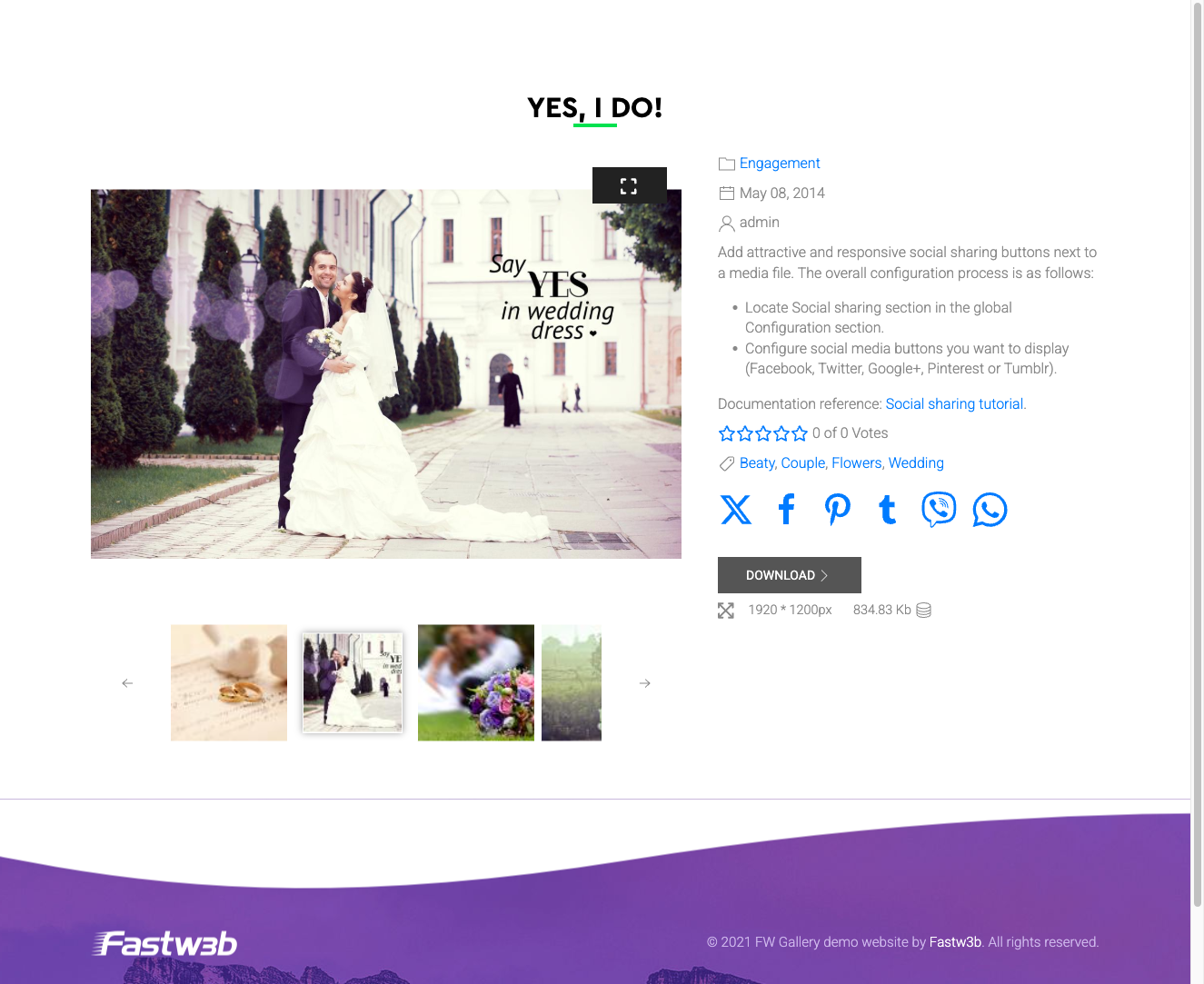
The Social Share addon adds sharing buttons to individual file detail pages in your gallery. Visitors can share images directly to social networks with a single click, with each share linking back to the original page on your site.
Supported Networks
- Facebook — share the file detail page to a Facebook feed.
- Twitter / X — post a link to the file on Twitter/X.
- Pinterest — pin the image, passing the image URL and description automatically from the file data.
- WhatsApp — send the link via WhatsApp (disabled by default).
Sharing uses native platform share URLs. No JavaScript SDKs are loaded from social networks, which avoids the tracking concerns associated with embedded social widgets.
Frontend Display
Sharing buttons appear on the single file detail page, positioned below or alongside the main image. The exact placement depends on the active design template.
Settings
Configure the addon under Settings → Addons → Social Share.
- Facebook — show or hide the Facebook share button.
- Twitter / X — show or hide the Twitter/X share button.
- Pinterest — show or hide the Pinterest pin button.
- WhatsApp — show or hide the WhatsApp share button.
- Sharing text template — custom text prepended to the share URL on supported networks. Use the variables {file_title} and {gallery_name} to include dynamic content in the shared message.
To install this addon, open the Add-ons panel inside FW Gallery. See Getting Started → Add-ons for details on free addons, paid addons, and site verification.