Tags
The Tags addon adds a tag system to FW Gallery, letting you assign descriptive labels to individual files and giving visitors a way to browse related content across all your galleries.
What Tags Adds
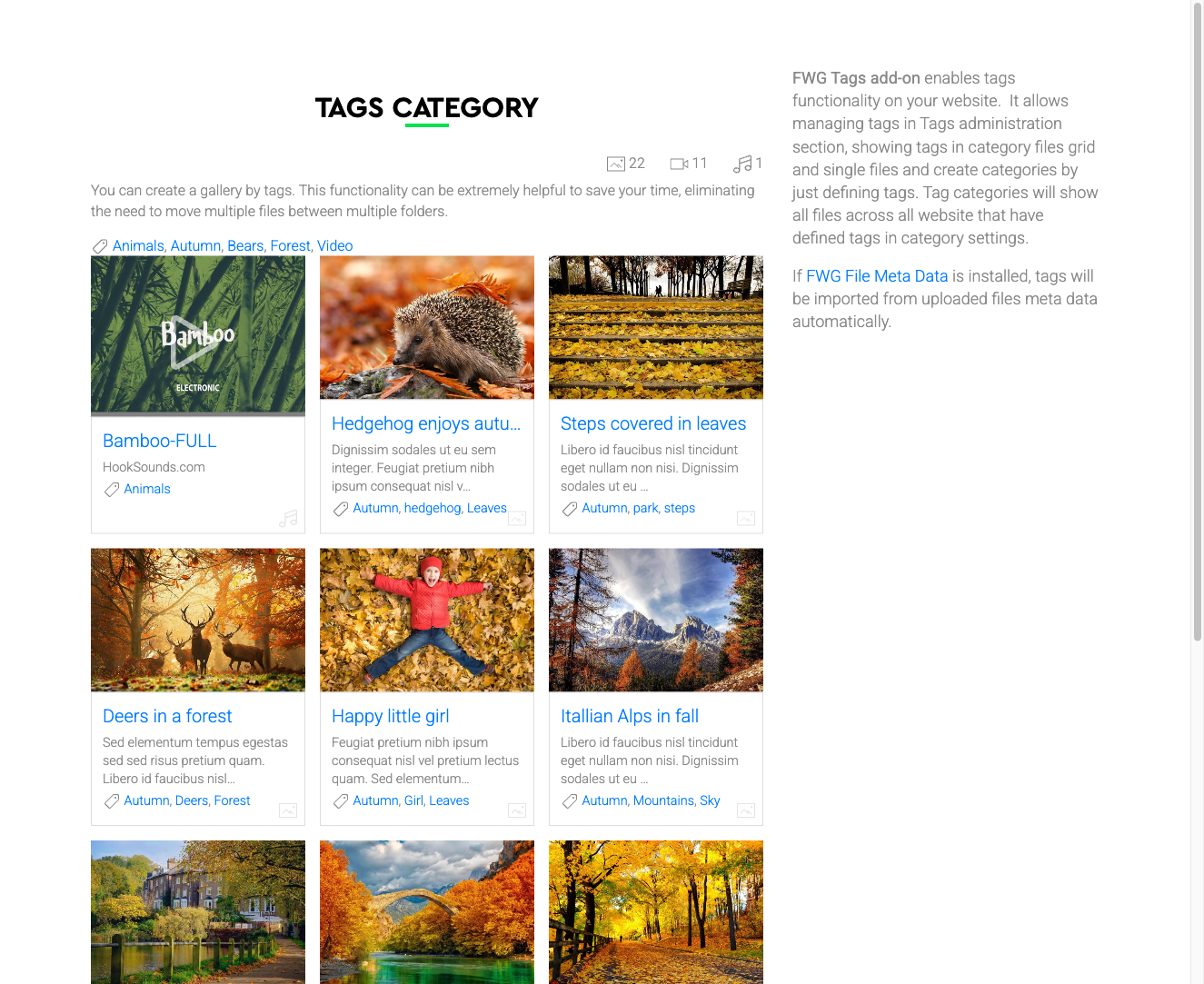
Without tags, files are organized strictly by gallery. With the Tags addon, you can assign one or more tags to any file — "sunset", "architecture", "portrait" — and visitors can click a tag to see every file sharing that label, regardless of which gallery it lives in. Tags appear as clickable links on the file detail page and can also be surfaced as a tag cloud or tag list on gallery pages.
Use Cases
- Topic filtering — group images by subject so visitors can explore a theme across your entire site.
- Event tagging — apply the same event name to photos spread across multiple galleries.
- Additional browsable paths — tags create extra URL entry points that can help search engines discover related content.
Managing Tags in the Admin Panel
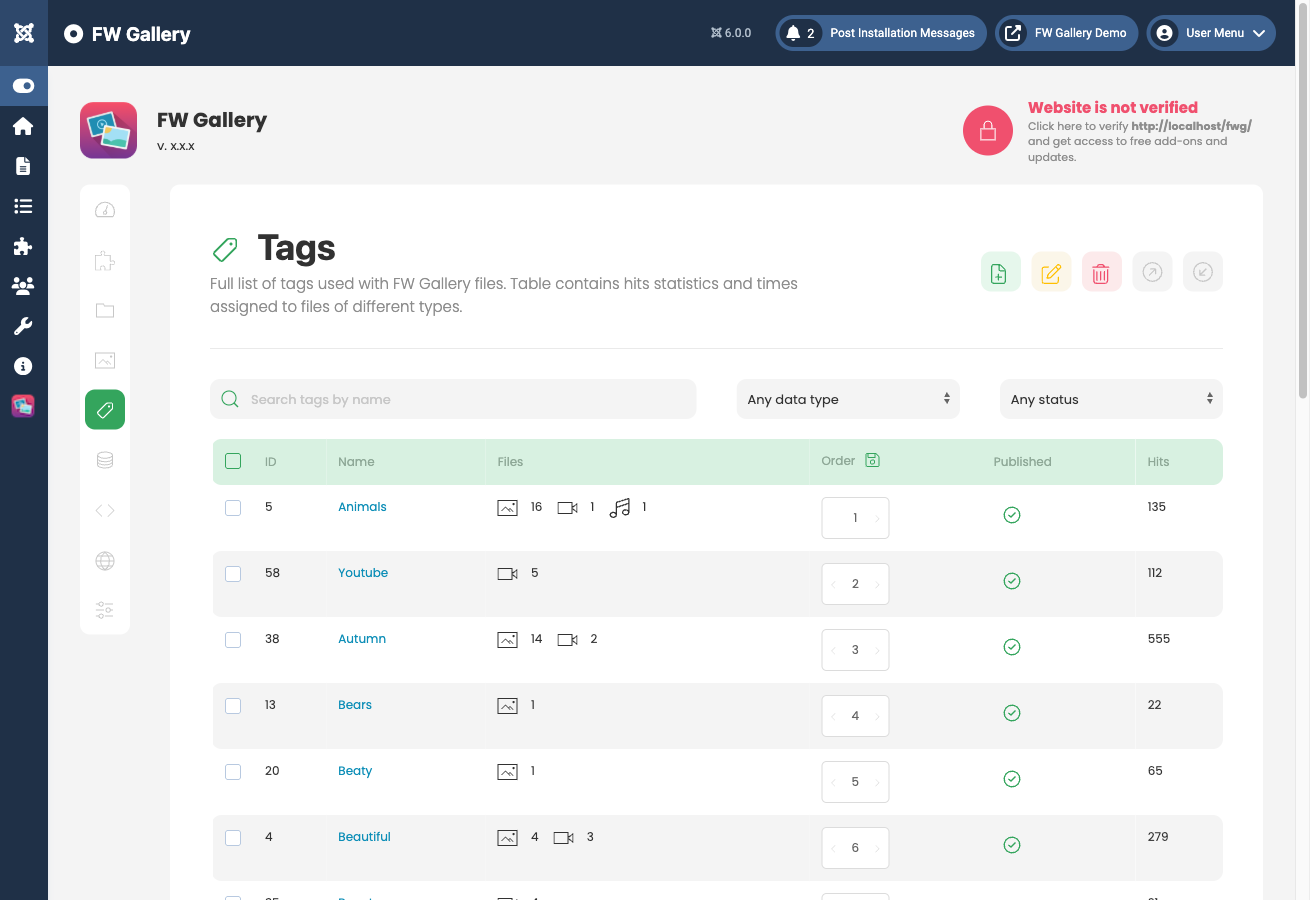
All tags are managed under FW Gallery → Tags. From this screen you can create, rename, reorder, and delete tags.
To assign tags to a file, open the file for editing. A Tags field lets you attach one or more tags to that file. A file can hold as many tags as needed.
Settings
The Tags addon exposes one setting:
| Setting | Options | Default | Description |
|---|---|---|---|
| Tags sorting | Alphabetically, Ordering | Alphabetically | Controls how tags are sorted in the tag cloud or tag list. Choose Ordering to use the manual order set in the Tags admin screen, or Alphabetically to sort by name. |
Frontend Behavior
Tags appear on the single file detail page as clickable links. Clicking a tag opens a filtered view showing all files assigned that tag across every gallery on your site. For clean tag URLs, ensure SEF (search engine friendly) URLs are enabled in your site's global settings.
To install this addon, open the Add-ons panel inside FW Gallery. See Getting Started → Add-ons for details on free addons, paid addons, and site verification.