Import
FW Gallery tutorial for WordPress
The Import addon extends FW Gallery with bulk import capabilities, letting you bring large image collections into your galleries without uploading files one by one through the browser.
What Import Adds
Once active, an import interface becomes available inside the FW Gallery admin panel under the Data section, and within any gallery's file list. You can pull images from four sources:
- Server folder — batch-import images already sitting on the server filesystem.
- Facebook — import photos from a personal profile or a fan/business page album.
- Google Photos — import albums via Google OAuth.
- Instagram — import images using an Instagram access token.
Use Cases
- Bulk uploads — FTP hundreds of images to a server folder and import them all at once instead of uploading through the browser.
- Social media sync — pull existing Facebook, Instagram, or Google Photos collections directly into your gallery.
- Migration — move image collections from other platforms into FW Gallery quickly.
Running a Folder Import
- Upload images to the configured import folder (for example, tmp/) via FTP or your server file manager.
- Open the import interface in the FW Gallery admin panel.
- Select the target gallery and start the import.
- Images are moved to the gallery storage folder and registered in the database.
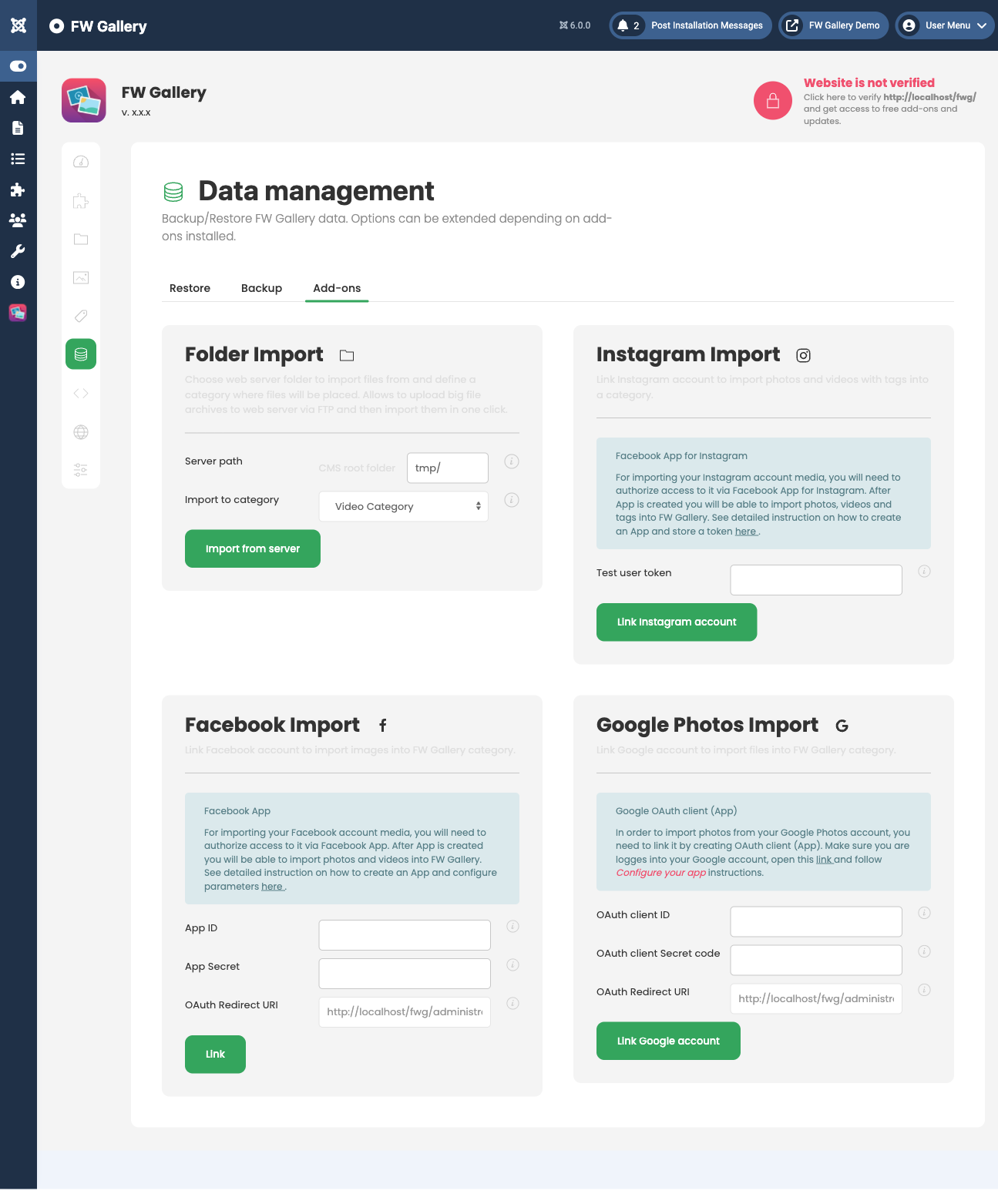
Folder Import Settings
- Import root path — server folder path relative to the WordPress root that contains images to be imported. Defaults to
tmp.
Facebook Import Settings
- Page type — choose between a personal profile or a fan/business page.
- Fan page name — the Facebook page username, required when importing from a fan/business page.
- Facebook App ID — the application ID from the Facebook Developers console.
- Facebook App Secret — the corresponding application secret.
Google Photos Import Settings
- Google App ID — your Google OAuth client ID.
- Google App Secret — your Google OAuth client secret.
Instagram Import Settings
- Instagram Access Token — a long-lived Instagram API access token.
Notes
- Social media imports require creating developer API applications on the respective platforms before entering credentials here.
- Instagram long-lived tokens expire periodically and must be renewed to keep imports working.
- For large folder imports, ensure your server's
upload_max_filesizeandmax_execution_timePHP values are set high enough to process the full batch.
To install this addon, open the Add-ons panel inside FW Gallery. See Getting Started → Add-ons for details on free addons, paid addons, and site verification.
Was this article helpful?