 FW Food Menu – Documentation
Add-ons Overview
Add-ons Overview
FW Food Menu uses an addon system to extend core functionality. Each addon adds a specific capability — such as a design theme, cart, delivery zones, or ingredient tracking — and can be installed, updated, or removed from within the FW Food Menu admin without leaving Joomla.
Bundled Design Addon
The main FW Food Menu package ships with one design template addon. This addon activates automatically after installation and provides the default frontend appearance immediately — no extra configuration steps are needed to get a working menu layout on the frontend.
The Add-ons Panel
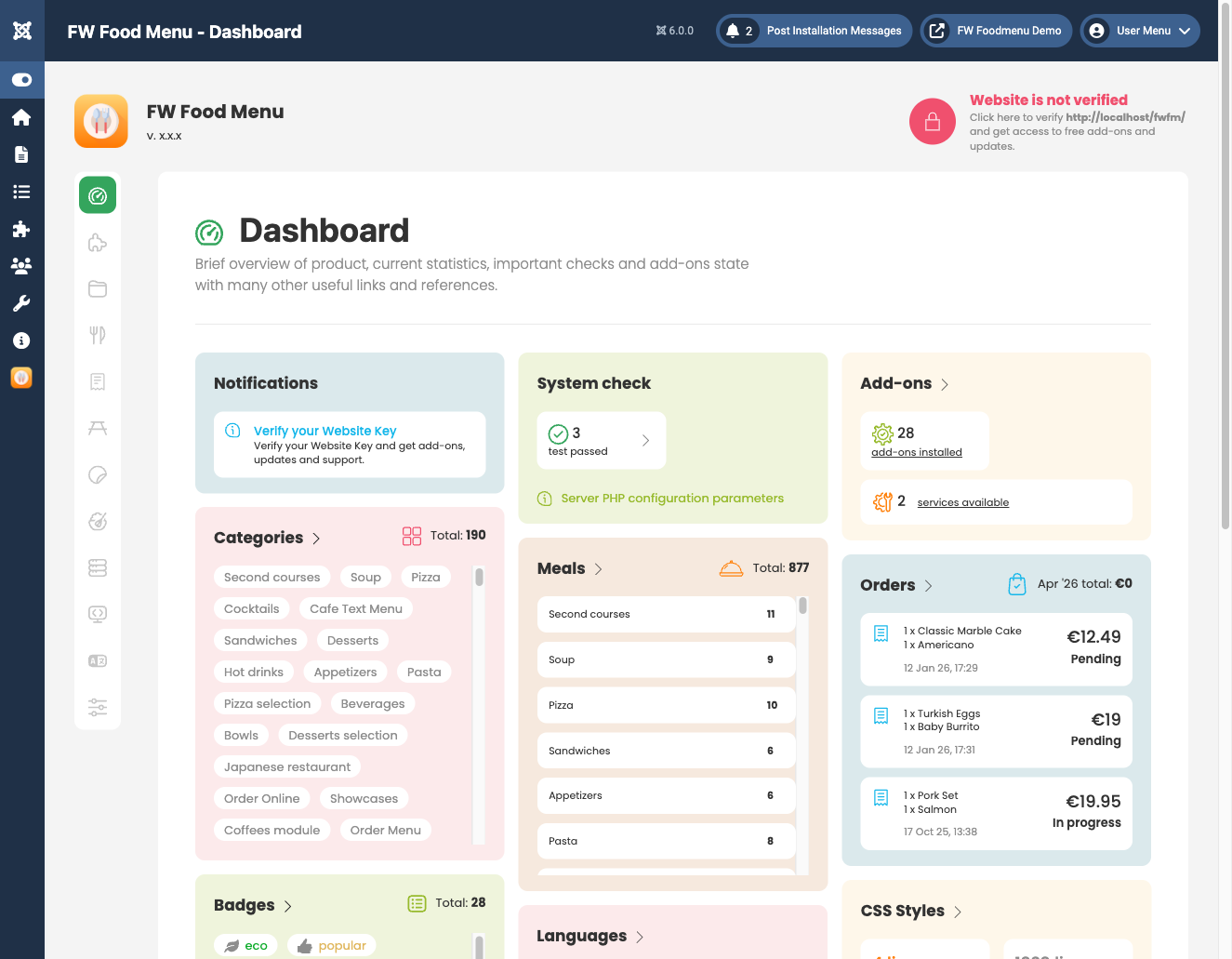
All other addons are managed through the built-in Add-ons panel. To open it, go to the FW Food Menu section in your Joomla administrator and click the Add-ons icon in the sidebar. The panel lists every available addon alongside its current status and a corresponding action button.
The possible statuses and their associated actions are:
- Not installed — an Install button is shown; click it to install the addon.
- Enabled — a Disable button is shown; click it to deactivate the addon.
- Update available — an Update button is shown; click it to install the latest version.
- Disabled — a Delete button is shown; manually disabled addons can be removed from the site entirely using this button.
Site Verification
Before any Install button becomes active, your site must be verified with your fastw3b.com account. To start verification, click the lock icon or the website is not verified text in the top-right area of the FW Food Menu admin. A Website Key verification modal opens containing an input field and two buttons: Get Website Key and Verify Website Key.
Click Get Website Key. This opens your fastw3b.com account in a new browser tab, taking you to the Client Section → Websites page where a modal displays the access code for your site. Copy that access code, close the tab, return to the FW Food Menu admin, paste the code into the input field, and click Verify Website Key.
Installing Addons
Once your site is verified, addon installation works as follows:
- Free addons become immediately available — their Install button appears as soon as verification is complete.
- Paid addons require an active subscription on fastw3b.com that covers the addon in question. The Install button for a paid addon appears only when a matching active subscription is detected on your account. Each active subscription unlocks the specific paid addons it covers. Without a subscription, only free addons can be installed.
Updating Addons
When a newer version of an installed addon is available, its action button changes to Update. Clicking it installs the update immediately. Updates do not affect your menu data, categories, or orders.