 FW Food Menu – Documentation
Columns
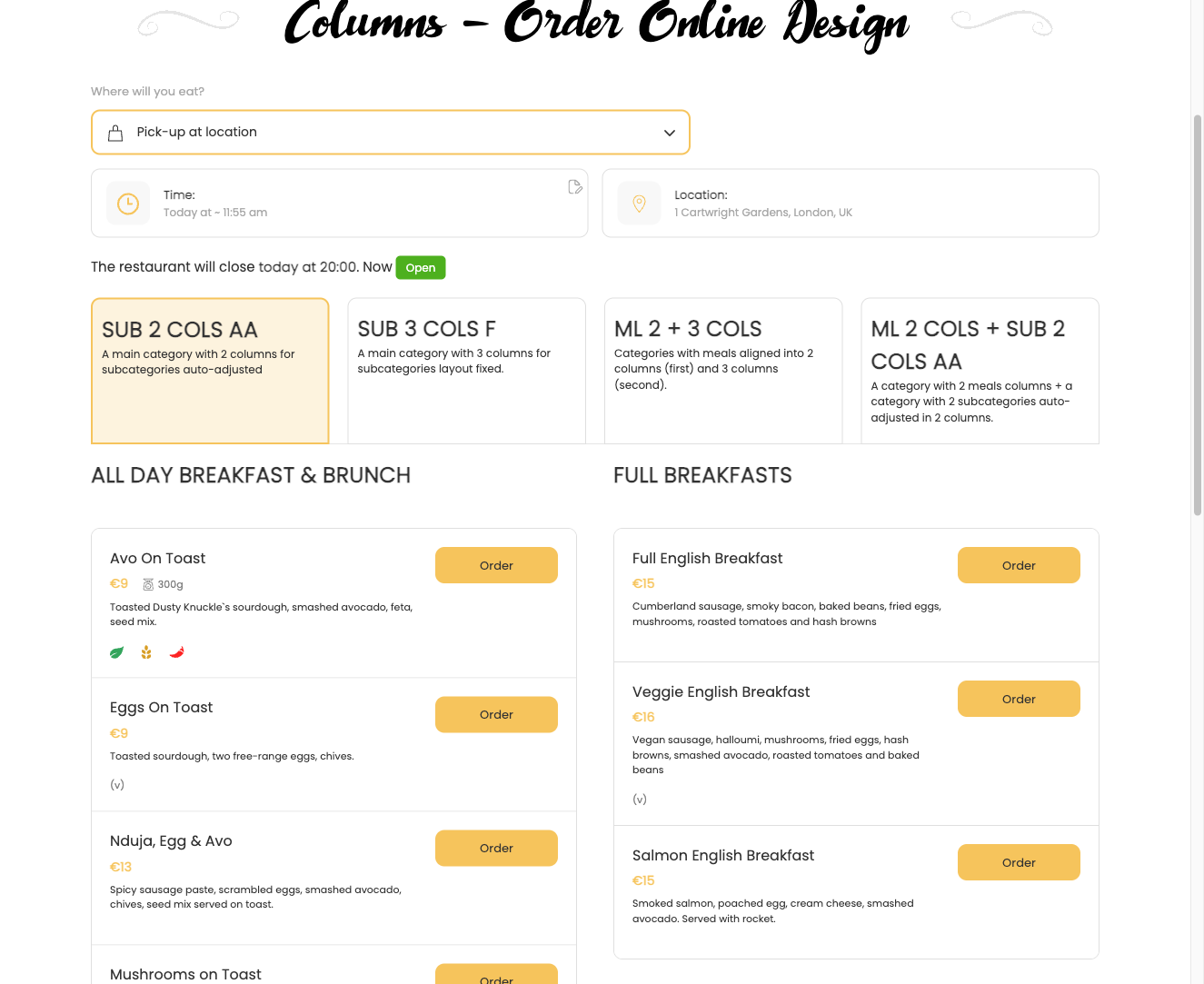
The FWFM Columns addon lets you display menu categories and meal items in a multi-column grid layout. Instead of a single-column list, you can arrange items in a 2, 3, or 4 column card-style grid — giving your menu a more visual, structured appearance.
Use Cases
- Grid layout — display meal cards in 2, 3, or 4 columns for photo-heavy sections such as desserts or appetizers.
- Category-specific layouts — use a single column for text-heavy sections (such as a wine list with long descriptions) while applying a wider grid to image-focused categories.
Global Column Settings
Once the addon is active, go to FW Food Menu → Settings → General to configure the default column layout applied across your entire menu.
| Setting | Options | Default | Description |
|---|---|---|---|
| Category columns | 1, 2, 3, 4 | 1 | Number of columns used for the category navigation area. |
| Meal item columns | 1, 2, 3, 4 | 1 | Number of columns used to display meal item cards. |
| Text alignment | Category-based, Global | Category-based | Controls whether text alignment follows per-category settings or a single global setting. |
Per-Category Column Overrides
Each category has its own Design tab where you can override the global column count for items within that specific category. This lets you mix layouts — for example, a 1-column wine list alongside a 3-column dessert grid — without changing the global defaults.
| Option | Description |
|---|---|
| Columns | Overrides the global meal item column count for this category only. |
Responsive Behaviour
The column grid is responsive by default. On mobile screens, columns automatically collapse to a single column regardless of the configured setting, ensuring your menu remains readable on all devices. The layout works with all FW Food Menu design template plugins.
To install this addon, open the Add-ons panel inside FW Food Menu. See Getting Started → Add-ons for details on free addons, paid addons, and site verification.