 FW Gallery – Documentation
Map
The Map addon adds geolocation support to FW Gallery, letting you attach GPS coordinates to individual files and display them on an interactive Google Map. It works together with the FWG Map Module (mod_fwg_map), which renders the map on the frontend.
Use Cases
- Location-tagged photography — show where each photo was taken on a map.
- Travel galleries — visualise the geographic spread of a photo series.
- Event galleries — mark event venues with photo previews pinned to the map.
What the Addon Adds
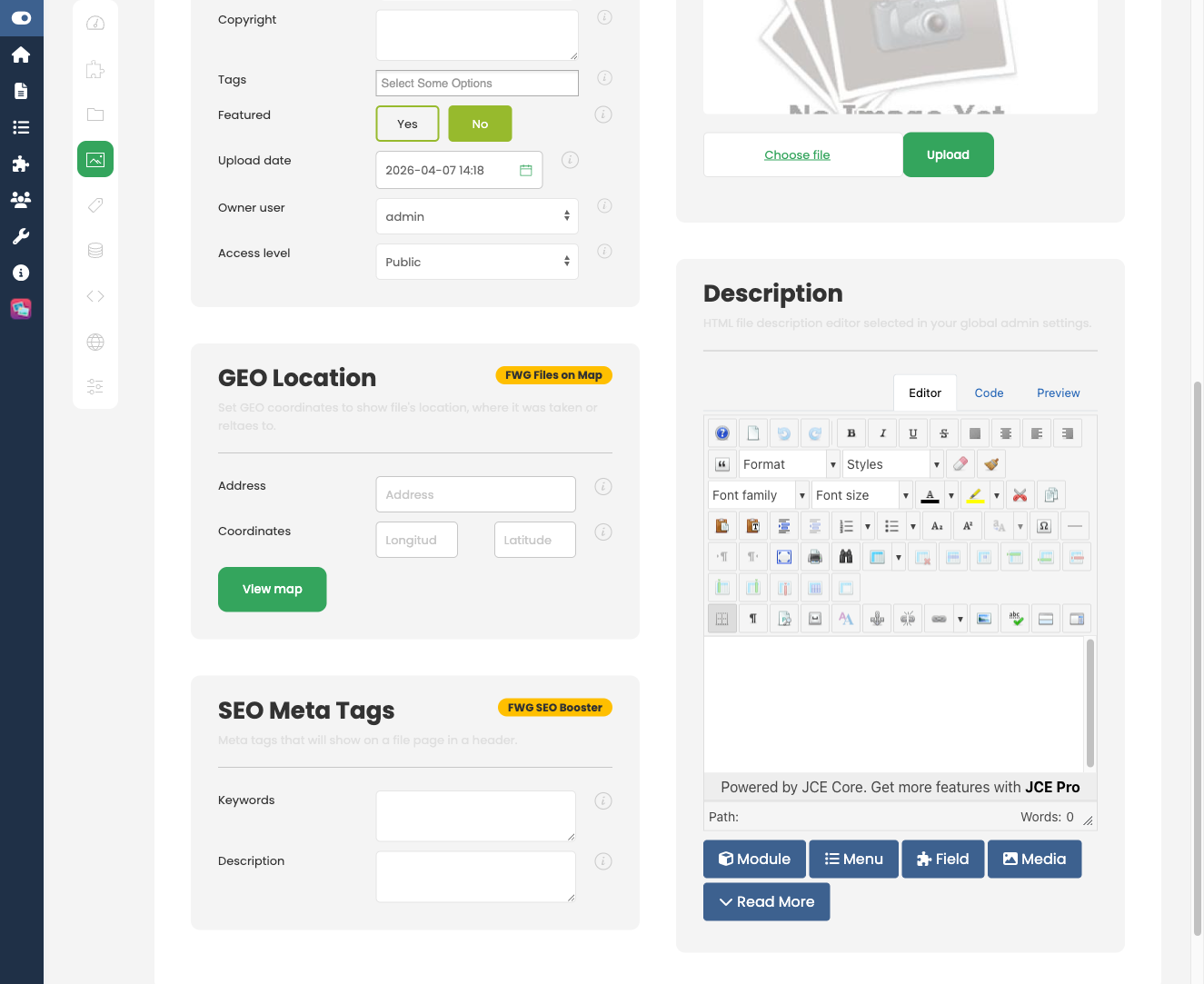
- Latitude and Longitude fields on the file edit form in the admin panel.
- A map view on the single file detail page when coordinates are present.
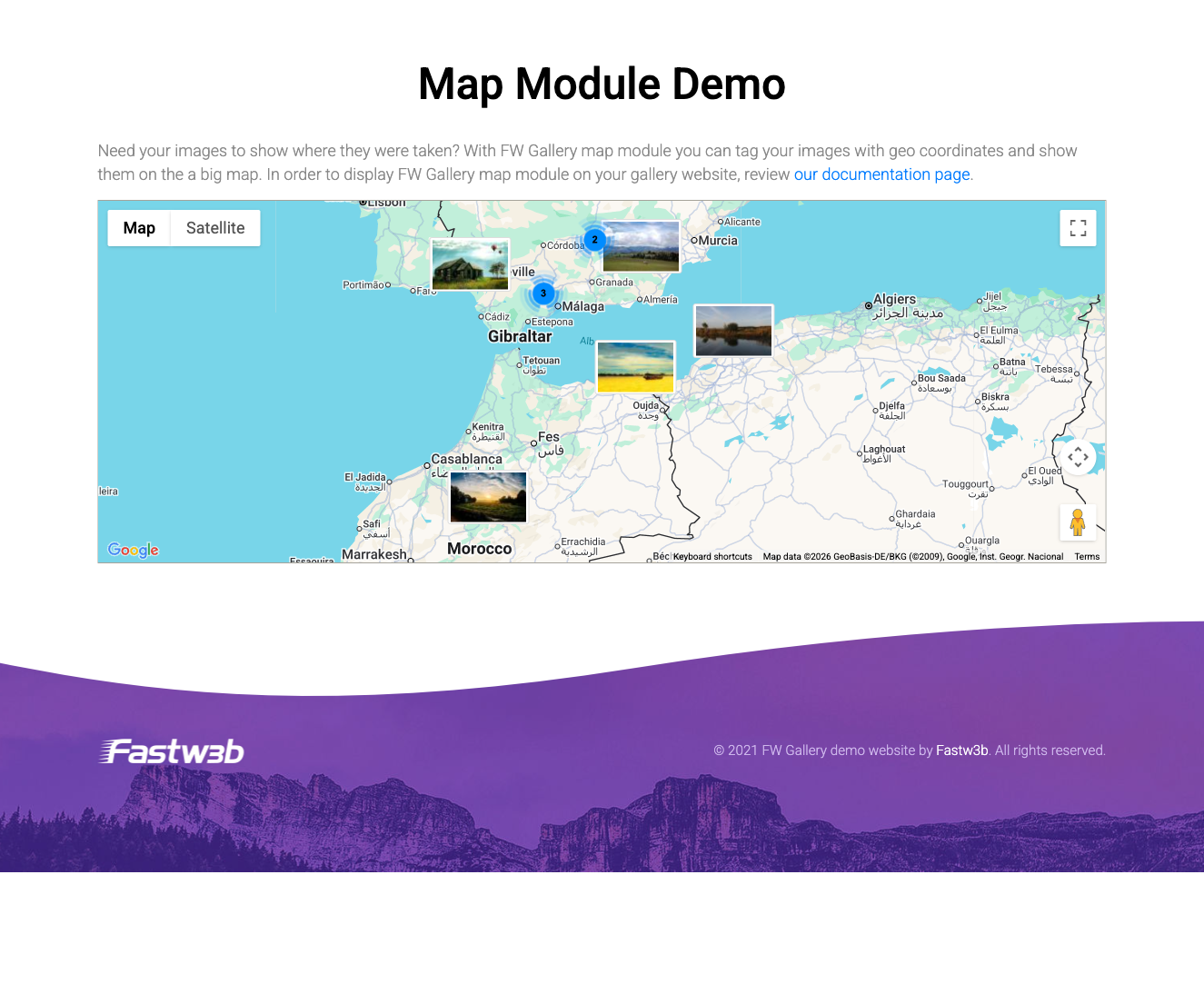
- Support for the FWG Map Module to read file geolocations and display map markers on the frontend.
Required API Keys
The Map addon requires a valid Google Maps API key from the Google Cloud Console. The following APIs must be enabled on that key:
- Maps JavaScript API
- Geocoding API
Without a valid key the map will not load. Obtain your key from the Google Cloud Console and paste it into the addon settings described below.
Addon Settings
Open FW Gallery → Settings → Add-ons and locate the Map card to configure the following parameters.
| Setting | Description |
|---|---|
| Google Maps API Key | Your API key from the Google Cloud Console. Required for the map to load. |
| Default Zoom Level | The initial zoom level applied when a map is first displayed. |
Setting Coordinates on a File
Once the addon is active, every file edit form includes Latitude and Longitude input fields. To tag a file with a location:
- Go to FW Gallery → Files and open a file for editing.
- Enter the latitude and longitude values in the fields provided.
- Save the file.
Files that have no coordinates stored are not shown on the map.
Frontend Map Display
The single file detail page shows a map section whenever coordinates are set for that file. To display a map of multiple files across a gallery or category, publish the FWG Map Module (mod_fwg_map) to a module position on your site. The module can filter which markers appear by gallery category.
To install this addon, open the Add-ons panel inside FW Gallery. See Getting Started → Add-ons for details on free addons, paid addons, and site verification.