 FW Gallery – Documentation
Classic Design
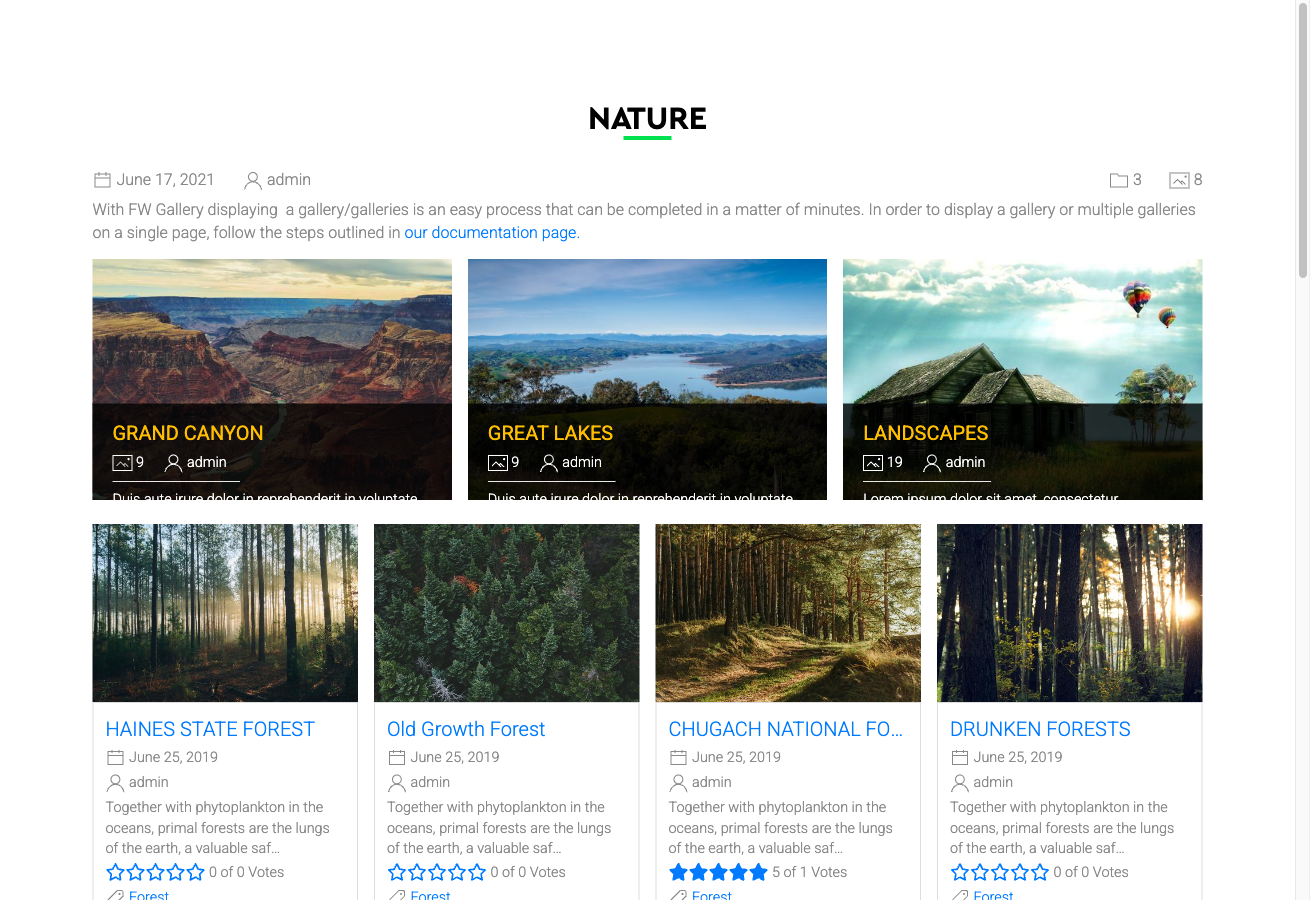
The Classic Design template provides a traditional grid layout for FW Gallery. It presents images in uniform, fixed-height cells with clean thumbnail frames and subtle borders, giving your gallery a familiar, uncluttered appearance that works well across a wide range of sites and image types.
Visual Style
Classic uses a uniform grid where every thumbnail cell shares the same dimensions. Borders are subtle rather than decorative, and a simple highlight or overlay appears on hover. Pagination controls follow a straightforward style. Because the layout handles both portrait and landscape images equally well, it suits mixed photo collections without requiring any special configuration.
When to Use Classic
Classic is the right choice when simplicity and broad compatibility matter more than decorative styling. It is well suited to:
- Sites where visitors expect a familiar gallery experience
- Collections that mix portrait and landscape images
- Projects where a neutral visual style must not compete with page content
Layout Coverage
The Classic template provides layouts for all standard FW Gallery display contexts:
- Gallery category page — the main file grid
- Single file detail page — individual image view
- User Section pages — front-end user management areas
- Module displays — gallery modules placed in widget positions
Activating Classic Design
The Classic template is included in the main FW Gallery package and does not require a separate download. To activate it:
- Open the FW Gallery Add-ons panel and ensure the FW Gallery – Classic addon is enabled.
- Go to Settings → Galleries tab and set Default design to Classic to apply it site-wide.
- To override for a specific gallery, open that gallery's settings and choose Classic from its design selector.
- To override for a specific menu item, set the design in the menu item's FW Gallery options.
Customising the Appearance
If you need to adjust colours, spacing, or borders beyond the default style, use the built-in CSS editor at Settings → CSS. Changes made there are preserved across updates and apply on top of the template's default stylesheet.