 FW Gallery – Documentation
Frontend Manager
The Frontend Manager plugin adds a frontend interface that lets registered users create galleries, upload files, and manage their own content — all without requiring access to the Joomla administrator panel.
Use Cases
- Community galleries — let registered members build and manage their own photo galleries directly on the site.
- User-generated content — photographers, event organizers, or contributors can upload and organize media independently.
- Restricted backend access — give content creators full gallery management capability without exposing the Joomla admin area.
Enabling Frontend Gallery Management
The plugin itself has no standalone settings panel. To activate the gallery management features in the User Section, open FW Gallery → Settings and enable Allow frontend gallery management. This adds a Categories option to the User Section menu, allowing users to create and manage galleries from the frontend.
Displaying the User Section
To give users access to the frontend interface, create a Joomla menu item and set its type to FW Gallery → User Section. Once the menu item is published, logged-in users can reach their personal management area through the front end of your site.
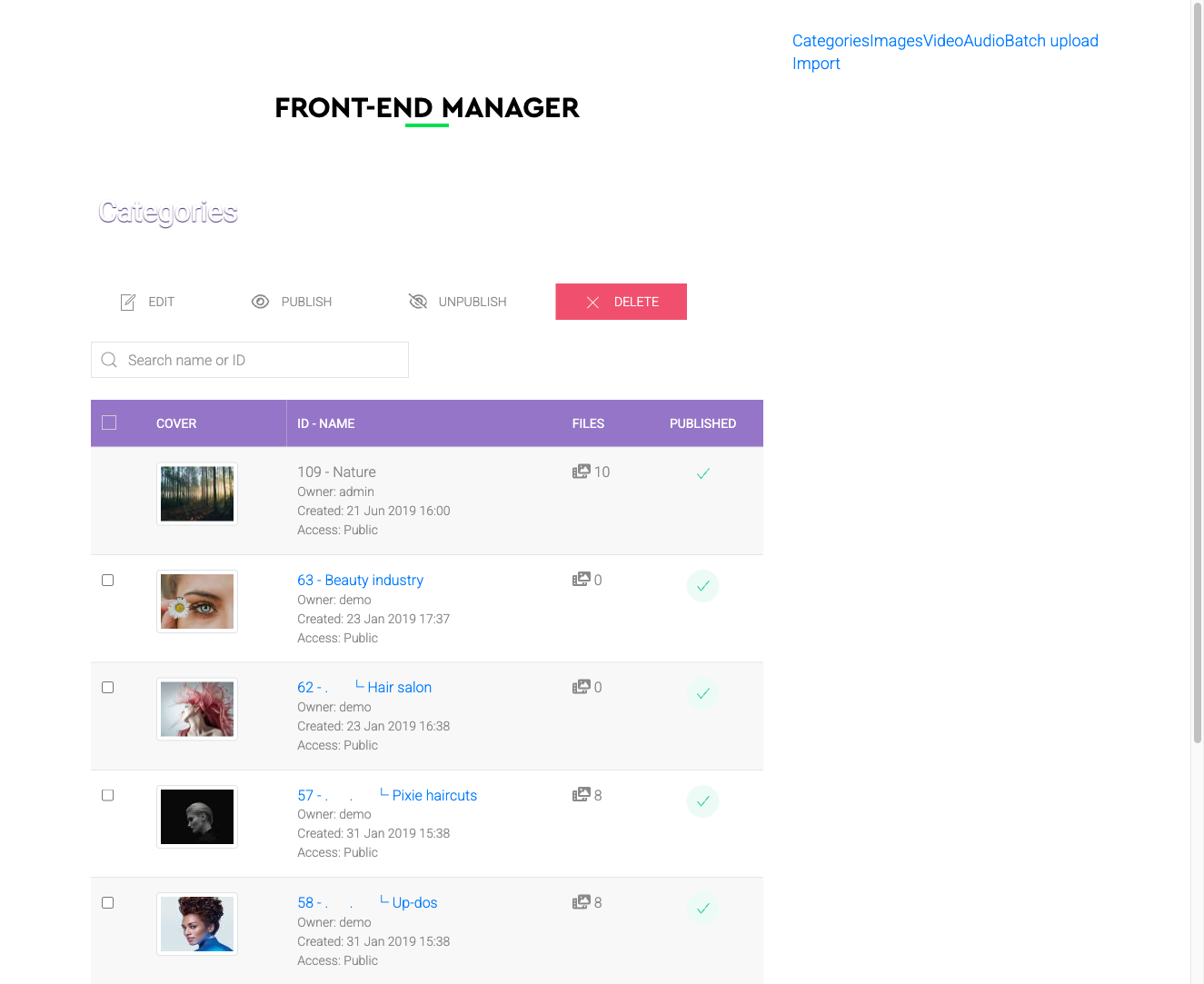
User Section Views
The User Section provides the following areas depending on your configuration:
- My Files — lists all files uploaded by the current user, with options to edit or delete each item.
- My Galleries — shows galleries owned by the current user.
- Add File — an upload form for submitting new files.
- Add Gallery — a form to create a new gallery.
Access and Permissions
Only authenticated (logged-in) users can access the User Section. Access is governed by Joomla's ACL system — ensure the relevant user group has core.create permission for com_fwgallery. By default, users can only edit or delete their own files unless they have been granted elevated permissions.
To install this addon, open the Add-ons panel inside FW Gallery. See Getting Started → Add-ons for details on free addons, paid addons, and site verification.