 FW Gallery – Documentation
Polaroid Design
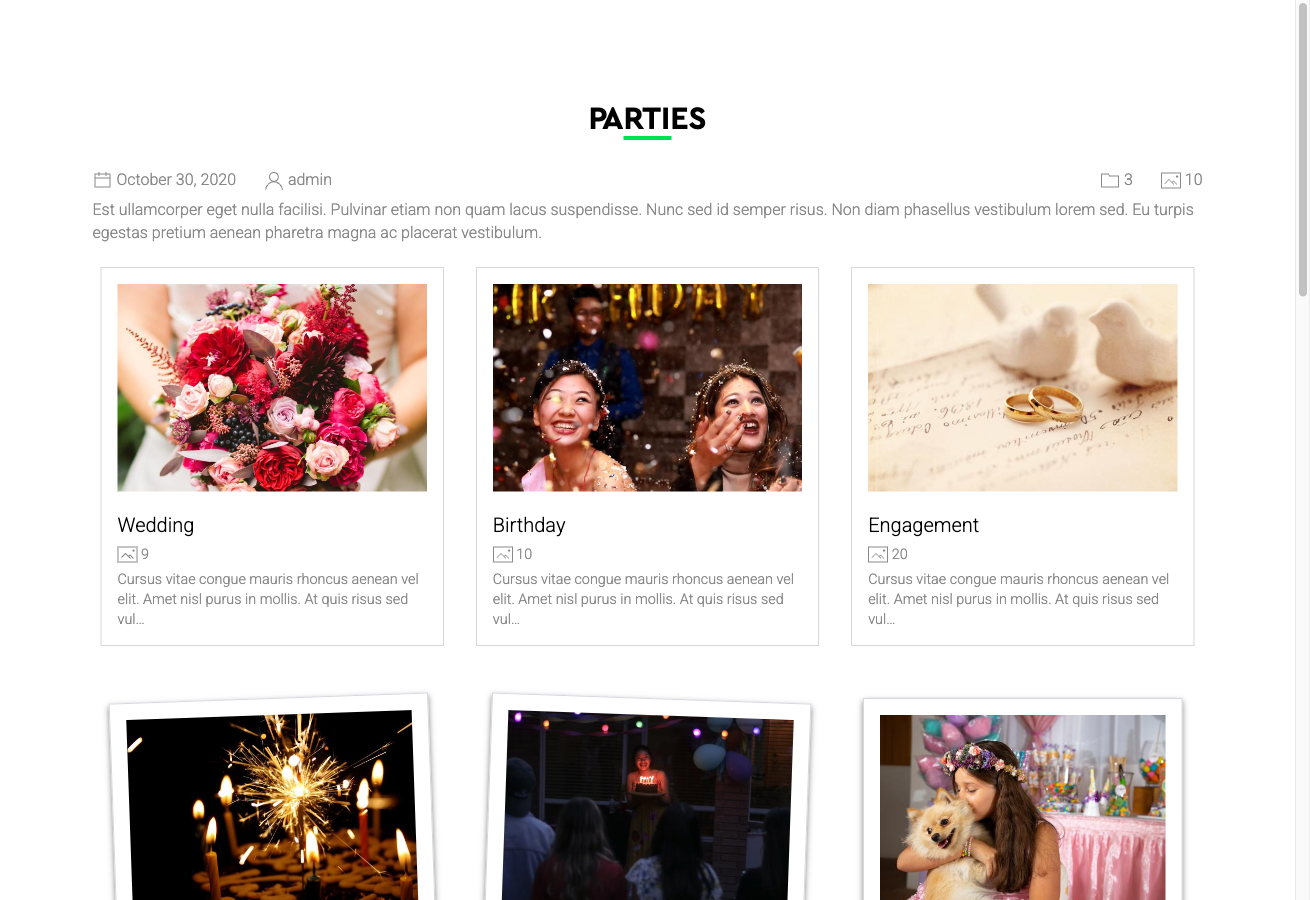
The Polaroid Design template gives your FW Gallery a retro, handmade aesthetic. Each image is presented inside a simulated Polaroid frame complete with a white border, subtle drop shadow, and optional slight rotation — evoking the look of physical photos scattered across a surface.
Visual Style
The Polaroid template applies the following visual treatment to every gallery item:
- White-bordered frames that mimic classic instant-print photos
- Box shadow to add depth and lift each image off the background
- Slight random rotation on items to create an organic, scattered-photos appearance
- Handwritten-style typography for captions, reinforcing the vintage aesthetic
The effect works best with square or near-square thumbnails. Landscape-oriented images still receive the full frame treatment, though the proportions will differ from classic Polaroid dimensions.
Gallery Presentation Strengths
The Polaroid design suits galleries where atmosphere and personality matter — personal photo collections, event albums, travel galleries, and portfolio showcases all benefit from the warm, tactile feel this template provides. The scattered rotation adds visual interest without requiring any manual arrangement.
Activating the Polaroid Template
The Polaroid design is included in the main FW Gallery package. Install it through the FW Gallery Add-ons panel — do not attempt to enable it manually through the Joomla Plugin Manager.
Once installed, you can activate the Polaroid design in three ways:
- Site-wide default: Go to Settings → Galleries tab → Default design and select Polaroid.
- Per gallery: Open the individual gallery settings and set the design to Polaroid.
- Per menu item: Override the design in the menu item parameters for any FW Gallery menu item.
Layout Coverage
The Polaroid template provides styled layouts across all major FW Gallery display contexts:
- Gallery category page — Polaroid grid view
- Single file detail page — individual image view
- User Section pages — front-end user-managed galleries
- Module displays — when FW Gallery modules use the Polaroid design
Customising the Appearance
Visual adjustments beyond the built-in parameters can be made through the Settings → CSS editor. Use this to fine-tune border width, shadow intensity, rotation range, caption font, or background colour to match your site's overall design.