Extra Fields
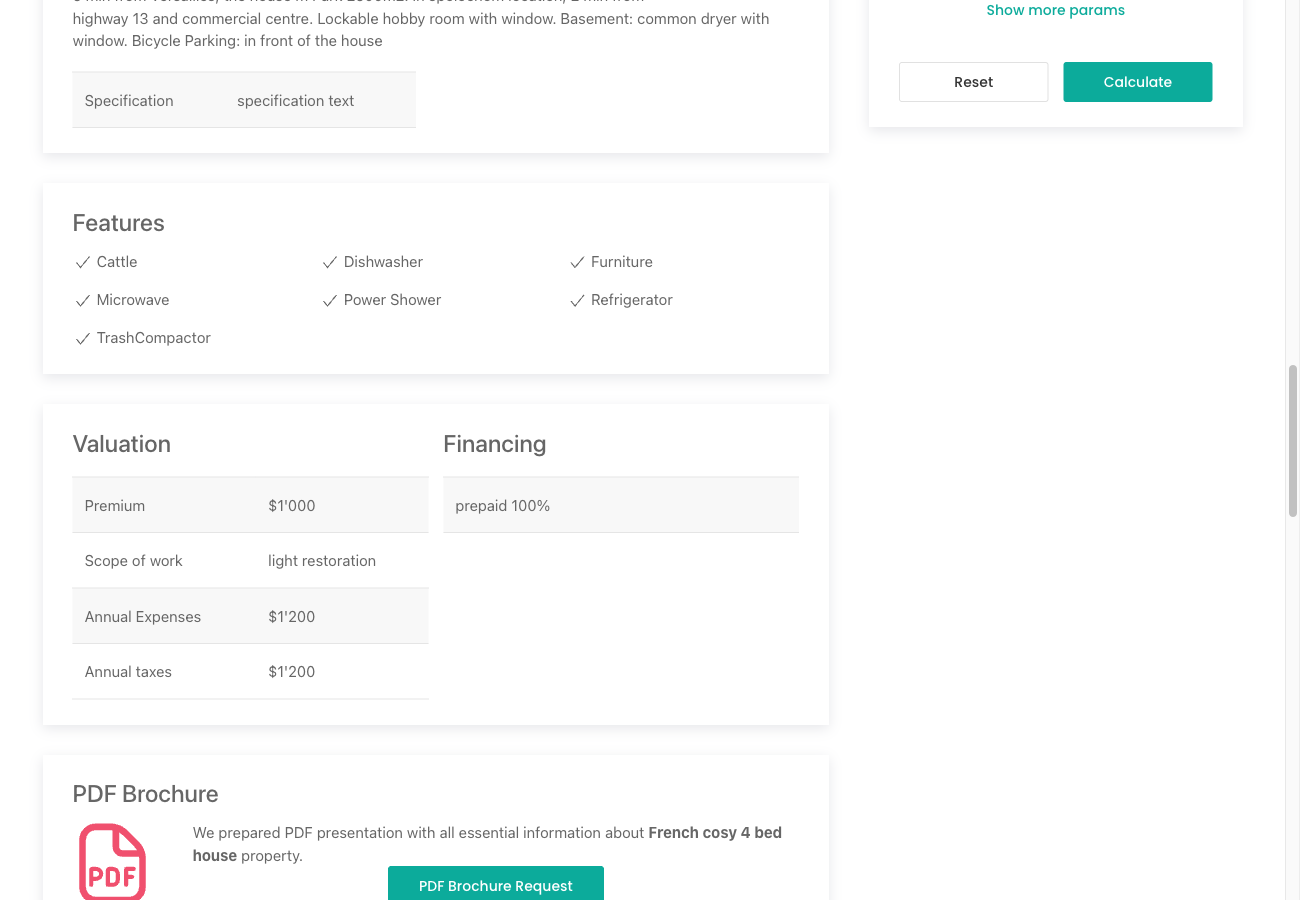
The FWRE Extra Fields addon adds a structured amenities checklist to the property form. Agents can tick which features a property has, and those selections appear as a Features block on the public property detail page.
What It Does
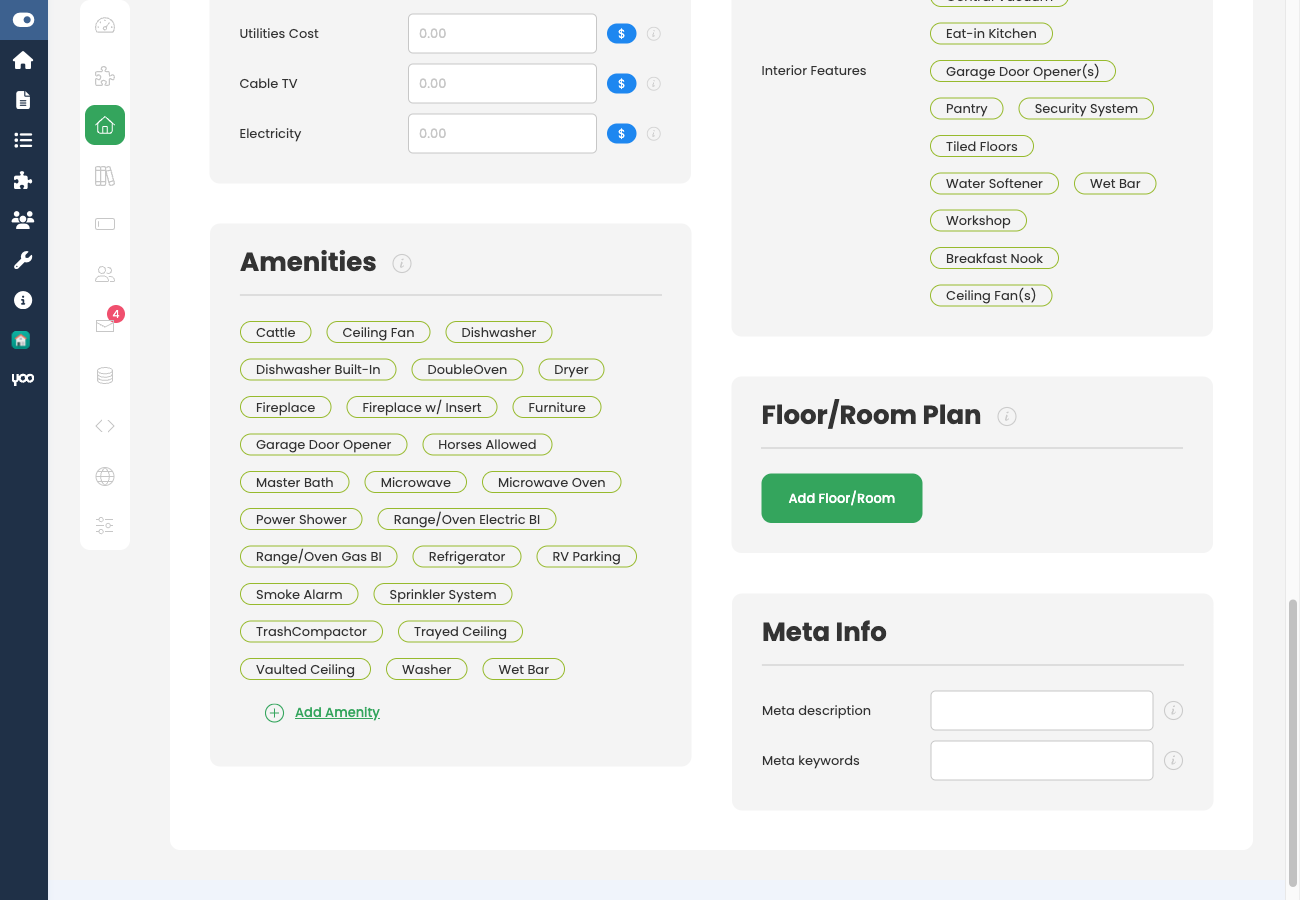
When the addon is active, each property gains an Amenities checklist in the edit form. Options in that checklist come from FW Real Estate → Dictionaries → Amenities, where you can add, remove, or rename entries (Pool, Garage, Balcony, Air Conditioning, and so on).
Selected amenities are also available as search filter values when you configure the Search module, so visitors can filter listings by specific features.
Amenities Checklist on the Property Form
Open any property for editing and scroll to the Features / Amenities field. Check every amenity that applies to the property and save. Unchecked amenities are treated as absent.
Frontend Display
Checked amenities appear in a Features block on the single property page, displayed with icons or checkmarks depending on your active template. How absent amenities are handled is controlled by the Features display setting.
Settings
Go to FW Real Estate → Settings → Addons tab → Extra Fields to configure the addon.
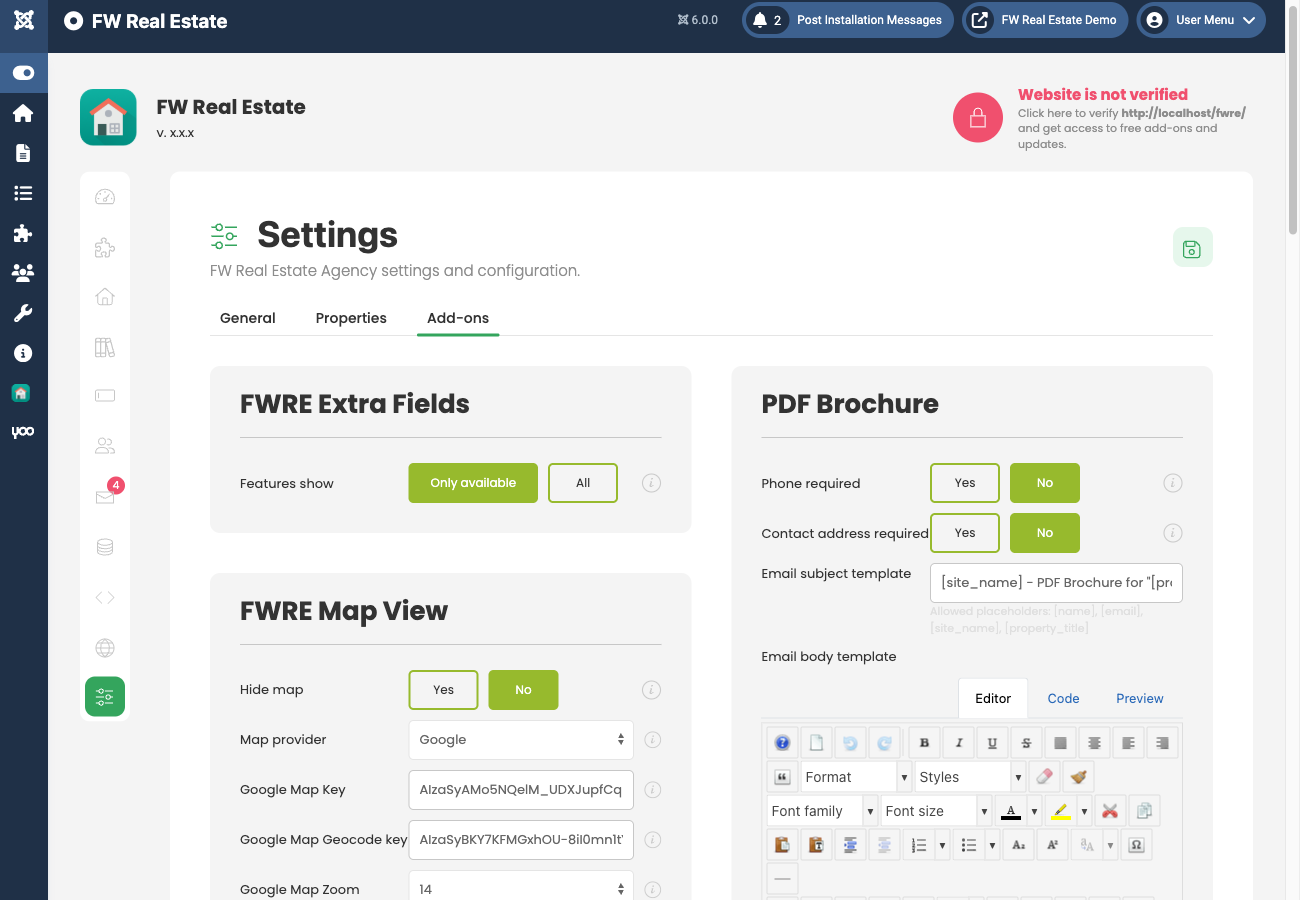
- Features display: Only available — the Features block shows only the amenities the property has. Absent amenities are hidden entirely. This is the default and produces a clean, concise listing.
- Features display: All — every amenity in the Amenities dictionary is shown. Amenities the property lacks appear greyed out or with an indicator, giving visitors a full comparison view.
An additional setting is injected into Settings → General tab → Localization by this addon:
- Room size measurement — sets the unit (for example, sqm or sqft) used for individual room dimension fields. These per-room fields are separate from the main Building Size and Living Area fields in the standard property form.
Managing Amenity Options
The list of available amenities is maintained in FW Real Estate → Dictionaries → Amenities. Add a new entry there to make it appear in every property's checklist. Removing an entry from the dictionary removes it from the form and from all frontend displays.
Relationship to Custom Fields
Extra Fields handles structured amenity data through the fixed checklist described above. For fully custom field types (text, number, dropdown, and others) added on a per-property basis, see the Custom Fields addon. Both addons can be active at the same time.
To install this addon, open the Add-ons panel inside FW Real Estate. See Getting Started → Add-ons for details on free addons, paid addons, and site verification.

