Understanding the Dashboard
Understanding the Dashboard
Once FW Real Estate is installed, a FW Real Estate entry appears in your WordPress admin sidebar. All management screens are grouped under this menu. The sections below describe what each area does.
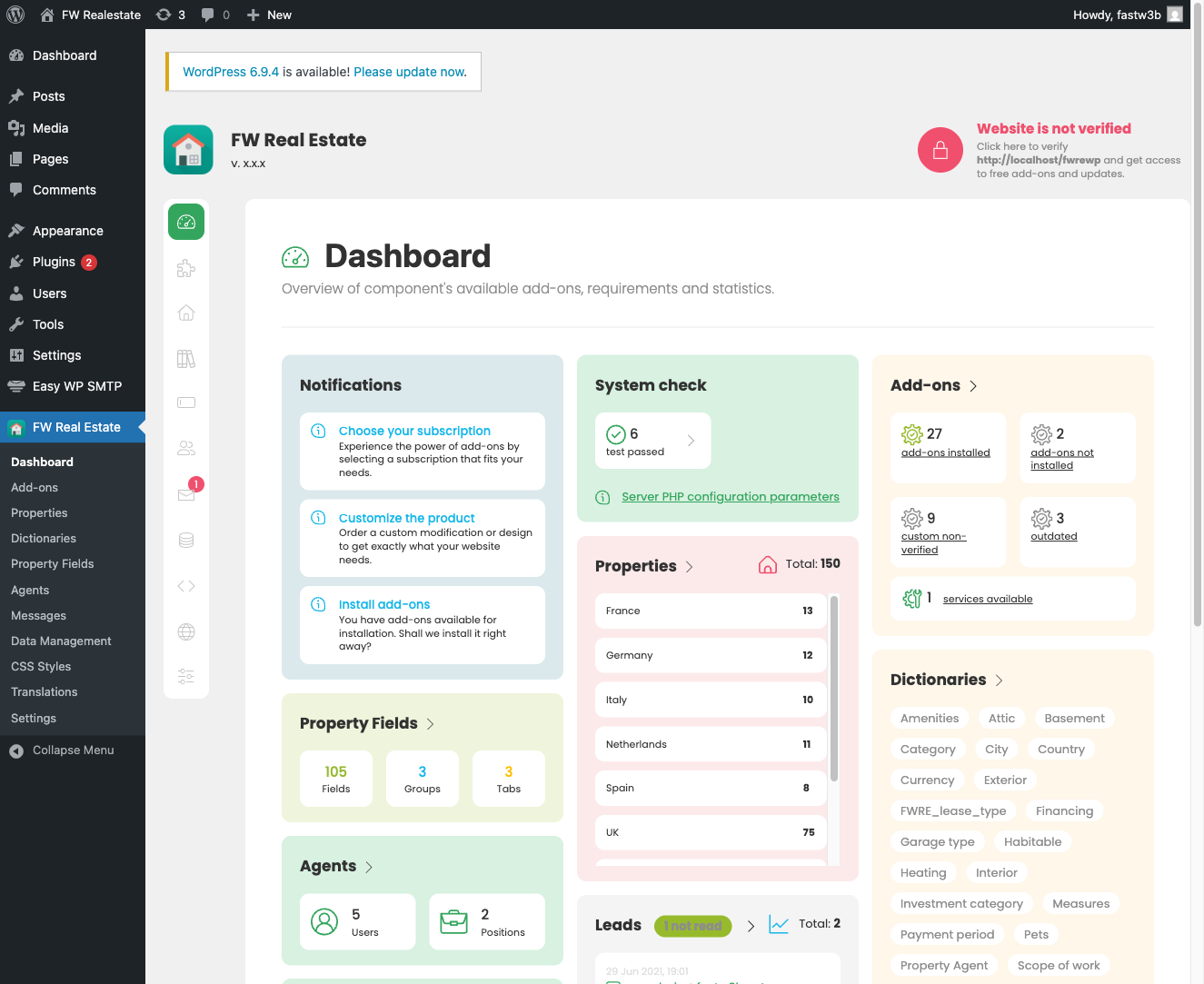
Dashboard
The Dashboard gives you an at-a-glance view of your site's current state. It surfaces anything that needs attention — unread messages, a pending component update, or failed system checks — so you can act without digging through individual screens.
Properties
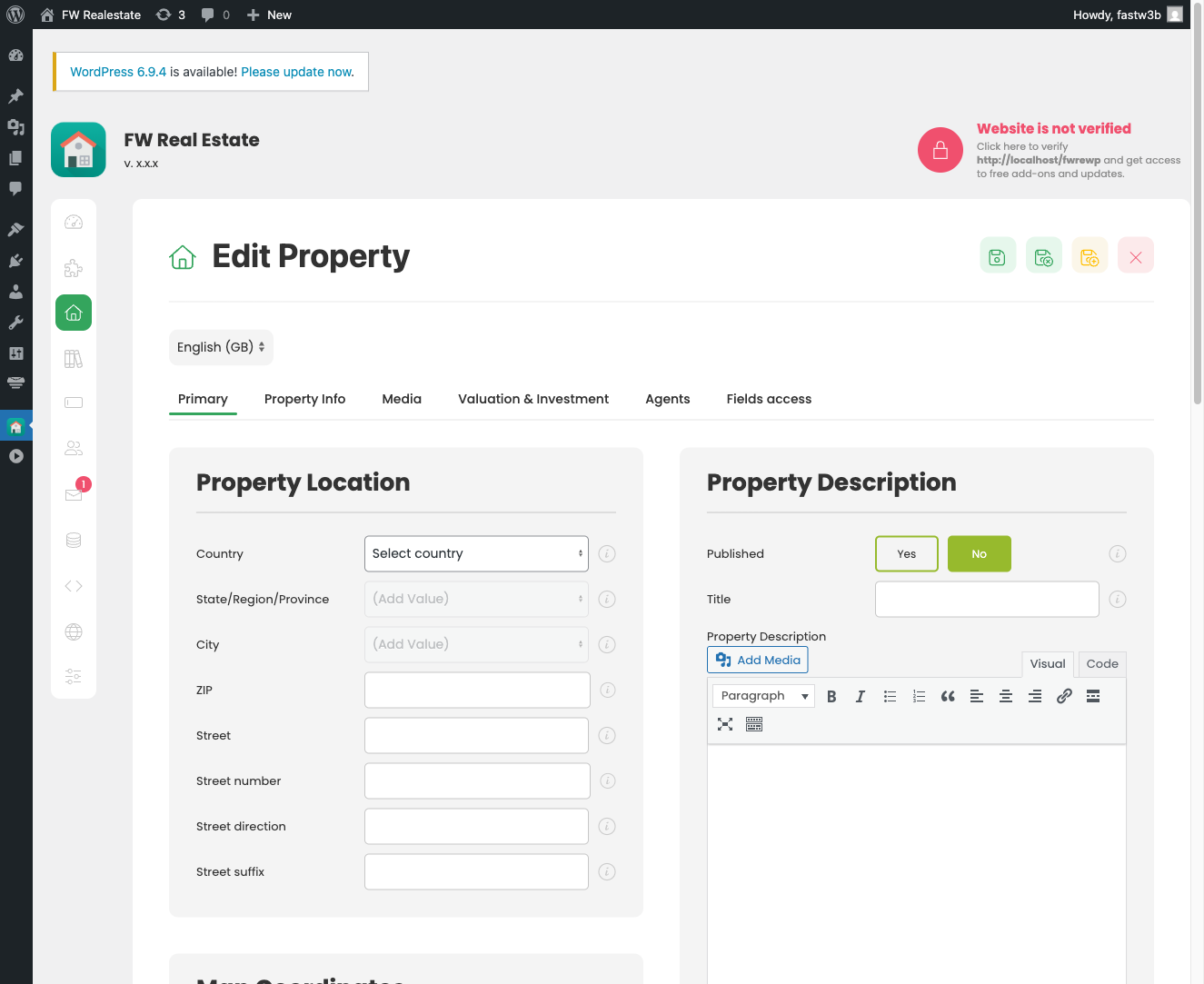
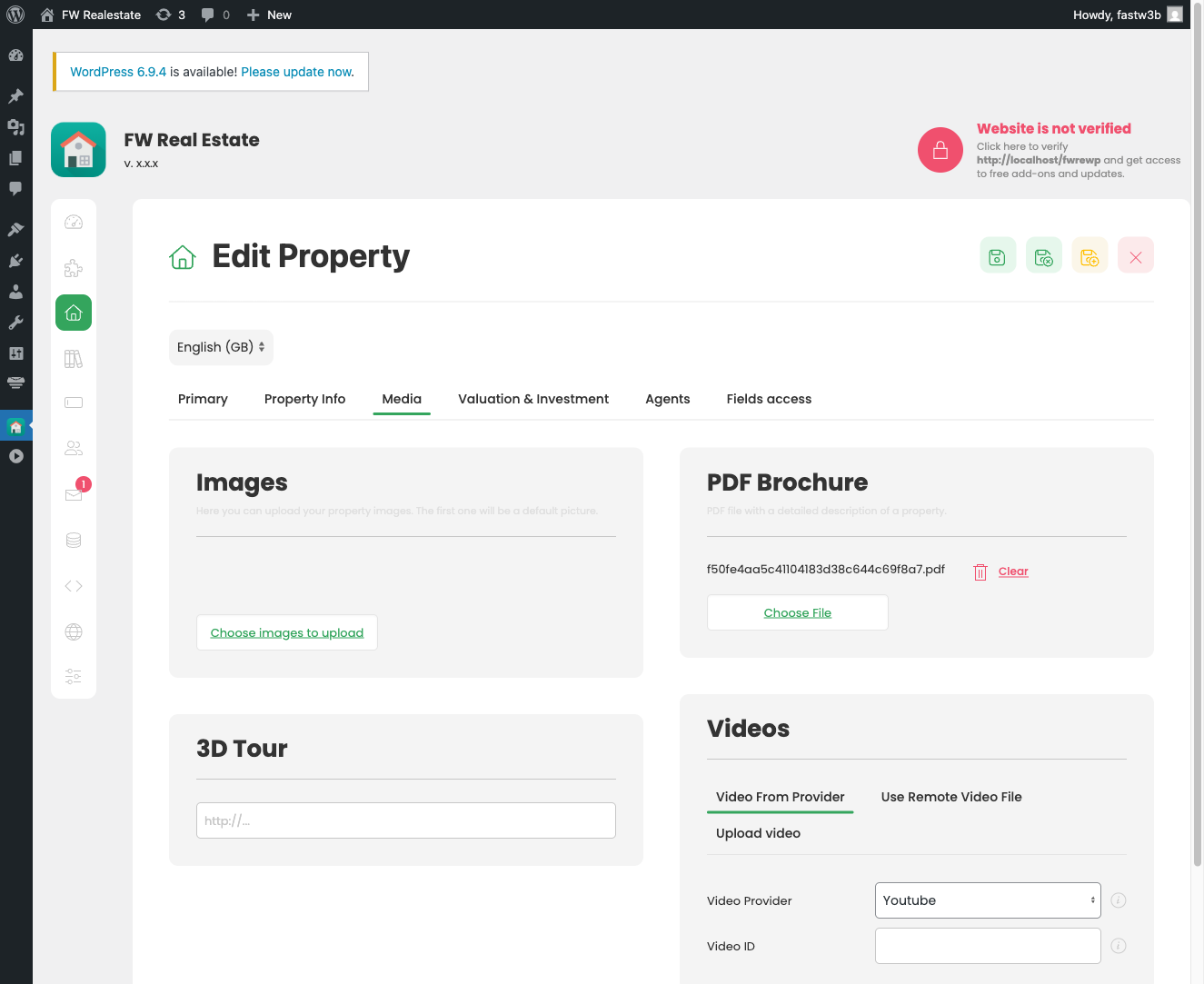
The Properties screen is where you add, edit, publish, and delete property listings. From here you manage each property's gallery, map location, assigned agents, pricing, and per-property field access. The property form is organised into tabs covering location, property details, media, and field visibility controls.
Agents
Agents manages agent profiles on your site. This section is available when the Agents add-on is enabled.
Dictionaries
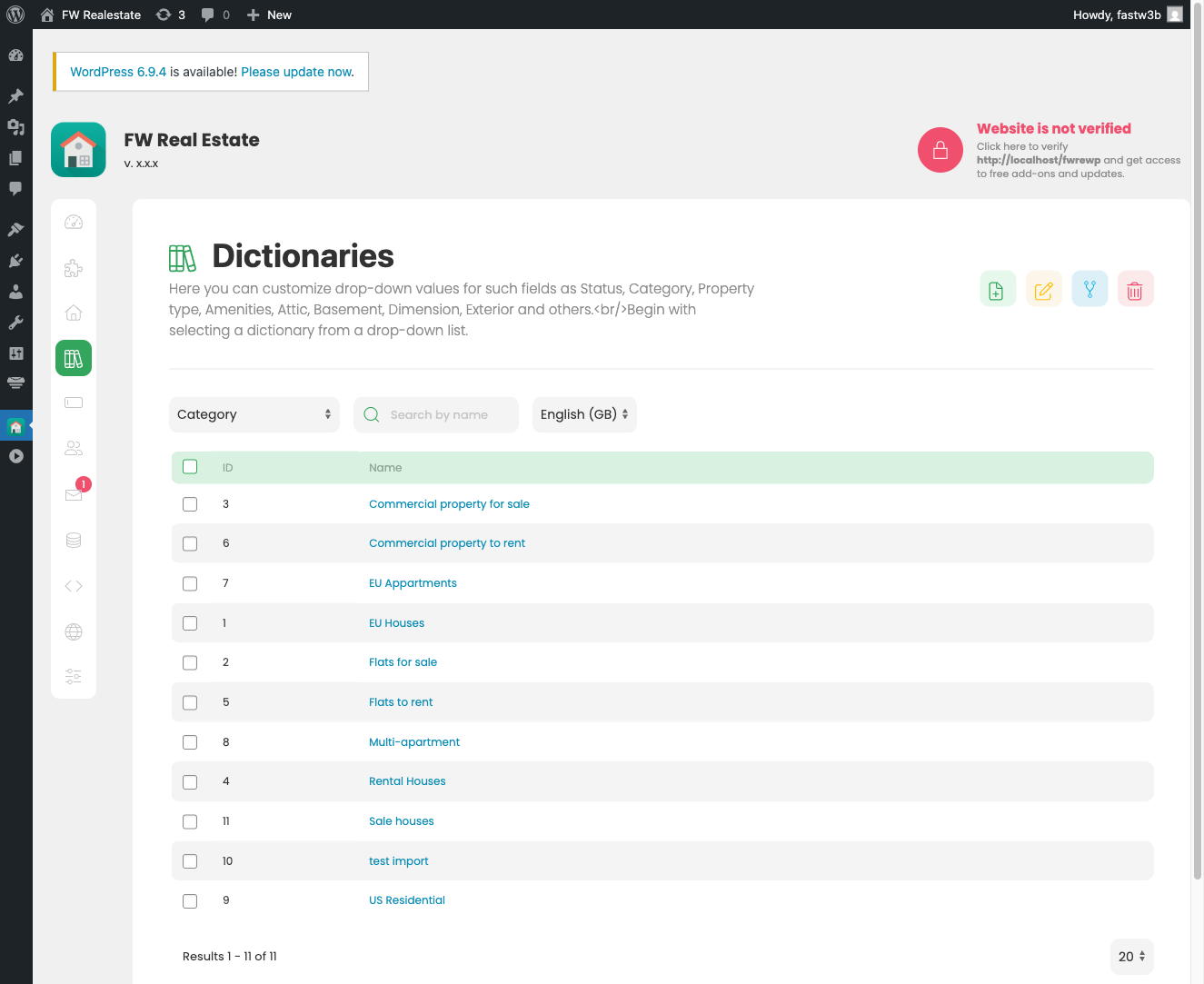
Dictionaries contains the managed value lists that power the property form — countries, regions, cities, categories, property types, measures, and structural descriptors such as interior style, heating type, and garage type. Add-ons contribute additional dictionaries while they are enabled. Values can be added on the fly from within the property form, so you are not required to pre-populate every list before you start.
Fields
The Fields screen lets you publish, unpublish, or restrict any property field by access level — both core fields and fields contributed by add-ons. Changes can be applied globally or overridden on an individual property via that property's Field Access tab.
Leads
Leads (labelled Messages in the admin menu) stores every property inquiry submitted through the site. Inquiries are saved here regardless of whether the Contact Form add-on is active, so no lead is lost to a mail delivery problem. Open this screen to read, manage, and respond to incoming inquiries.
Add-ons
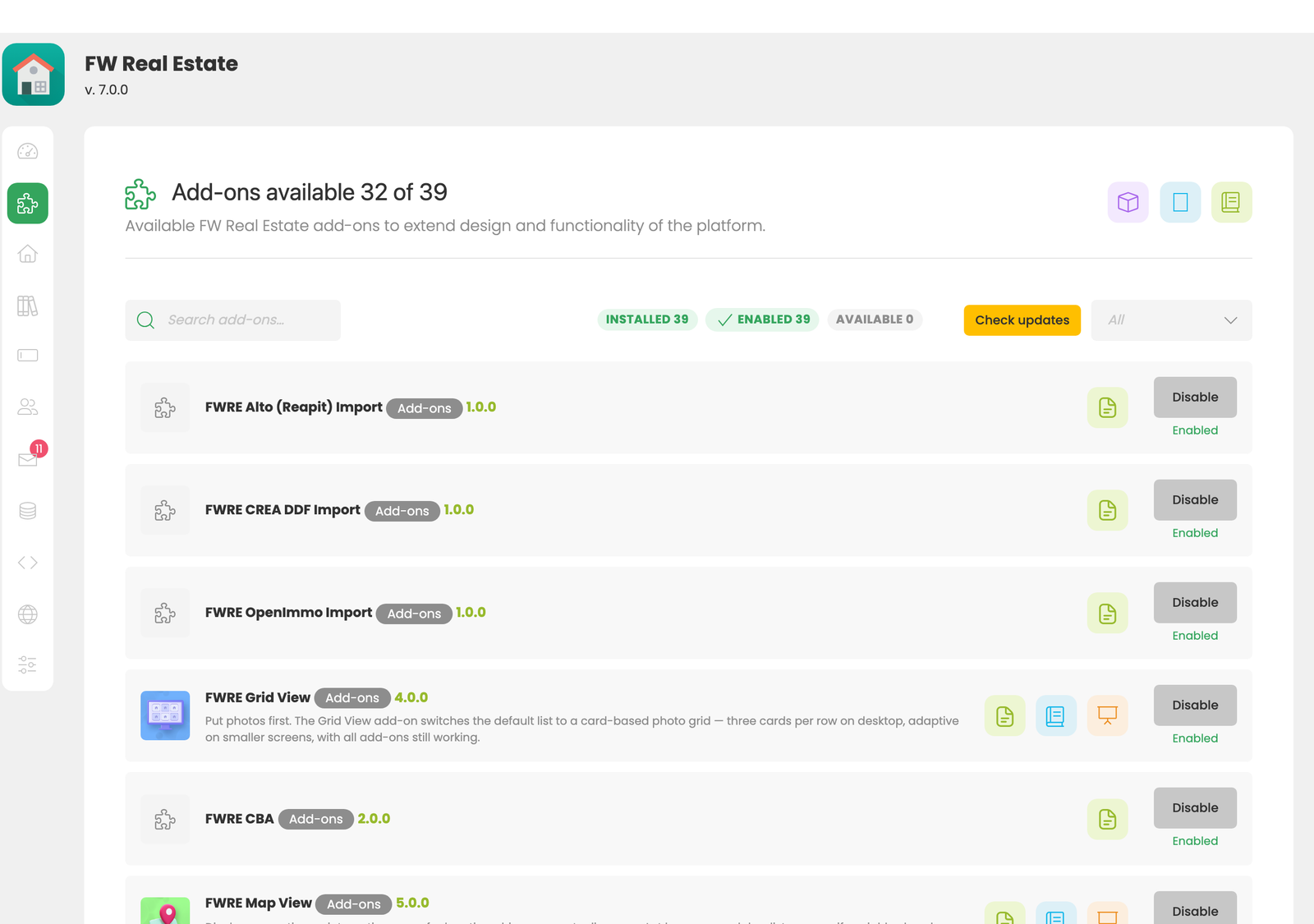
The Add-ons screen is the single place to enable, disable, and update add-ons. Add-ons are grouped into plugins (features), designs (front-end appearance), and modules (embeddable blocks). An add-on you disable is fully removed from the property form, the front end, and any exports — you are never carrying features you do not use.
Settings
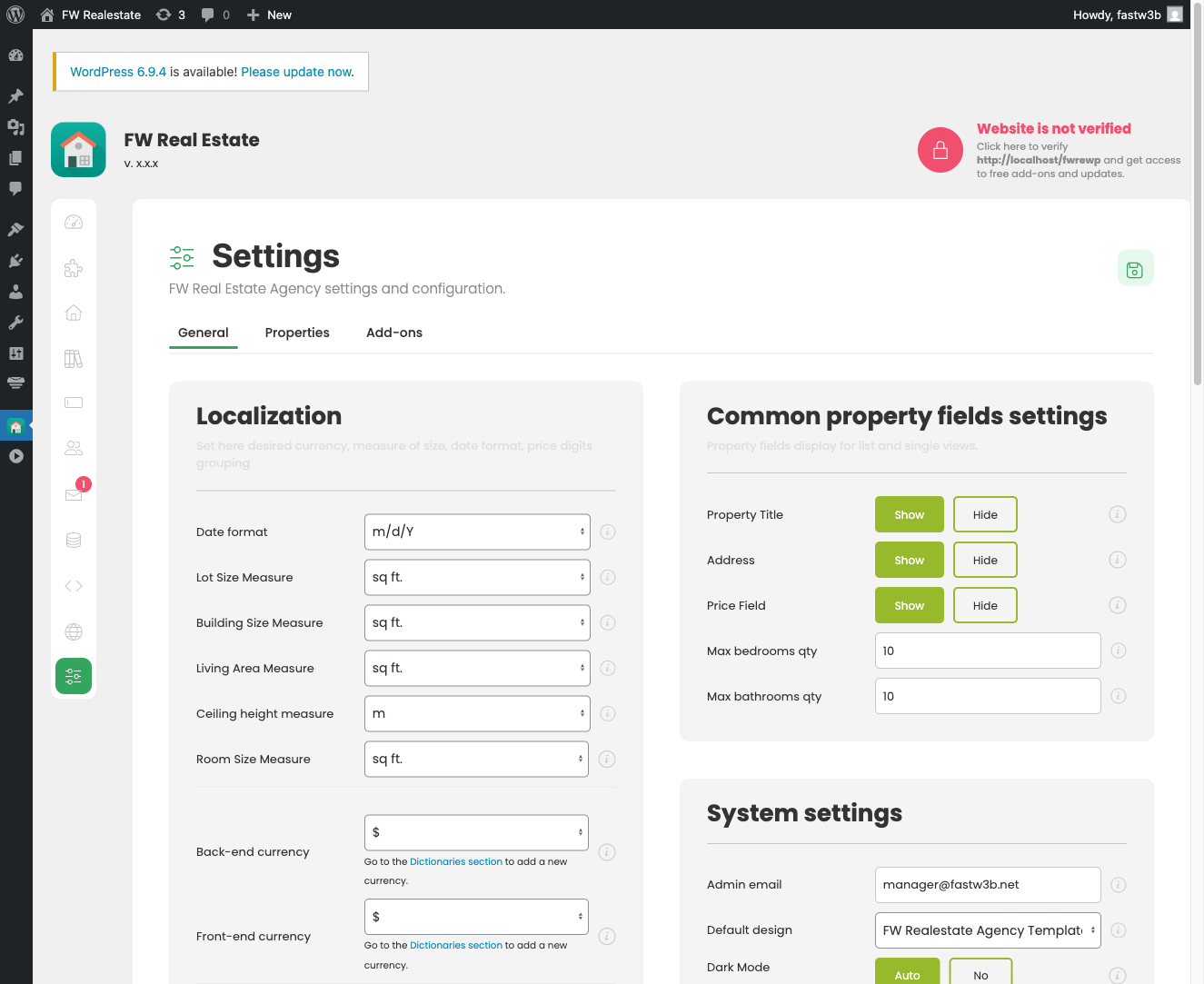
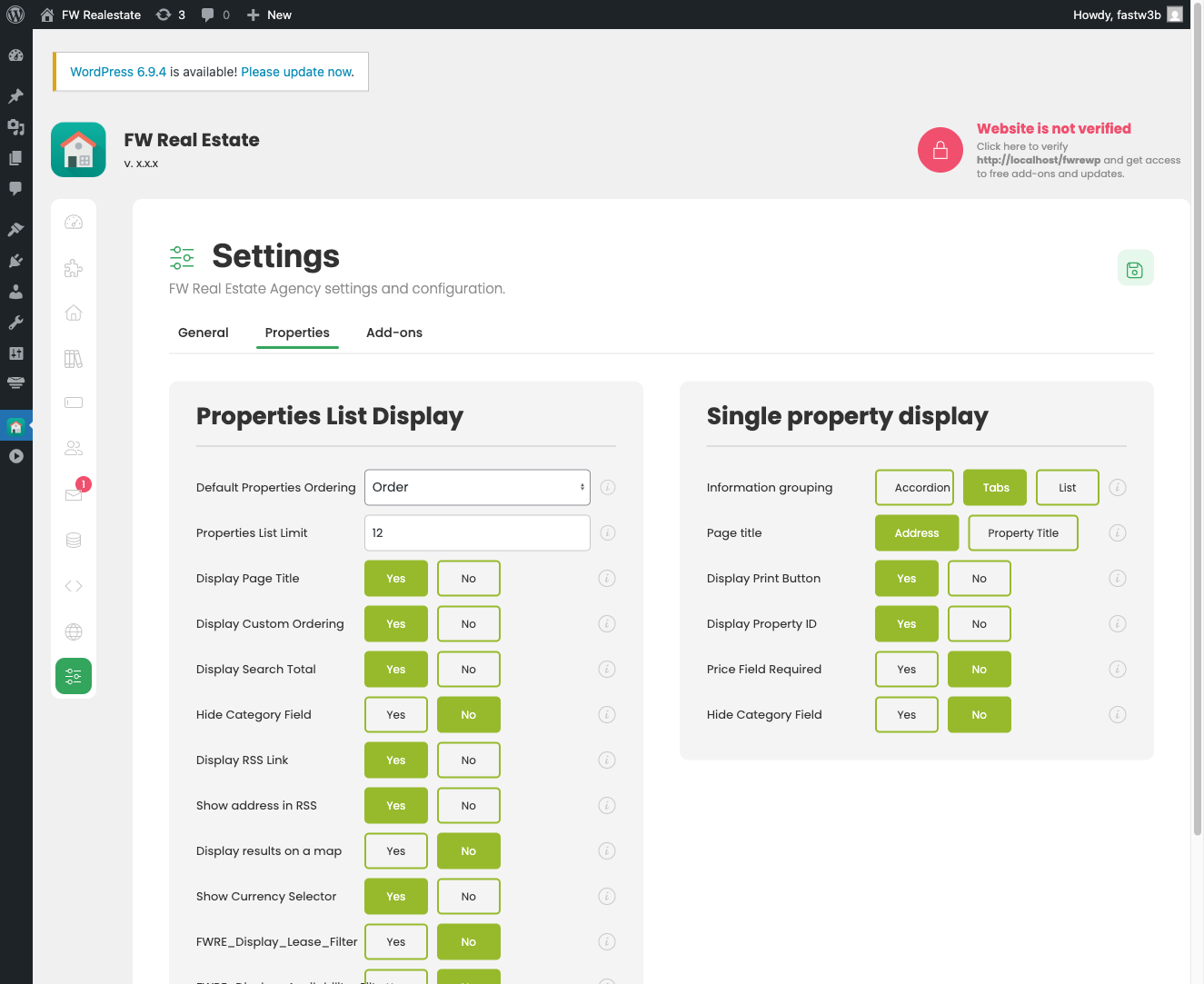
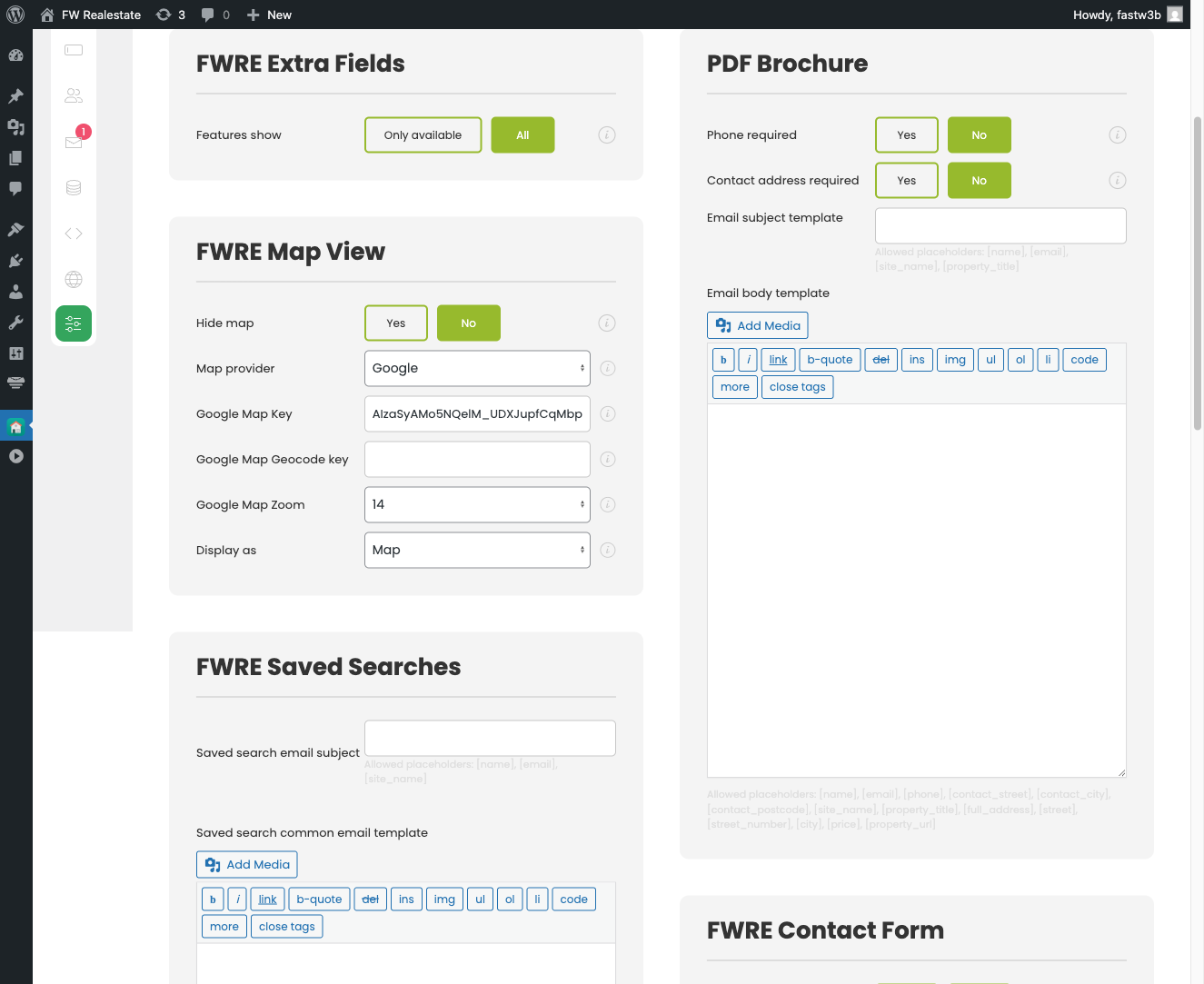
Settings (labelled Configuration) contains three tabs of global options:
- General — localisation, currency display, image sizing, captcha, and inquiry email templates.
- Properties — listing display options, single-property detail layout, and ordering defaults.
- Add-ons — settings contributed by each enabled add-on. If no add-ons are active, this tab is empty.
Data Management
Data Management provides tools for CSV import and export, and for creating backups of your property data. Use this section when migrating listings from another system or taking a snapshot before a major change.