Creating Your First Listing
Creating Your First Listing
Go to FW Real Estate → Properties and click New. The property form opens with several tabs. Work through the core fields below to publish your first listing.
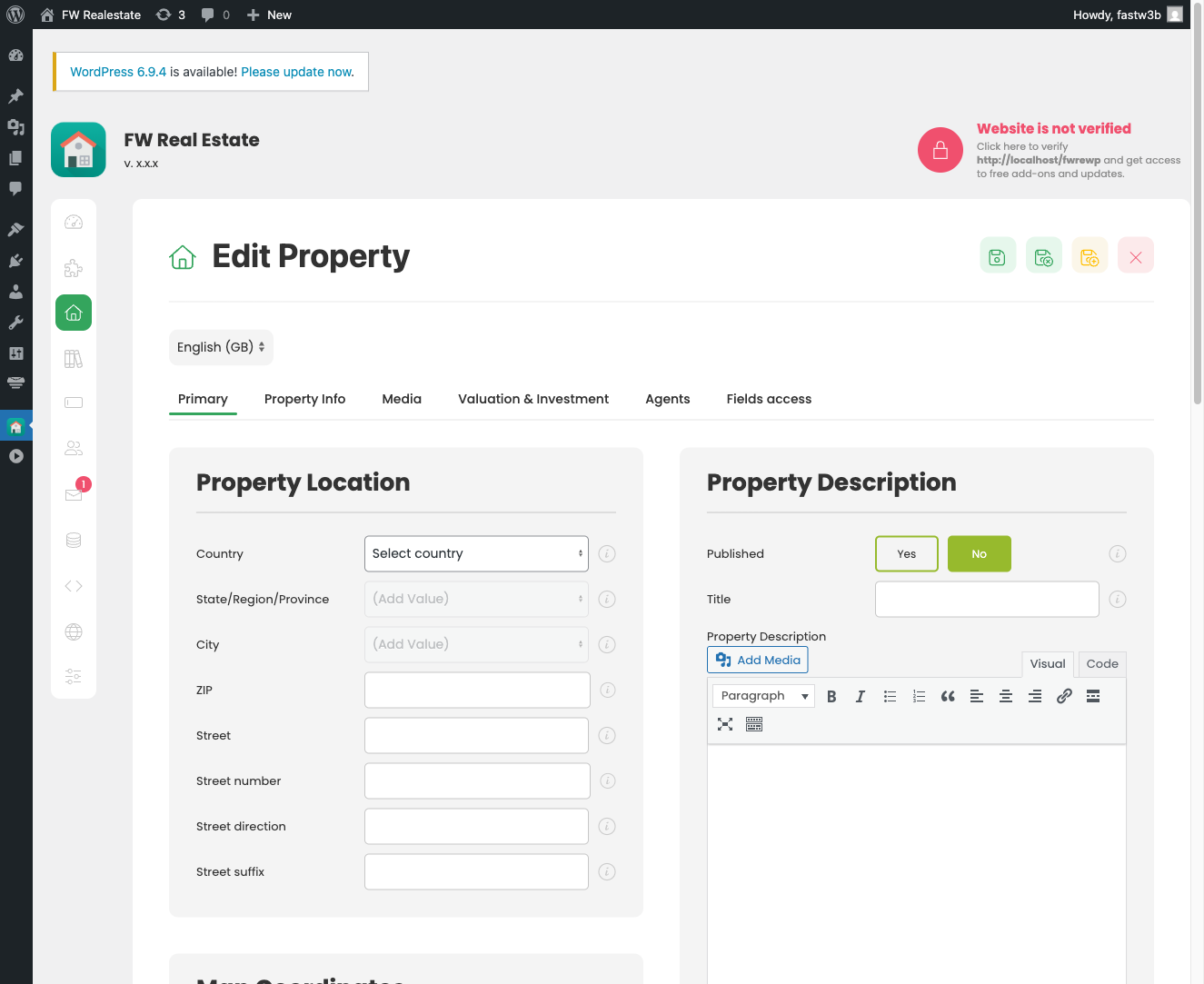
Primary Tab
The Primary tab contains everything about identity, location, and price.
- Title — enter the property name or headline. This appears on listing cards and the detail page.
- Published — set to Yes so the property appears on the front end when you save.
- Address fields — street, postcode, country, region, and city are all built in. The country → region → city fields work as a cascade: select a country first, then a region, then a city. If the city you need does not exist yet, you can add it on the fly directly from the form without leaving the page.
- Description — enter the full property description in the editor below the address block.
- Price — enter the asking price. The currency symbol and position are controlled in FW Real Estate → Configuration.
Property Info Tab
The Property Info tab holds structural details: bedrooms, bathrooms, lot size, year built, and the inquiry-recipient email address. Two important fields here use dictionary values:
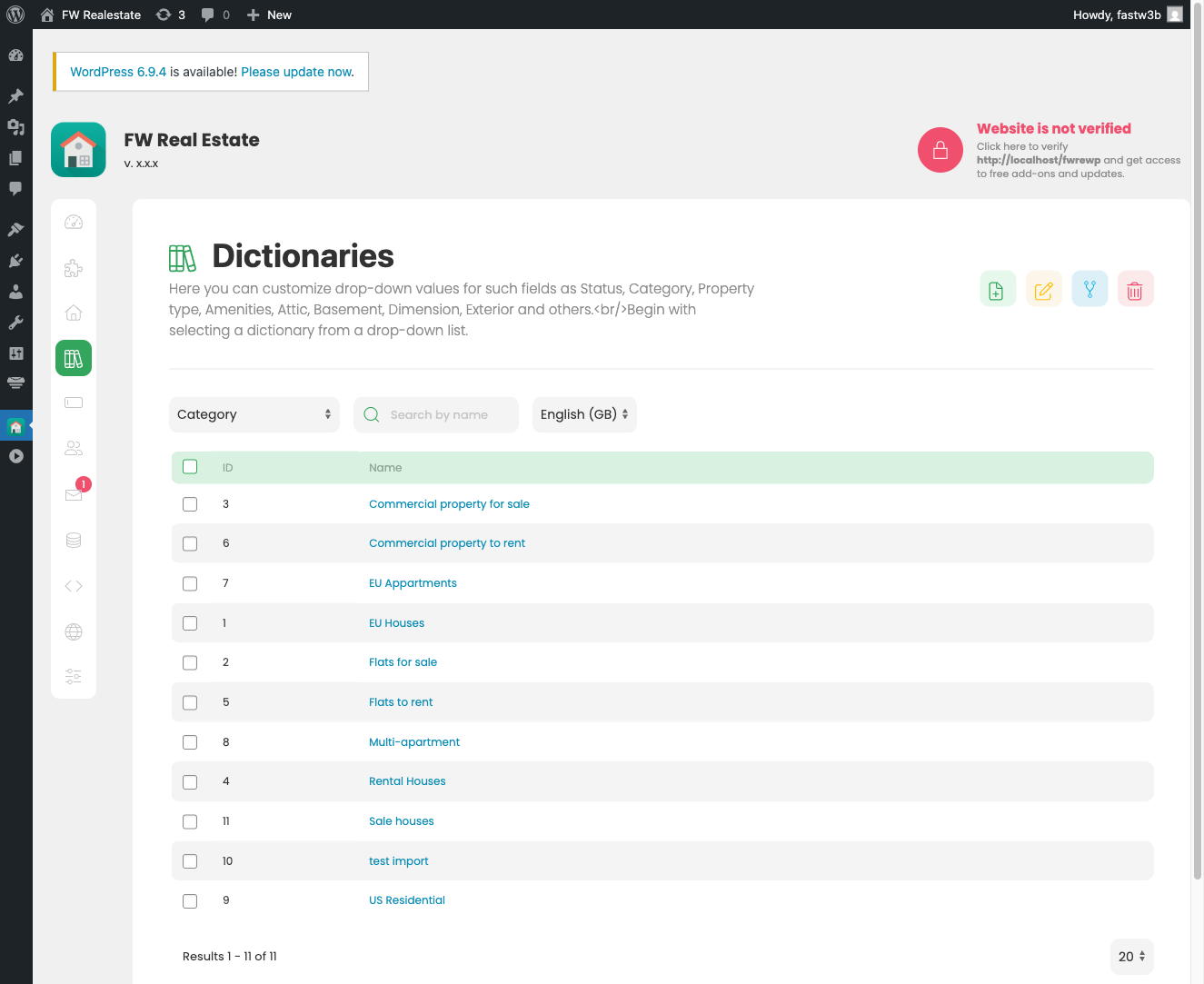
- Type — choose from your Types dictionary (house, apartment, commercial, land, etc.). If the type you need is not listed, type it and add it on the fly.
- Category — works the same way. New categories can be added directly from this field without navigating away.
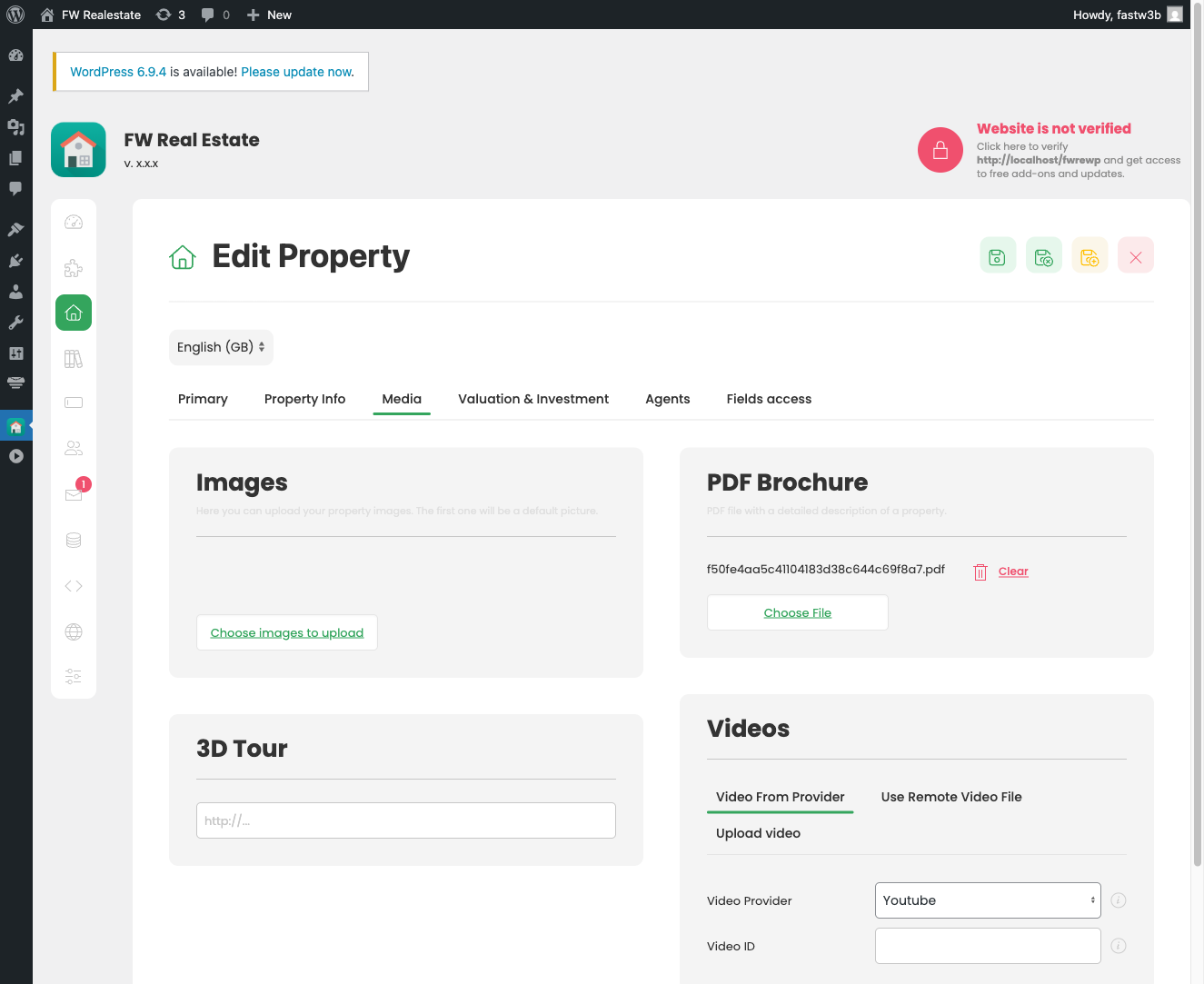
Media Tab
Open the Media tab to upload property photos. Drag and drop images onto the gallery area or use the upload button. Once uploaded, drag thumbnails to reorder them — the first image becomes the listing card photo.
Additional Tabs from Add-ons
Depending on which add-ons you have enabled, the form may show extra tabs — for floor plans, rental periods, investment data, amenities checklists, and more. Each add-on contributes its own fields, which disappear if that add-on is disabled. Complete any relevant fields before saving.
Saving and Viewing the Listing
Click Save or Save & Close when you are done. With Published set to Yes, the listing is immediately live.
FW Real Estate automatically creates a Properties page on your site when the component is set up. Visit that page to see your listing displayed in the default layout, complete with the search form and your new property card.