Map Not Showing
Map Not Showing
If maps are not appearing on your site, work through the causes below in order. Most map problems have one of five explanations.
Map View Add-on Not Enabled
Maps require the Map View add-on. Go to FW Real Estate → Add-ons and confirm it is installed and active. Without it, no map functionality is available on any page.
No API Key Entered
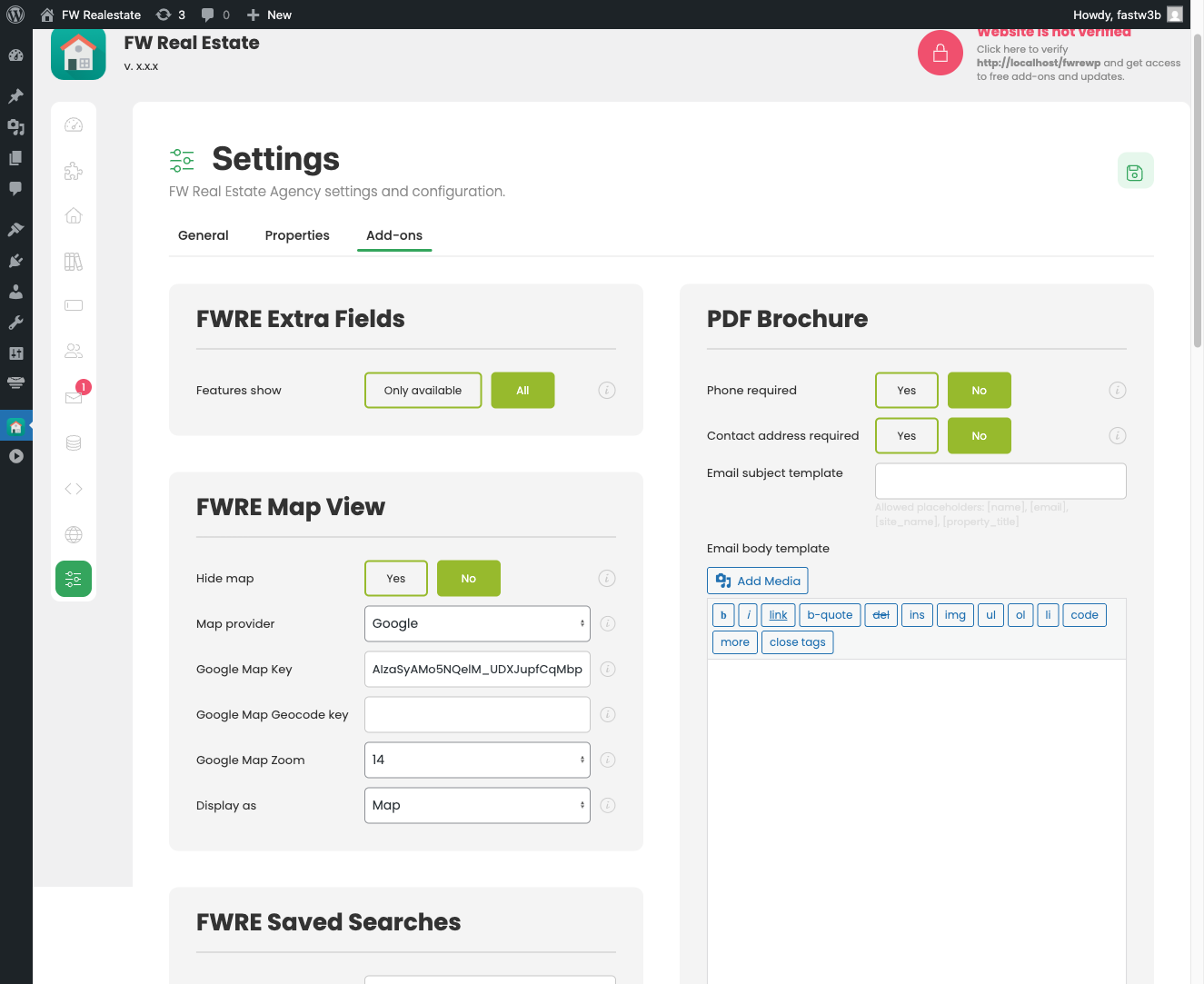
Go to Configuration → Add-ons → Map View and check that your API key fields are filled in. A missing key means Google loads the map and then covers it with an error overlay. If the map appears grey or overlaid with a message, the key is the first thing to check.
Wrong API Key Restriction Type
This is the single most common reason maps appear to work but properties never show up as pins. Google requires two separate keys with different restriction types:
- Google Maps API key — draws the map in the visitor's browser. This key must be restricted to HTTP referrers (websites) with your site's address. Enable the Maps JavaScript API and the Geocoding API on it.
- Google geocoding key — converts a property's address into coordinates when the property is saved. This request comes from your server, not from a browser, so it must be a separate key restricted by IP address. A referrer-restricted key silently fails for server-side requests.
If you are using the same key for both fields, that is why addresses are not being geocoded and properties are not appearing on the map. Create a second key with the correct IP restriction and enter it in the Google geocoding key field.
Property Coordinates Not Set
A property with no coordinates does not appear on the map. It still shows in list and search results — it simply has no pin. Open any property in the admin and check its map. Coordinates can be set by typing the address and saving (geocoding runs on save), dragging the marker to the correct position, or entering latitude and longitude directly.

To find all properties that are missing coordinates, go to the properties list in the admin. Any record without coordinates is flagged with a warning icon, so you can identify and fix them without waiting for a visitor to report a missing pin.
API Quota Exceeded
Google Maps API keys have usage quotas tied to your Google Cloud billing account. If your quota is exhausted, the map stops loading or geocoding stops working until the quota resets or billing is updated. Check your Google Cloud Console for quota errors or billing alerts if the map was working previously and has stopped without any configuration change.

If you need to take maps off the site temporarily while resolving a key or billing issue, enable Hide the map in Configuration → Add-ons → Map View. This removes maps from all property pages without disabling the add-on, so the map listing layout and radius search filter remain intact.