 FW Real Estate – Documentation
Creating Your First Listing
Creating Your First Listing
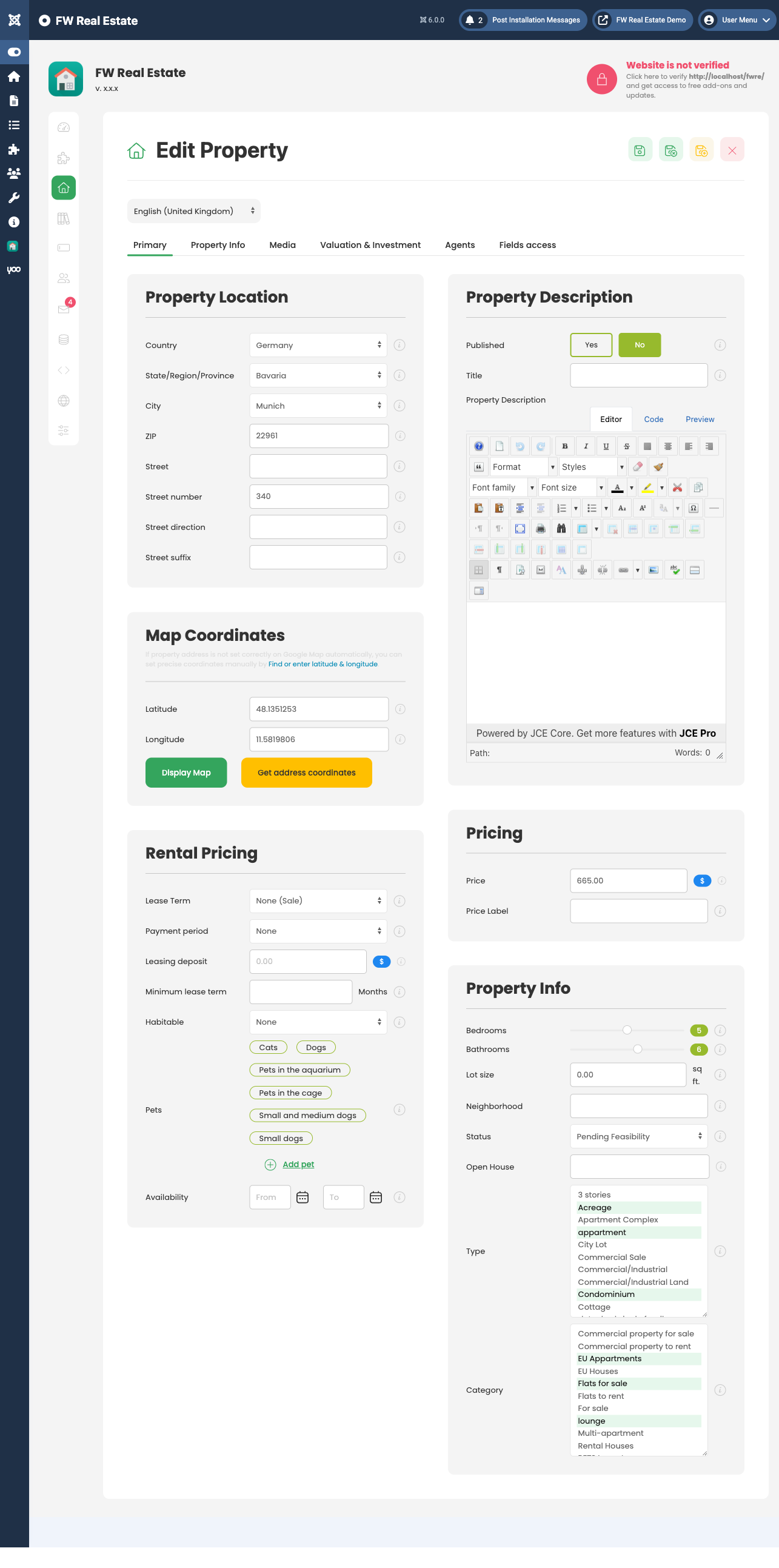
Adding a property to FW Real Estate takes only a few minutes. Navigate to FW Real Estate → Properties and click New in the toolbar to open a blank property form.
Filling in the Core Fields
The form is organised into tabs. Start on the Primary tab:
- Title — the property's display name across the site.
- Description — the full listing text. Use the editor to format it as needed.
- Address — four built-in fields: Country, Region, City, and Street / Postcode. Country, Region, and City are linked cascades drawn from the Dictionaries — a city must belong to a region, which must belong to a country. If values do not yet exist you can type them directly in the form and they will be added to the dictionary on the spot. No pre-population is required before you start.
- Price — enter the listing price. By default this field is optional. If you want to make it mandatory (recommended, since properties without a price are skipped by price-range filtering), turn on Price Field Required in Configuration → Properties.
Switch to the Property Info tab to set the property Type and Category. Like address values, types and categories can be added on the fly — just type a new value and it is saved to the relevant dictionary automatically.
Uploading Images
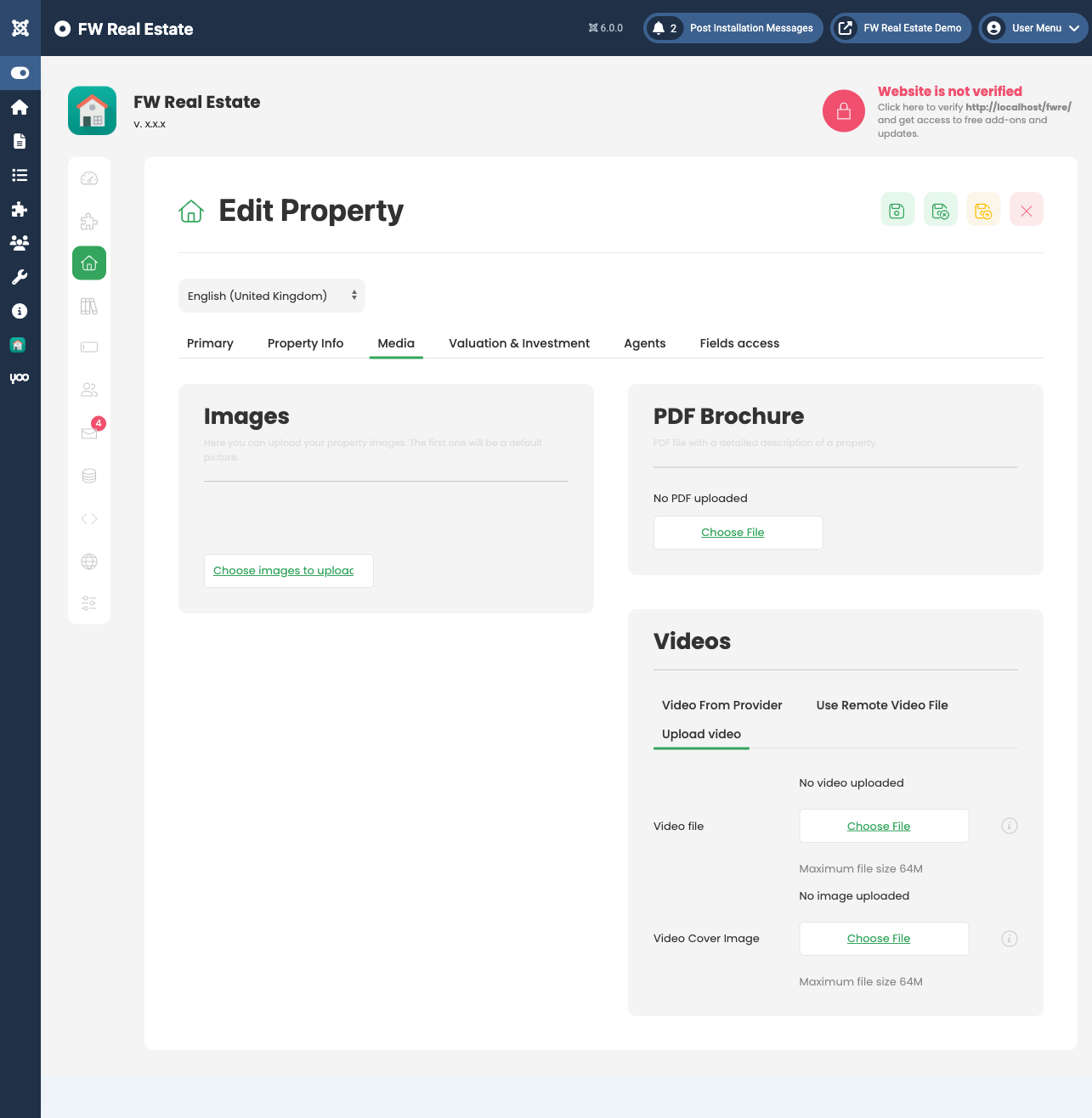
Open the Media tab. Drag and drop photos into the gallery area, or use the upload button. Once uploaded, drag thumbnails to reorder them — the first image is used as the listing card photo.
Setting the Publication State
Find the Published field on the Primary tab and set it to Yes. This is separate from saving — a saved property with Published set to No will not appear on the site. You can also toggle publication later directly from the Properties list without opening the form.
Saving the Property
Click Save or Save & Close in the toolbar. No fields are mandatory by default, so the property saves immediately. Once saved it will appear on the front end if Published is set to Yes and a Properties Listing menu item exists on your site.
Additional Fields Added by Plugins
Many plugins extend the property form with extra tabs and fields. Install and enable these from FW Real Estate → Add-ons. The following are available:
- Map View — adds a coordinate picker on the Location section of the Primary tab, so you can pin the property precisely on a map.
- Agents — adds an agent assignment field so you can link the property to one or more agent profiles.
- Status Labels — adds a status badge field (for example: For Sale, Sold, Under Contract).
- Featured — adds a toggle to mark the property as featured.
- Video — adds a Videos section on the Media tab for embedding video links.
- 3D Tour — adds a panorama URL field on the Media tab.
- Floor Plans — adds a dedicated Floor Plans tab with room-level detail.
- Open House — adds an Open House tab for scheduling viewing events.
- Brochure — adds a brochure template selector on the Media tab.
- Property Fields — adds an Amenities checklist; Neighborhood, Builder, Subdivision, and School District fields; Attic and Basement descriptors; and a Valuation & Investment tab.
- Custom Fields — adds fully custom fields you define yourself.
For a complete reference of all available fields and tabs, see the Property Fields Reference section.