 FW Real Estate – Documentation
Quick Start Guide
Quick Start Guide
After installing FW Real Estate, four steps take you from a fresh install to a working property listing.
Step 1 — Connect Your Website
Until your site is verified, add-ons cannot be installed and updates will not arrive. Look at the FW Real Estate admin header: it shows a lock icon, your domain in red, and the message This website is not verified. Click the Connect button beside it — the lock icon and the red domain text do the same thing. If you navigate to FW Real Estate → Add-ons first, the screen shows a Connect to install prompt that also starts the process.
Clicking Connect opens your fastw3b.com client section in a new tab. Your site is registered there automatically, and the verification key is sent straight back — you are returned to the FW Real Estate admin already verified. There is no key to copy, no field to paste into, and no further dialog to complete.
Once verified, everything your subscription entitles this site to is installed at that moment.
Step 2 — Manage Add-ons
FW Real Estate → Add-ons is the only place to manage add-ons. They do not appear in Joomla's Plugin Manager and there is nothing to do there.
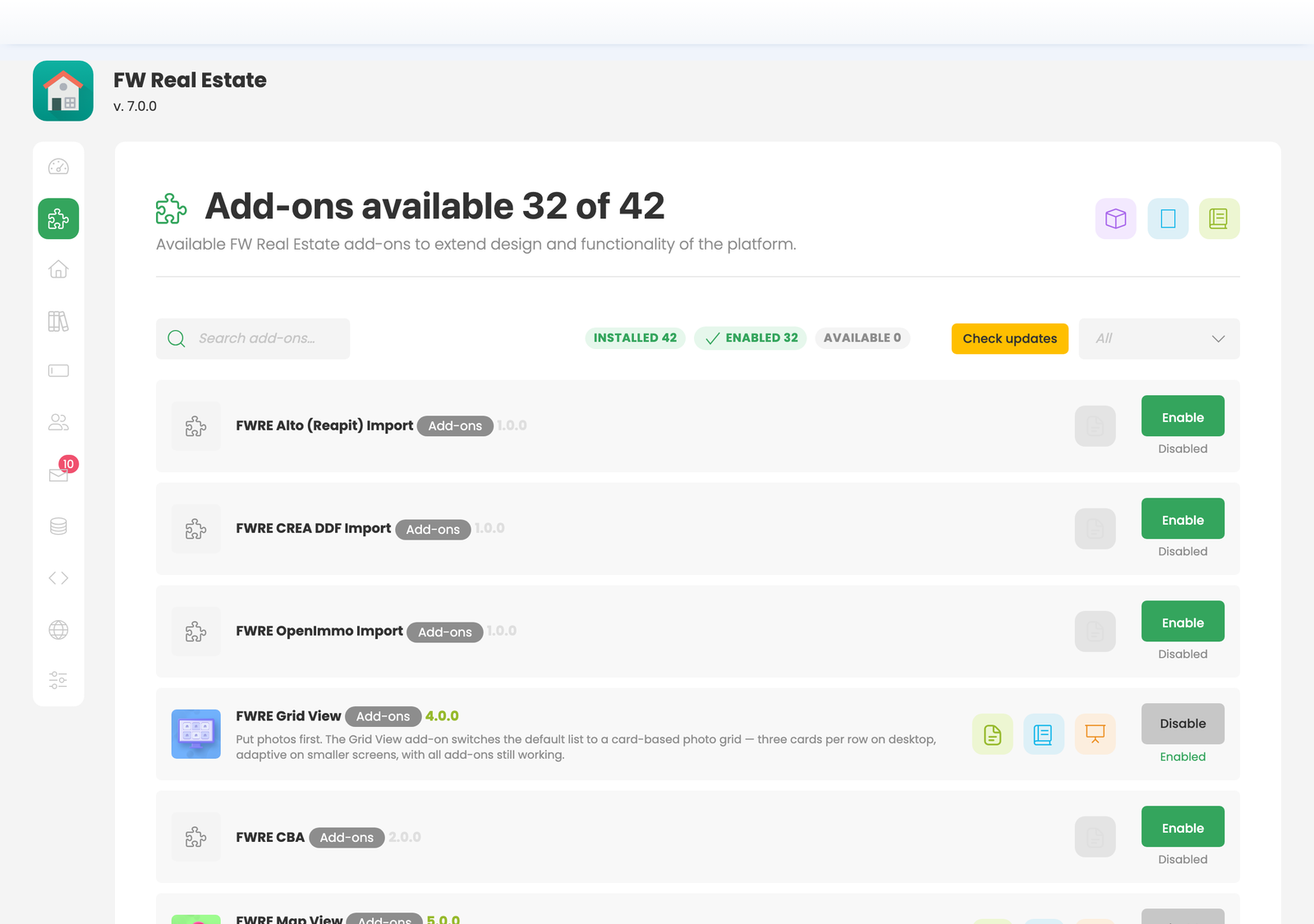
Add-ons are grouped into three types:
- Plugins — feature add-ons such as maps, favourites, agents, floor plans and SEO.
- Designs — the front-end appearance. The Official design is bundled with the package.
- Modules — embeddable blocks such as a search widget. Enabling a module add-on also installs a real Joomla site module, which you then place and configure under Content → Site Modules like any other Joomla module.
The screen shows how many add-ons are available and how many are currently installed (for example, 7 of 37). You can filter by name or status. For each add-on you can Install it if not yet installed, Enable or Disable it, Remove a disabled add-on, or Update it when a newer version is available — an Update button appears automatically when one is ready. Opening the Add-ons screen also pulls down anything newly entitled by your subscription.
A disabled add-on is genuinely inactive — its fields disappear from the property form and its output is removed from the front end. Only enable what you need.
Step 3 — Create a Menu Item for the Properties Listing
The property listing is exposed to visitors through a standard Joomla menu item. Create a new menu item and set its type to FW Real Estate → Properties Listing.
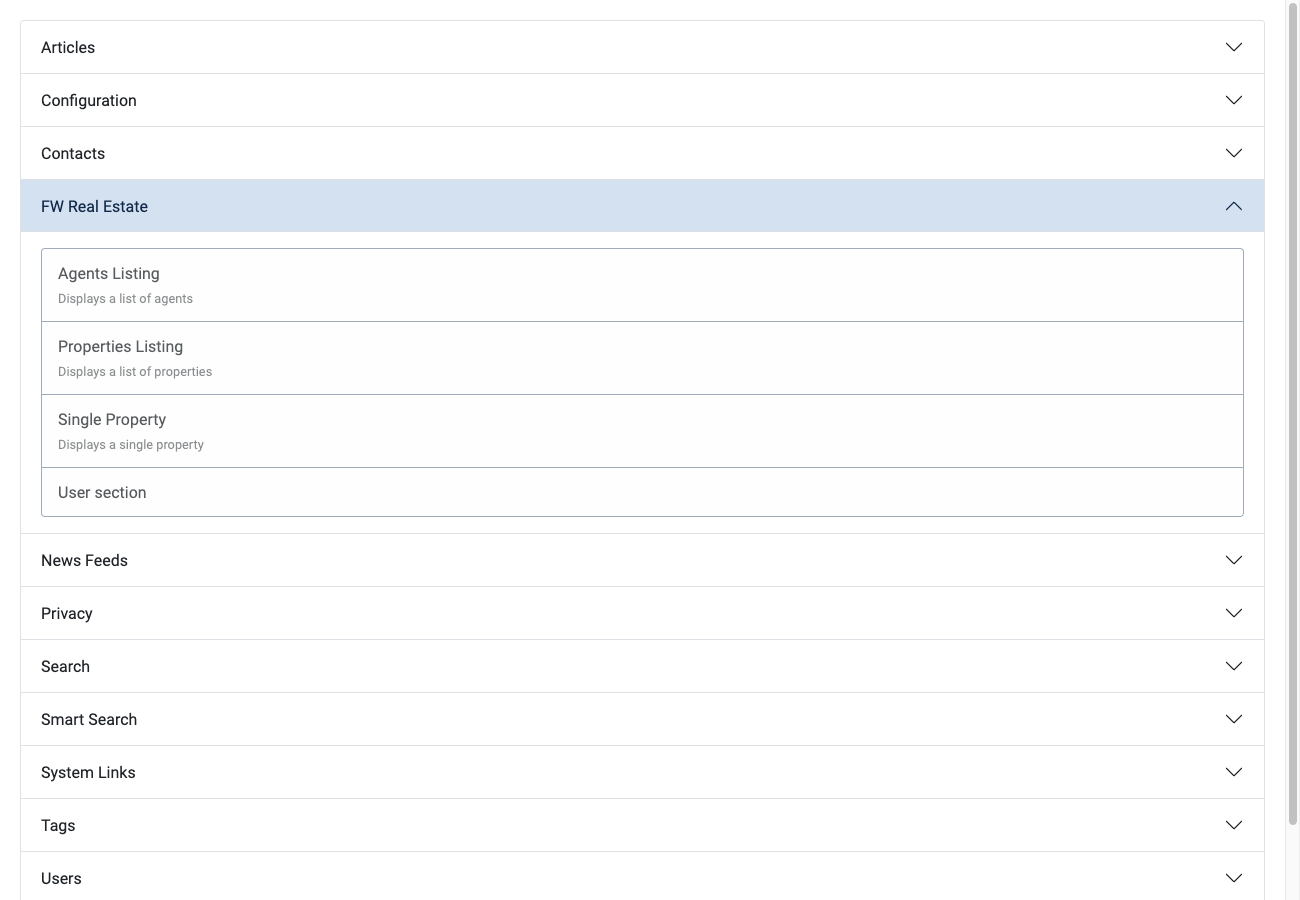
If you are unfamiliar with creating Joomla menu items, see the Joomla documentation on adding a new menu item. The menu item options let you control layout, scope by location or category, properties per page, and more — these can all be adjusted later.
Step 4 — Add Your First Property
Go to FW Real Estate → Properties and click New. Fill in the title, address, and price on the Primary tab, add photos on the Media tab, then set the status to Published and save. Visit the front end — your property appears in the listing immediately.
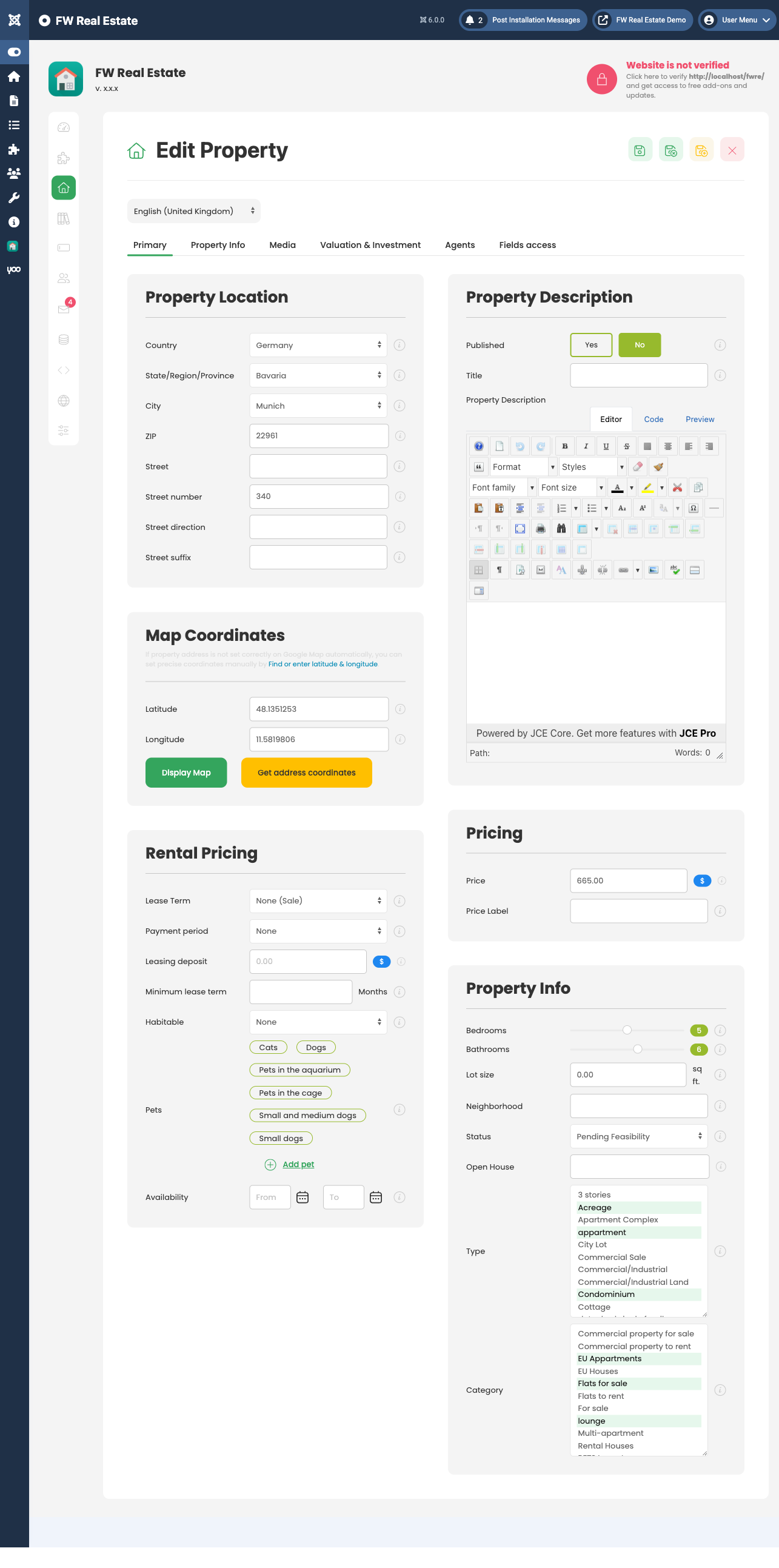
Once you have confirmed the listing works, return to FW Real Estate → Configuration to set your currency, image sizes, and inquiry email address, then enable any additional add-ons your site requires.