 FW Real Estate – Documentation
Common Issues
Common Issues
Most problems with FW Real Estate fall into a small number of categories. Work through the relevant checklist below before contacting support.
Component Not Appearing After Installation
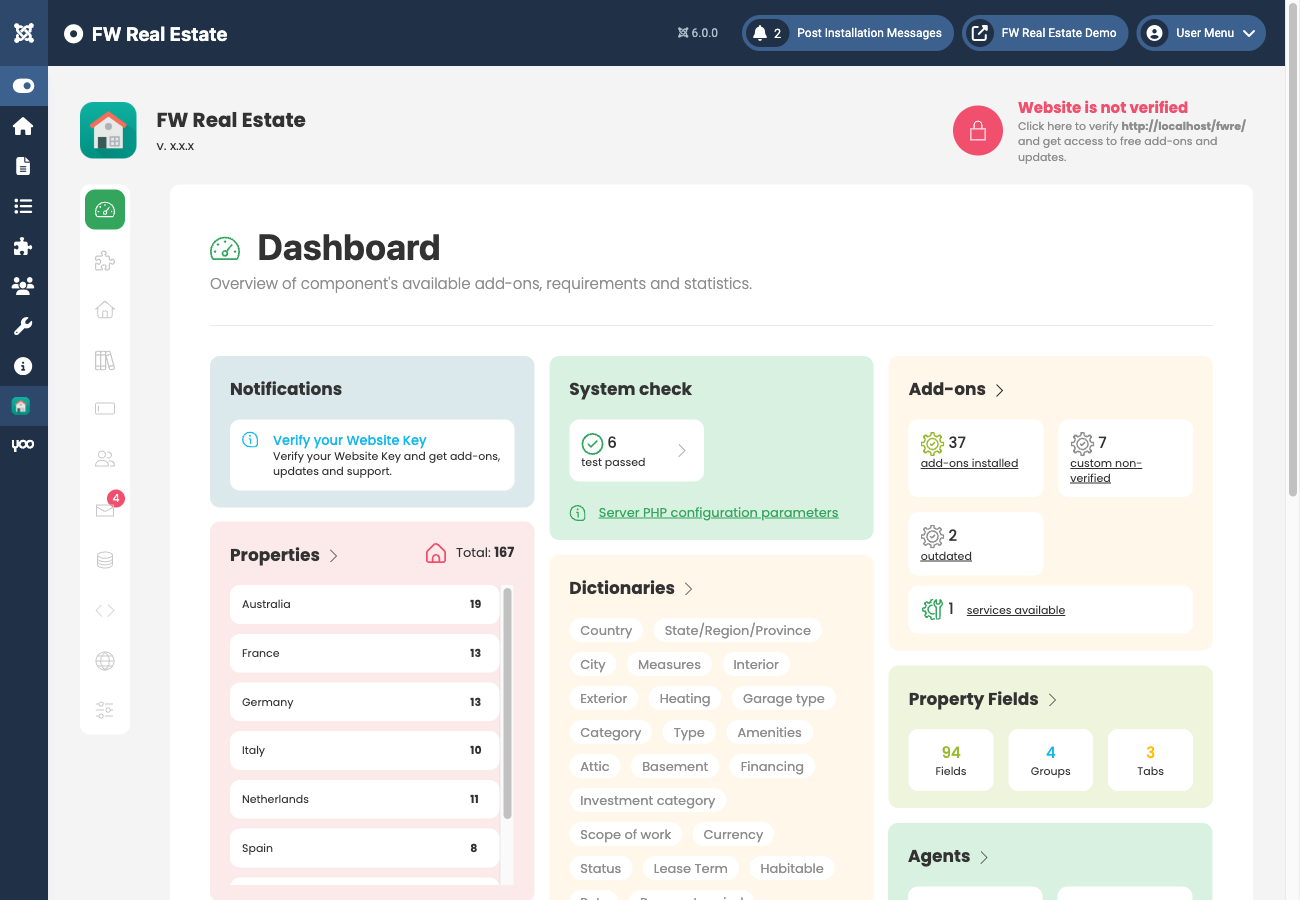
If the FW Real Estate menu does not appear in the Joomla administrator after installation, open System → Manage → Extensions and confirm that com_fwrealestate has a status of Enabled. If it is disabled, enable it and reload the admin menu.
Properties Not Showing on the Frontend
If the property listing or detail pages return a 404 or show no properties, check each of the following in order:
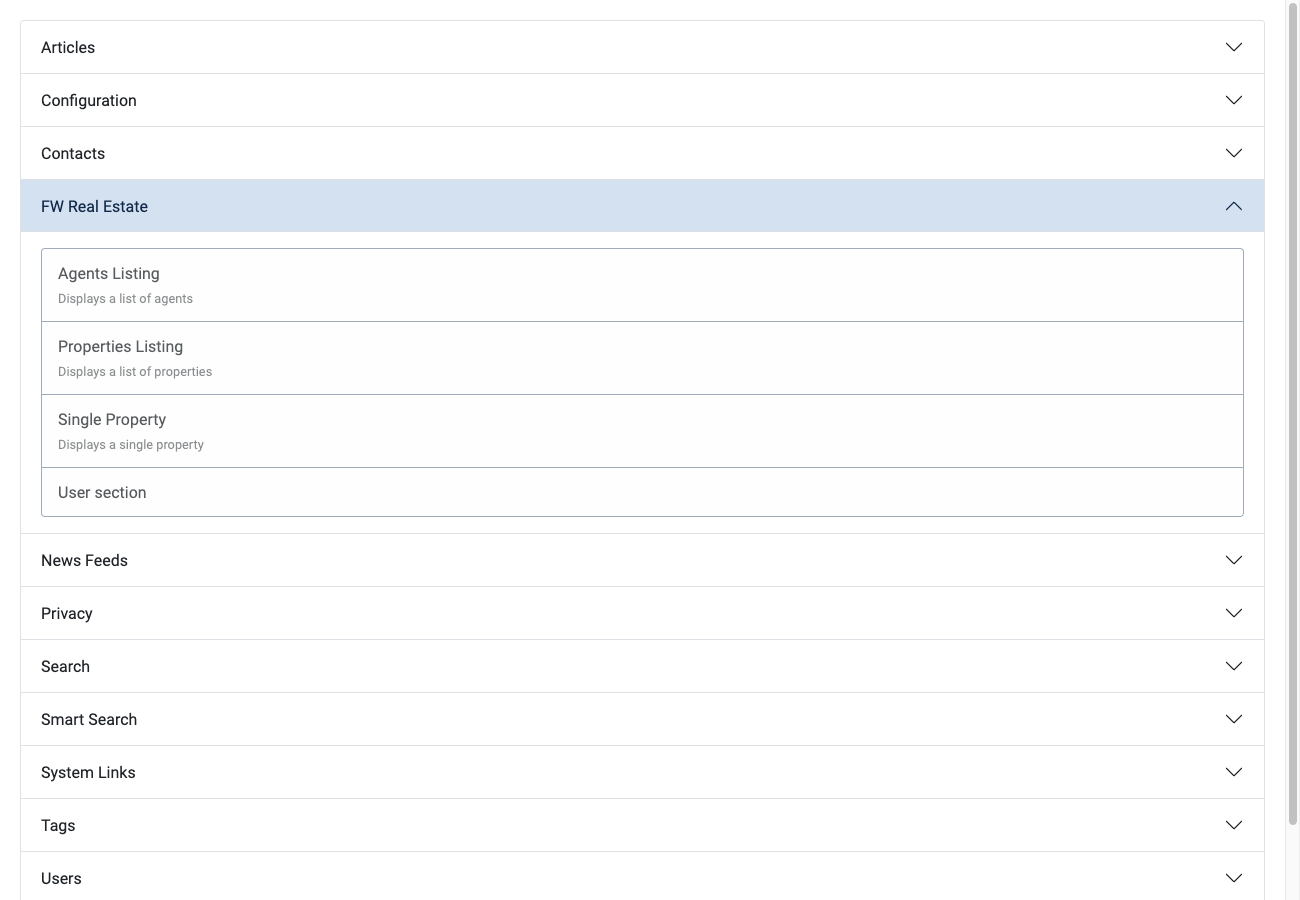
- Menu item exists. The front end is driven by Joomla menu items. Go to Menus and confirm at least one menu item of a FW Real Estate type (such as Properties Listing) has been created and published.
- Component is published. In System → Manage → Extensions, verify com_fwrealestate is enabled.
- Individual property is published. Open FW Real Estate → Properties and confirm the property's status is set to published. An unpublished property will not appear on the site even when every other setting is correct.
- Inquiry form is missing. If the contact form does not appear on a property detail page, ensure the property record has an email address in its Email field, or that an agent is assigned to it. The form only appears when there is a recipient to send to.
Add-on Features Not Appearing
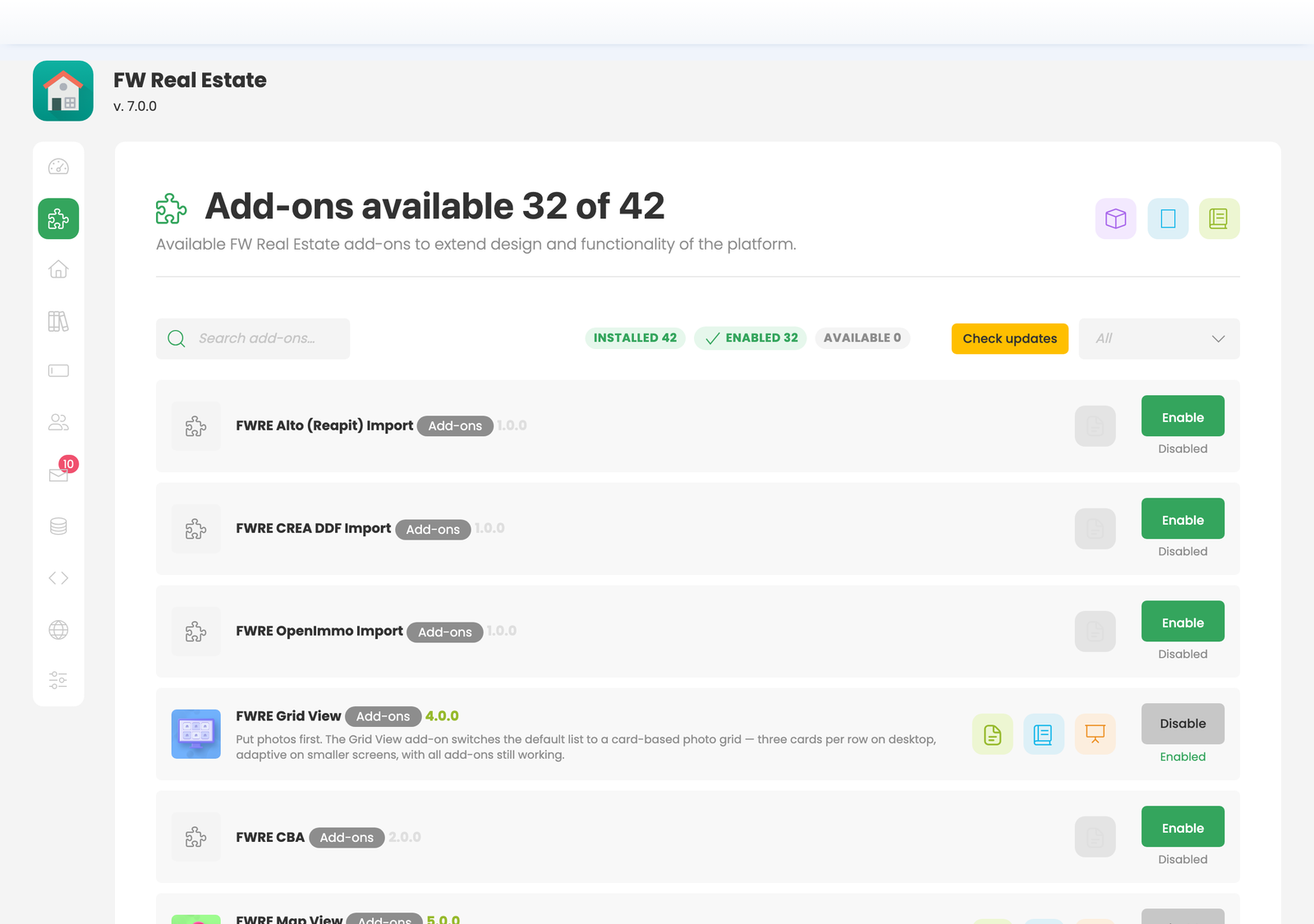
FW Real Estate add-ons are managed exclusively inside the component. If a feature — such as a map, agent profiles, floor plans, or favourites — is missing from the frontend or from the property form, open FW Real Estate → Add-ons and confirm the relevant add-on is installed and enabled. A disabled add-on removes its fields from the property form, its output from the frontend, and its columns from CSV export entirely.
Note that FW Real Estate add-ons are not Joomla plugins and do not appear in Joomla's Plugin Manager. The Add-ons screen is the only place to enable or disable them.
Permission-Related Issues
If administrators or agents cannot access certain screens or actions, check Joomla's standard permission settings for com_fwrealestate under System → Global Configuration → Permissions, and at the component level under FW Real Estate → Configuration. Also review the Fields screen — any field can be restricted to a specific access level either globally or per property, which may prevent certain user groups from seeing or editing it.
Frontend Broken After an Update
If the frontend displays incorrectly or stops working after updating FW Real Estate, do not attempt to diagnose the problem by disabling other extensions. Instead:
- Restore your site from the backup taken before the update. A pre-update backup is essential — without one, safely recovering a broken site is not possible. Always take a full backup of both your files (
media/com_fwrealestate/addons/andimages/fwre/) and your database before applying any update. - Contact FW Real Estate support with screenshots clearly showing the broken areas of the site and the exact steps required to reproduce the problem.
Providing precise reproduction steps and screenshots allows the support team to identify and resolve the issue as quickly as possible.