 FW Real Estate – Documentation
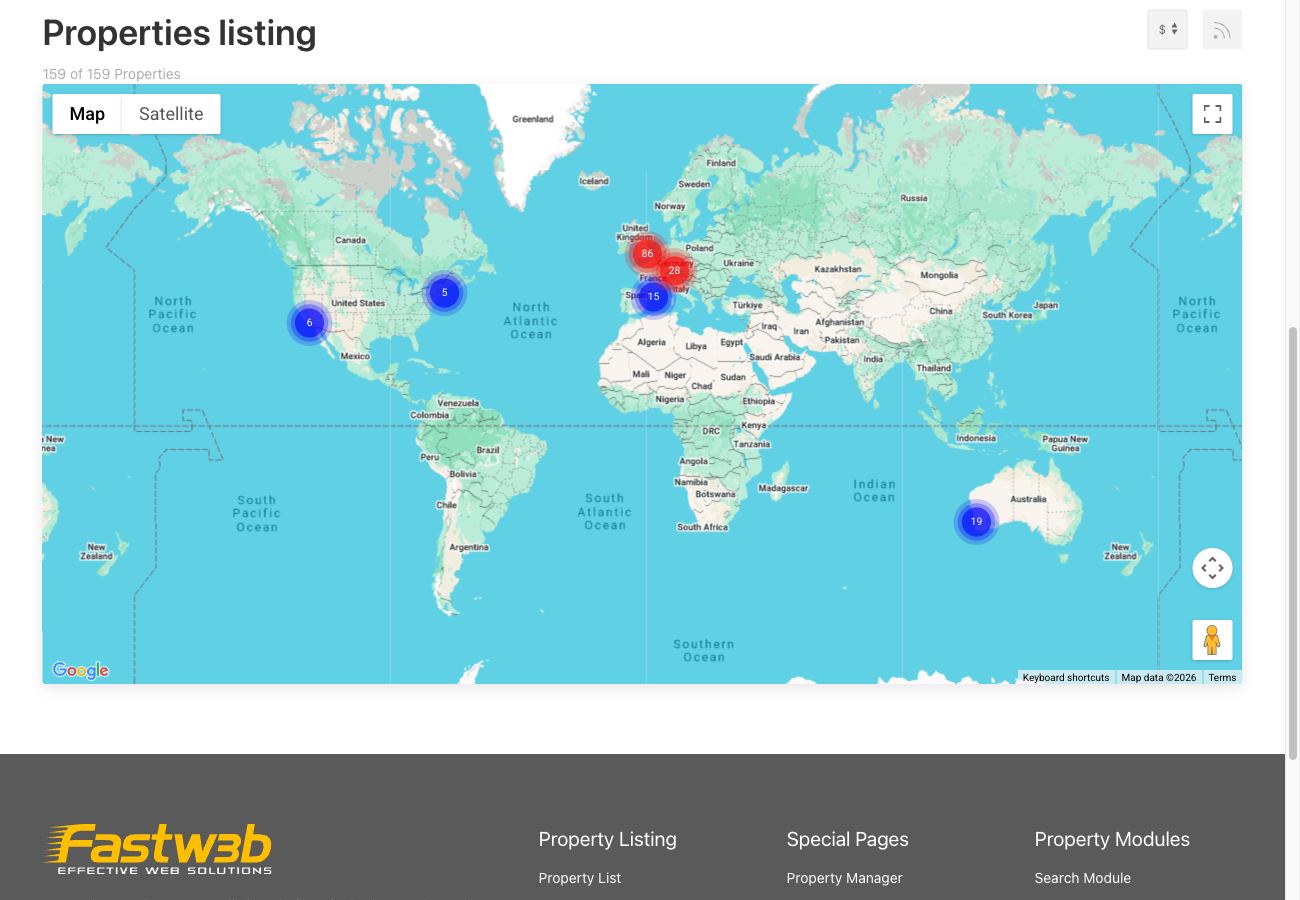
Map Not Showing
Map Not Showing — Troubleshooting Checklist
Work through each item in order. Most map problems trace back to one of these causes.
1. Map View Add-on Not Enabled
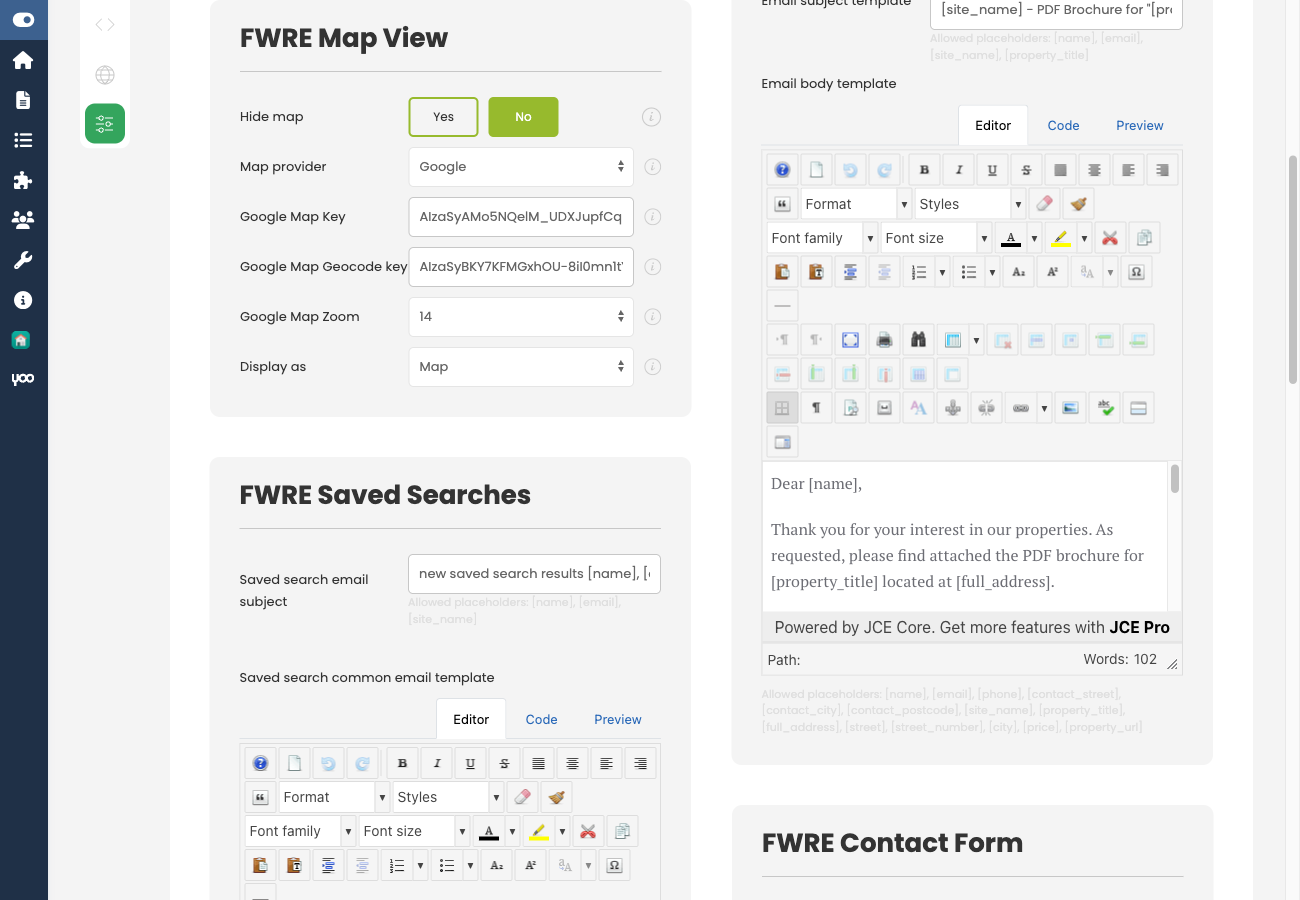
Go to FW Real Estate → Add-ons and confirm the Map View add-on is installed and enabled. Without it, no map functionality is available anywhere on the site — not on property pages, not on the listing map layout, and not in radius search.
2. Google Maps API Key Not Entered or Invalid
Without a valid key, Google draws the map briefly and then covers it with an error overlay. The property pin does not appear. Open your browser's developer console — the exact error message there will tell you whether the key is missing, invalid, or billing is not active. Enter or correct the key under Configuration → Add-ons → Map View → Google Maps API key.
3. Wrong API Key Restriction Type
This is the most common cause of maps that appear to work but never show property pins. Two separate keys are required, and each must use a different restriction type:
- Google Maps API key (browser display) — must be restricted to HTTP referrers (websites) with your site's address. This key draws the map in the visitor's browser.
- Google Geocoding key (server-side geocoding on property save) — must be restricted by IP address. Geocoding requests come from your server, not a browser, so a referrer-restricted key silently fails every time — addresses are never converted to coordinates and properties never get a pin.
Do not use the same key for both purposes. If geocoding has been failing silently, properties saved during that period will have no coordinates and will not appear on the map. You will need to re-save those properties once the correct key is in place.
4. Property Has No Coordinates
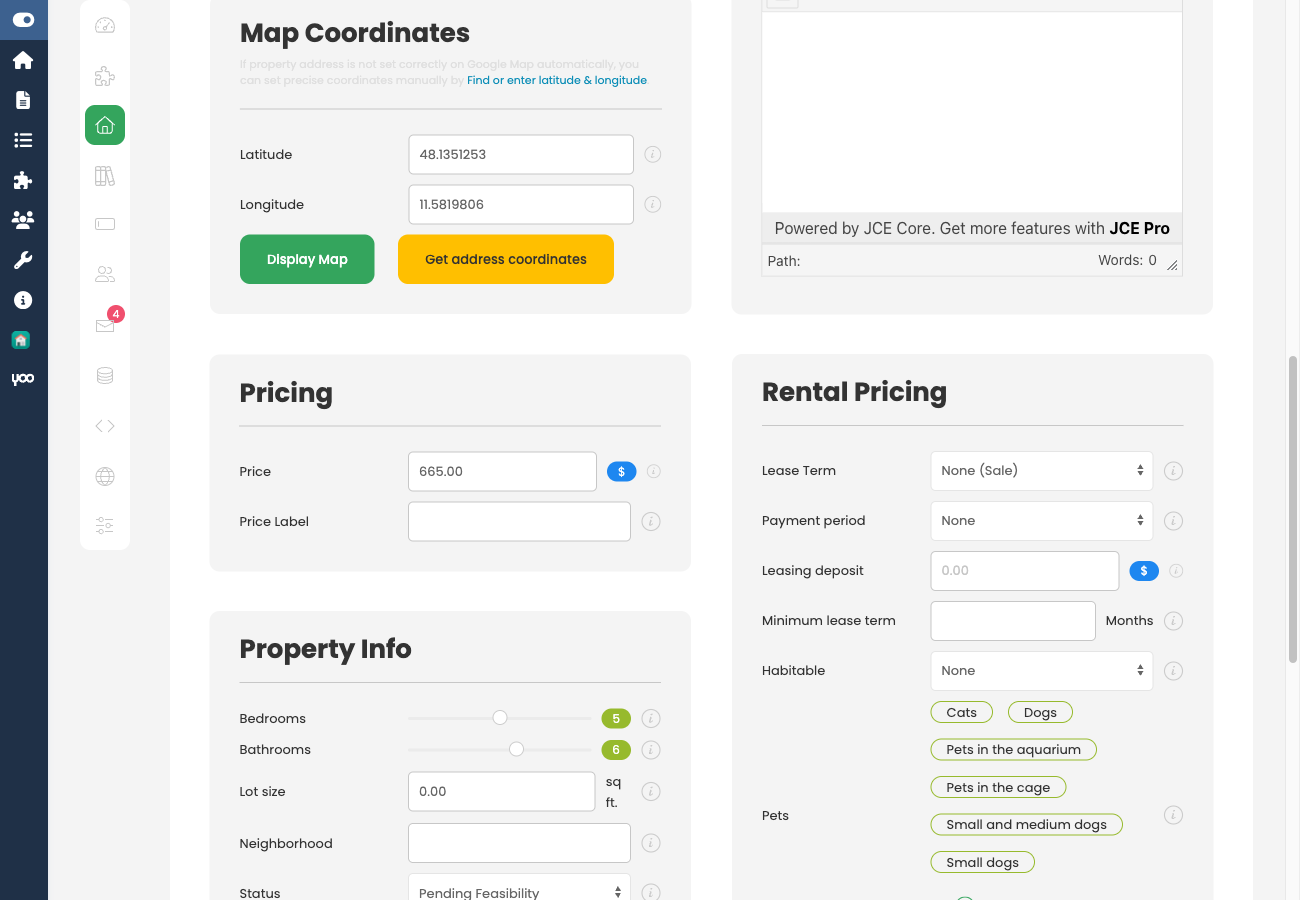
A property with no latitude and longitude does not appear on the map. It still shows in list and search results — it simply has no pin. The properties list flags these records with a warning icon so you can find them without a customer noticing first.
To set coordinates, open the property and use one of these methods:
- Ensure a valid Google Geocoding key is configured, then save the property — the address is geocoded automatically.
- Drag the marker on the property map to the exact location.
- Type the latitude and longitude values directly into the coordinate fields.
5. Google API Quota Exceeded or Billing Inactive
Google Maps is a paid service. If your quota is exceeded or billing is not active on the associated Google Cloud project, the map will stop loading or geocoding will fail. Check your Google Cloud Console for current quota usage and billing status.
6. Mapbox Token Invalid or Expired
If your map provider is set to Mapbox, verify that the access token entered under Configuration → Add-ons → Map View → Mapbox API key is current and has not been revoked. Check your token status at mapbox.com under your account settings. If you use travel-time areas with a Google map, a separate Isochrone Mapbox key is also required — confirm that key is valid as well.