 FW Real Estate – Documentation
Map View
The Map View add-on covers everything location-related in FW Real Estate: a map on the property detail page, a Map listing layout, address-to-coordinates geocoding when a property is saved, radius search, and travel-time (isochrone) areas drawn around a property.
Most property searches are fundamentally about location. A visitor rarely wants "a three-bedroom house" — they want one near a school, a station, or their workplace. Map View is what lets them search that way.
Use Cases
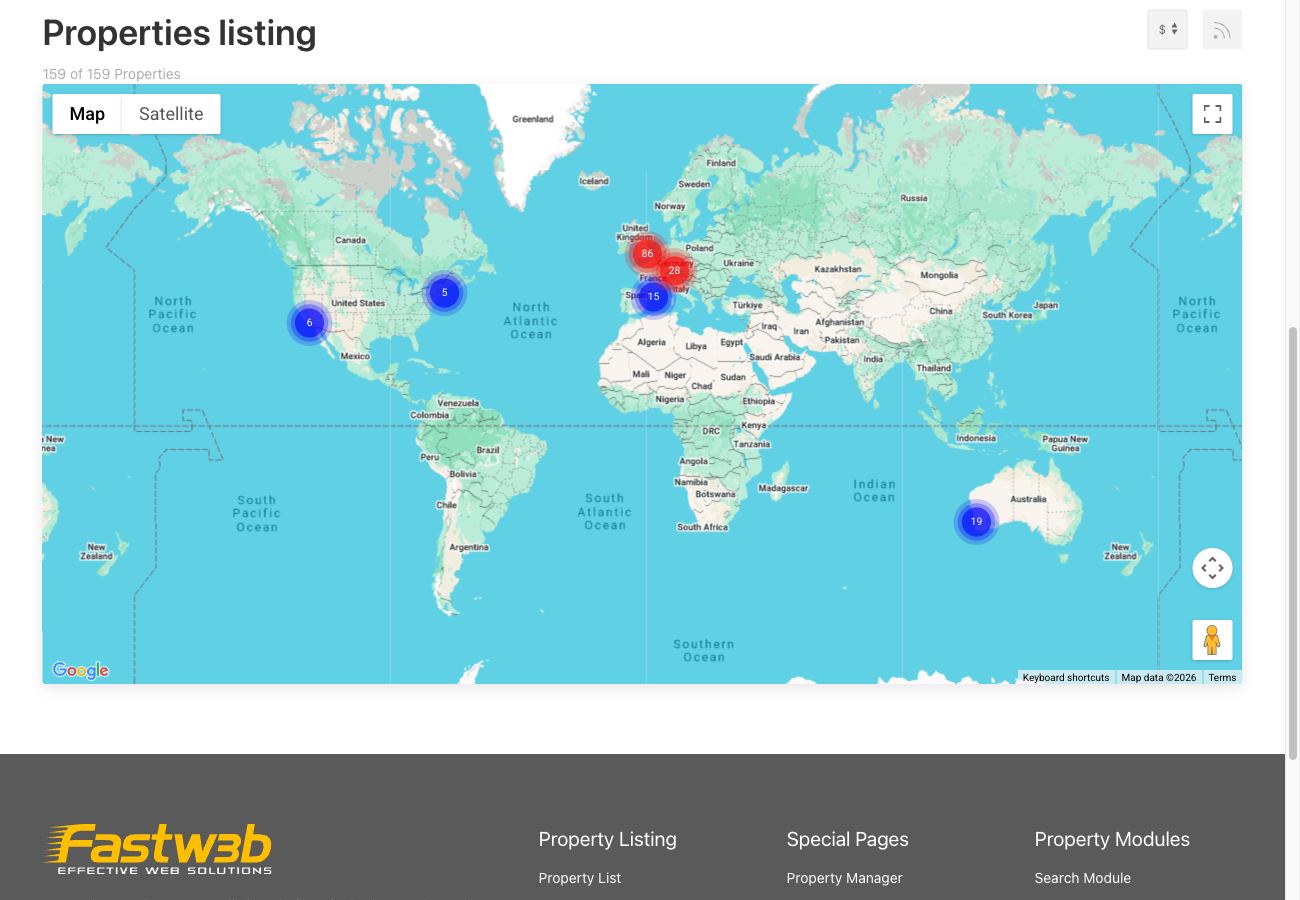
- Browsing by area. The Map layout turns results into a map of markers, so visitors can search the way they think — by where, not by filter.
- Understanding the neighbourhood. The property-page map answers "where is this, actually?" in a way no written description can.
- Within 25 miles of… Radius search finds everything around a place the visitor names, including the next town over — which a city filter would have excluded.
- Can I get to work in 20 minutes? Travel-time areas shade what is reachable from the property on foot, by bike, or by car.
API Keys — Read This Before You Set Up
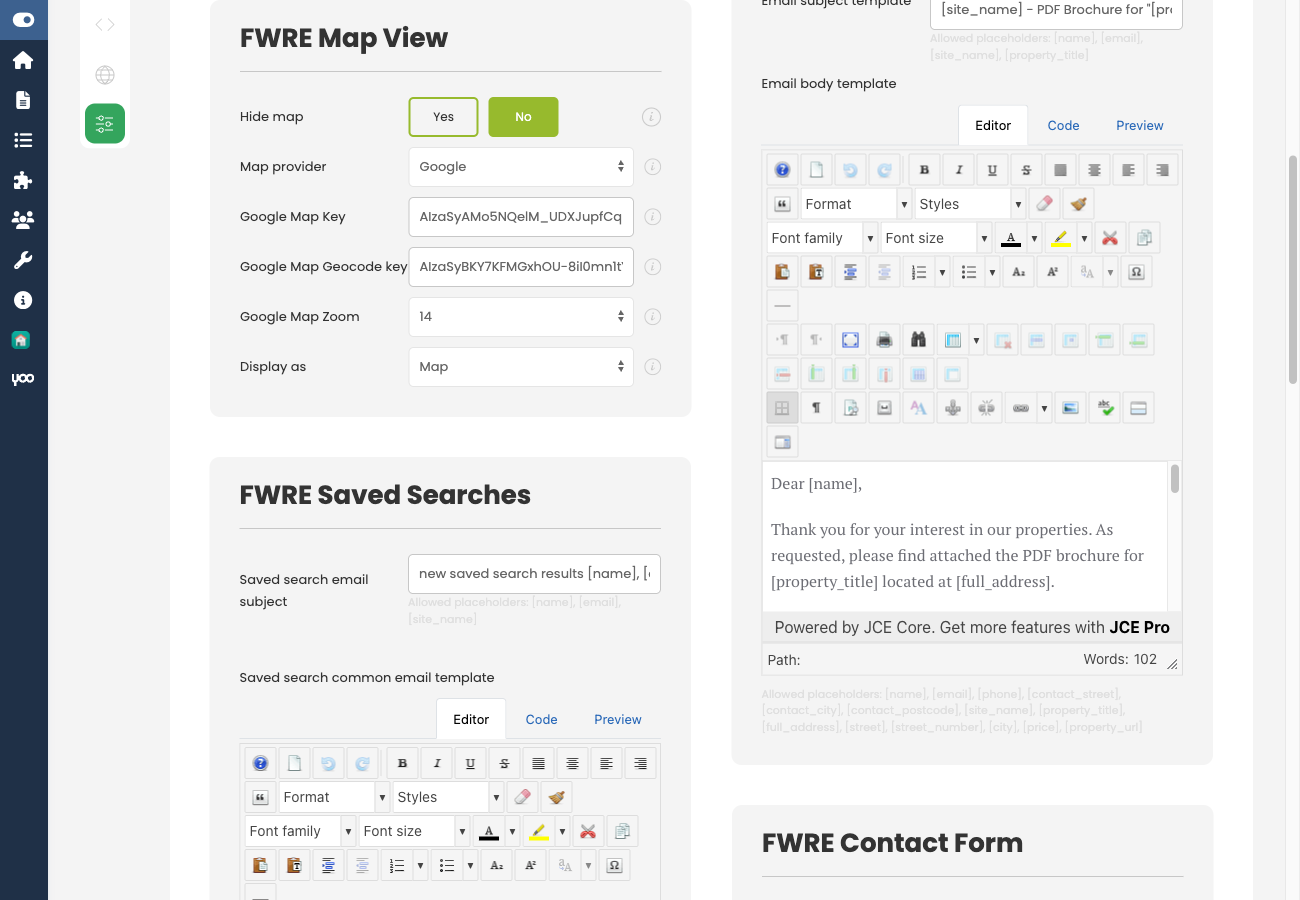
Maps are a paid third-party service. The keys are yours, obtained directly from Google or Mapbox — not from Fastw3b. Which keys you need depends on what you turn on.
| Key | Purpose |
|---|---|
| Google Maps API key | Draws the map in the visitor's browser. Enable the Maps JavaScript API and the Geocoding API on it, and restrict it to HTTP referrers (websites) with your site's address. |
| Google geocoding key | Turns an address into coordinates when a property is saved. This request comes from your server, not a browser — it must be a separate key restricted by IP address. A referrer-restricted key silently fails here. |
| Mapbox API key | Required instead of the Google map key when the provider is set to Mapbox. |
| Isochrone Mapbox key | Travel-time areas are a Mapbox service. On a Mapbox site the map key covers it; on a Google site you need this additional key. |
The two Google keys cannot be the same key. This is the single most common reason maps stop working. One key restricted to HTTP referrers draws the map fine and silently refuses every server-side geocode request — so addresses never get coordinates and properties never appear on the map.
Settings
All settings are found at Configuration → Add-ons → Map View.
| Setting | Default | Description |
|---|---|---|
| Hide the map | No | Removes the map from every property page without disabling the add-on. Use this to suspend map display while resolving a key issue without losing the Map layout or the radius filter. |
| Map provider | Choose Google Maps or Mapbox. | |
| Google Maps API key | — | Browser-side map rendering. Restrict to HTTP referrers. |
| Google geocoding key | — | Server-side geocoding. Restrict by IP address. Must be a separate key from the map key. |
| Google Maps zoom | 14 | Opening zoom level, 10–19. |
| Mapbox API key | — | Required when the provider is Mapbox. |
| Mapbox zoom | 15 | Opening zoom level for Mapbox, 14–19. |
| Travel-time areas | Off | Enables the isochrone panel beneath the property map. |
| Travel times (min) | 5,10,15,20 | The travel-time values offered in the panel. |
| Isochrone Mapbox key | — | Only needed when the map provider is Google and travel-time areas are on. |
| Display as | Map | Whether the map opens as Map or Satellite. |
Setting Coordinates on a Property
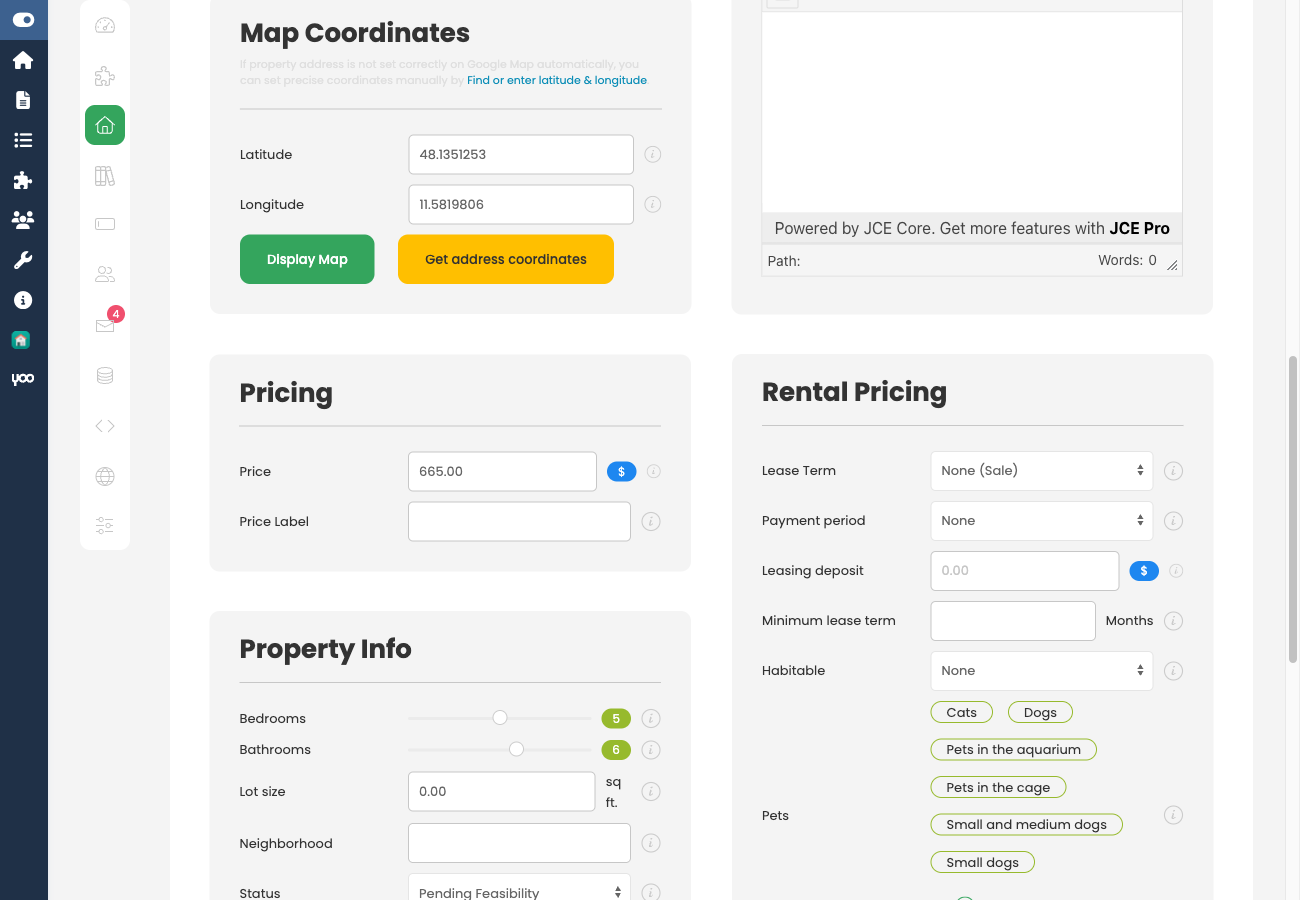
The property edit form includes a map. Coordinates can be set three ways:
- Type the address — it is geocoded automatically when you save the property (requires the geocoding key).
- Drag the marker to the exact position — useful when an address alone does not pin the property precisely.
- Type the latitude and longitude directly into the coordinate fields.
Any property that still has no coordinates is flagged with a warning icon in the properties list. This makes missing pins visible to administrators before a visitor notices the property is absent from the map.
Front-End Features
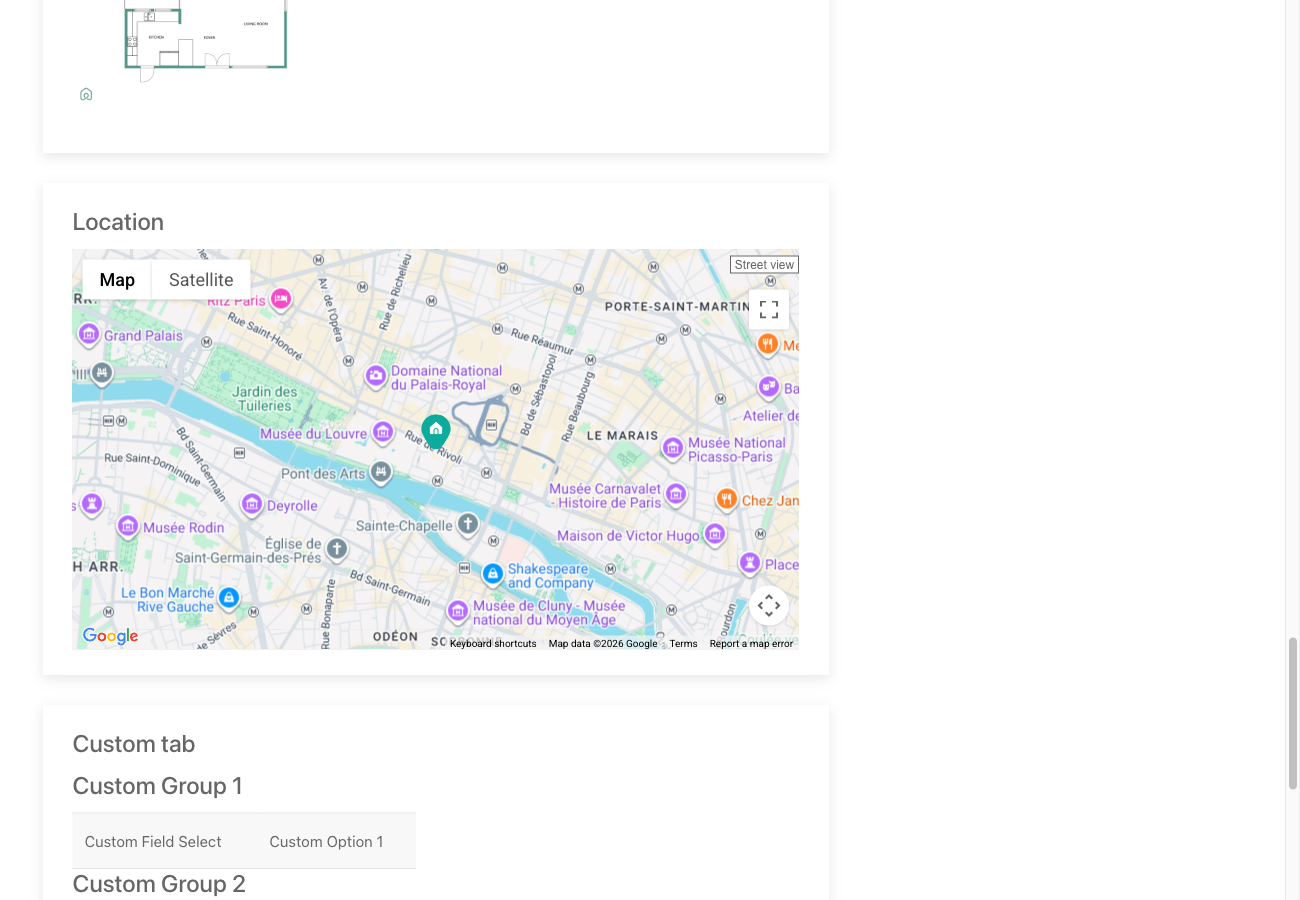
Property page map. An embedded map with the property's marker is shown on each detail page. With Travel-time areas enabled, a panel beneath the map lets visitors pick walking, cycling, or driving and a number of minutes, and shades the reachable area accordingly.
Map listing layout. The entire result set is displayed as markers on a map. Clicking a marker opens a mini card showing the photo, title, and price. Once the add-on is enabled, this layout becomes available in the listing page's own layout switcher, in the Layout setting of a Joomla Properties Listing menu item, and in the Layout option of the Layout Anywhere module. With the add-on disabled the Map layout is offered nowhere — any page already set to it falls back to the standard list.