 FW Real Estate – Documentation
CSV Import/Export
Editing two hundred prices in a web form is a day's work and a source of mistakes. In a spreadsheet it is ten minutes. The CSV Import/Export add-on is what makes a large portfolio maintainable at all — it moves properties in and out of the site as a plain spreadsheet file you can open, edit, and feed back in.
Use Cases
- Moving in. Bring an existing portfolio onto the site in one pass instead of typing every property.
- A price round. Export
idandprice, edit the column, re-import. - Bulk edits of anything. Reassign an agent, restate areas, correct a town's spelling everywhere.
- A backup you can read. An export is a plain file you can open, keep, and check.
Both the Import and Export tools appear on FW Real Estate → Data Management.
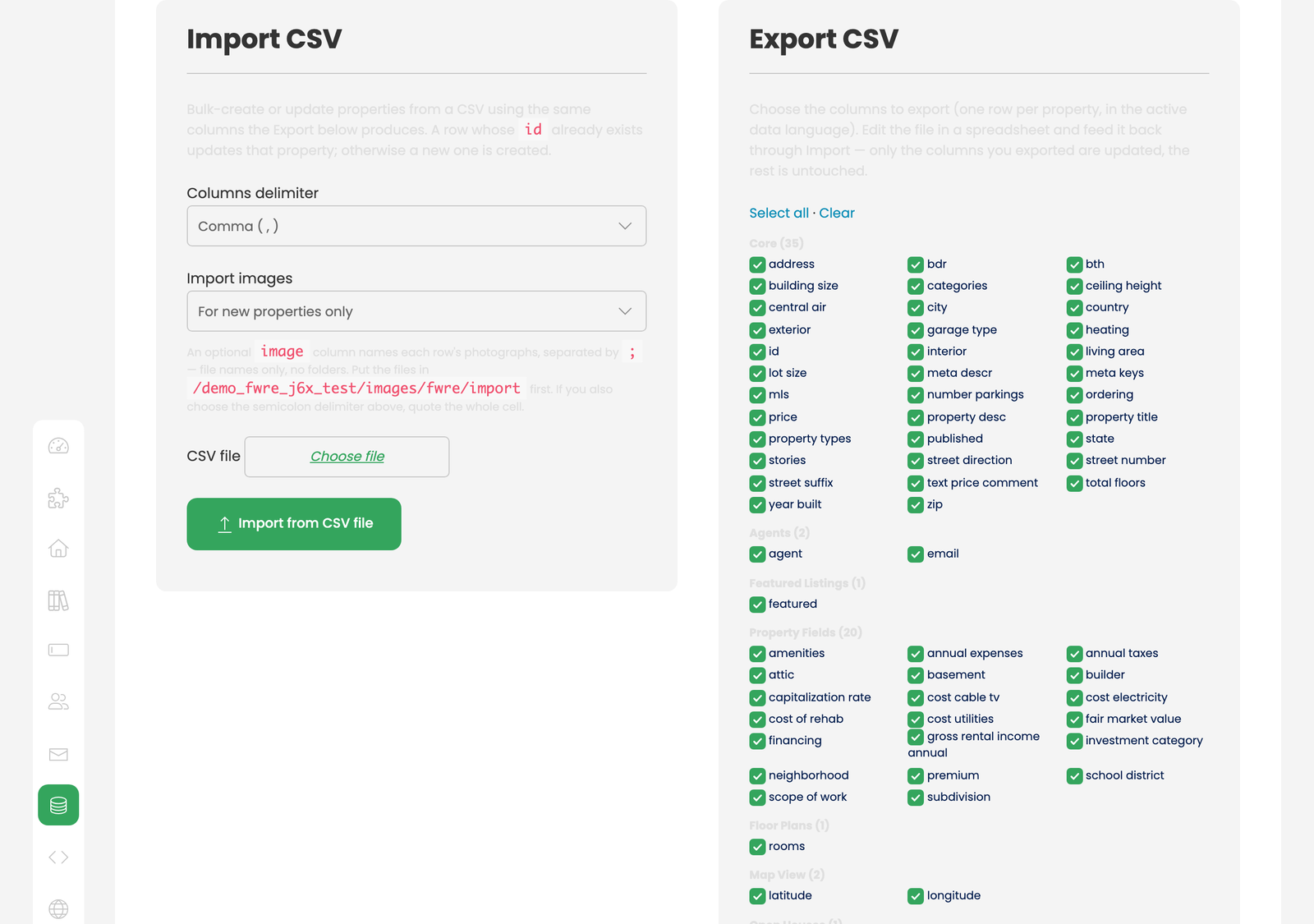
Export
Choose the columns you want and you get one row per property, in the active data language. Every enabled add-on contributes its own columns — custom fields, floor plan rooms, open house slots, and more — so an export reflects the exact site you have, not a generic template.
Import
The import accepts the same columns the export produces. Two rules govern everything:
- A row whose
idalready exists updates that property. An export → edit → import round trip is an update, not a duplicate. - Only the columns present are updated. Everything else on the property is left completely untouched.
That second rule is what makes partial work safe. Export just id and price, change the prices, import the file, and nothing else on those properties is at risk.
Photographs
An import can bring photographs with it. This is the only way to load a catalogue in bulk without a feed, and it works in two steps: put the image files in the import folder (the Import panel shows its exact path), then name them in an image column, separated by semicolons — for example front.jpg;kitchen.jpg;garden.jpg. They appear in the property's gallery in the order given.
Use bare file names only — front.jpg, never photos/front.jpg or ../front.jpg. A name containing a folder path is refused and counted as a photograph that did not import.
Use semicolons, not commas. Inside a CSV a comma separates columns, so a comma-separated list only survives while the cell stays quoted — and a spreadsheet will drop those quotes sooner or later. If you also chose the semicolon column delimiter, put the whole cell in quotes.
The Import images control on the same panel determines what happens when you re-import a sheet:
- For new properties only (the default) — a property that already has photographs is left alone, so re-running a sheet does not re-copy everything.
- Re-fetch on every run — the named files are copied again, replacing the ones already stored.
A photograph is stored under the name of its file, so re-importing the same file replaces the same image rather than adding a second copy. The image format is read from the file itself, so a mislabelled extension does no harm.
Photographs are import-only — there is no image column in the export. A CSV cannot carry the pictures it would be naming. To take your photographs with you, use the backup in Data Management, which includes them.
The result line counts properties and photographs separately, on purpose. A photograph that cannot be read never costs you the property row — that row is already saved. Photographs not imported: 3 means those three files were missing from the import folder or were not readable images; the property rows themselves went in.
Practical Notes
- Export first, always — even when importing from an external source. The exported file is the definitive statement of what your columns are called, and building an import file from it is faster than reading any format documentation.
- Take a backup before a large import. An import that updates the wrong column updates it everywhere, and there is no undo.
- Try five rows first. Import a small batch, inspect the results, then import the rest.
- Spreadsheets damage data quietly. Long reference numbers become scientific notation and leading zeroes vanish from postcodes. Set those columns to Text before editing and check them after.
- The data language matters. An export carries the active language's values and an import writes to it — switch to the correct language before running either.
- Upload photographs before the sheet. The import reads the folder at the moment it runs; a file that arrives afterwards is not picked up until you import that row again.
To install this addon, open the Add-ons panel inside FW Real Estate. See Getting Started → Add-ons for details on free addons, paid addons, and site verification.