 FW Real Estate – Documentation
Search Not Working
Search Not Working
Most search problems fall into one of three categories: results appearing on the wrong page, filters having no effect, or the Save Search button not appearing. Each has a straightforward cause.
Search Form Submits to the Wrong Page
When a visitor runs a search from the FWRE Search module and lands on the wrong page — or the site's default page rather than your property listing — the Default Search Results Menu Item setting is either unset or pointing to the wrong menu item.
To fix this:
- Go to Content → Site Modules and open your FWRE Search module.
- Find the Default Search Results Menu Item setting.
- Select the menu item that displays your property listing page.
- Save the module.
Without this set, Joomla falls back to the site's default page, which is rarely the listing page you want.
Filters Not Narrowing Results
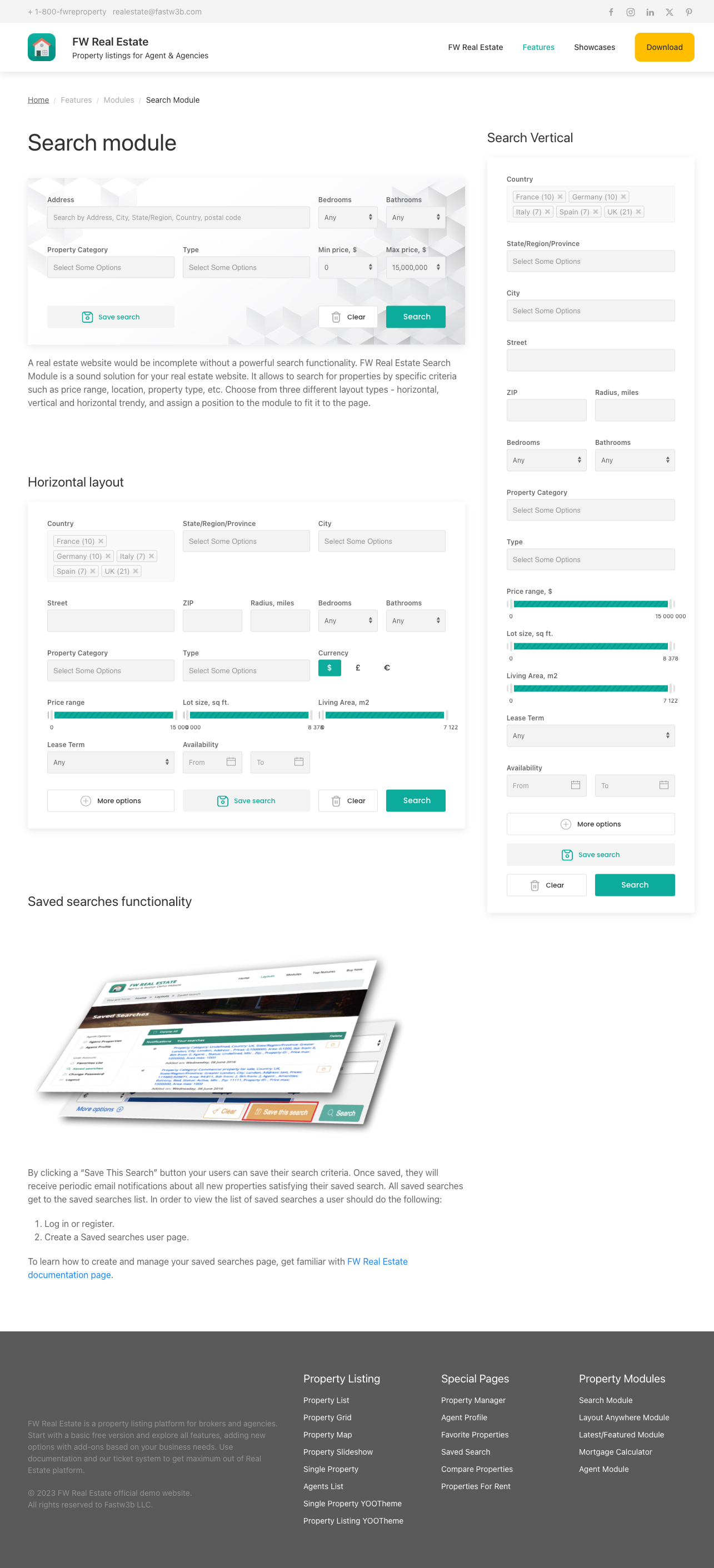
If a filter field appears in the form but changing it has no effect, first confirm you are using the Default layout. The Minimal and Banner layouts render a fixed set of fields and deliberately ignore the Search Fields Display checkboxes, the slider/dropdown choice, and the location display option. If you need full control over which fields appear and how they behave, switch the module's Layout setting to Default.
If a filter field is missing entirely from the Default layout, check the Search Fields Display checkboxes in the module settings. All fields are enabled by default — if one has been unchecked, it will not appear in the form. Re-enable it and save.
Note that several fields only appear when their required add-on is active:
- Amenities — requires the Property Fields add-on
- Agent — requires the Agents add-on
- Currency — requires the Multi Currency add-on
- Lease terms and Availability — require the Rentals add-on
- Status — requires the Status Labels add-on
If a field is missing and its add-on is not installed, the field simply will not appear regardless of the checkbox state.
Save Search Button Not Appearing
The Save Search button requires two conditions to be met:
- The Saved Searches add-on must be installed and enabled via FW Real Estate → Add-ons.
- The Save Search button checkbox must be enabled in the module's Search Fields Display settings.
If the add-on is active but the button still does not appear, open the FWRE Search module settings and confirm the Save Search button option is checked under Search Fields Display. If the add-on is not yet installed, the button will be absent regardless of the module setting — install it first through the Add-ons panel, then verify the checkbox.
Also keep in mind that saving a search requires the visitor to have an account. Visitors who are not logged in will not be able to complete the save action.