 FW Real Estate – Documentation
Custom Fields
Custom Fields lets you define property fields that no off-the-shelf extension could anticipate — your own labels, your own value lists, organised into your own groups and tabs on the property form.
How it differs from Property Fields: Property Fields is a fixed, purpose-built set of real-estate data with search filters, CSV import/export, and calculated metrics already wired in. Custom Fields covers the rest — whatever your market, your stock, or your agency needs recorded that nobody else does. The two work side by side on the same property.
Use Cases
- Commercial stock — zoning, lease type, service charge: vocabulary a residential site has no use for.
- Holiday lets — sleeps, pet-friendly, distance to the beach.
- Developer units — block, floor, aspect, handover quarter.
- Repeatable spec sheets — a preset fills a whole set of fields in one click, so a run of similar units does not mean re-typing the same values each time.
Field Types
There are exactly four field types. A custom field is meant to hold a fact, not to be a form builder:
- Text — a single line of free text.
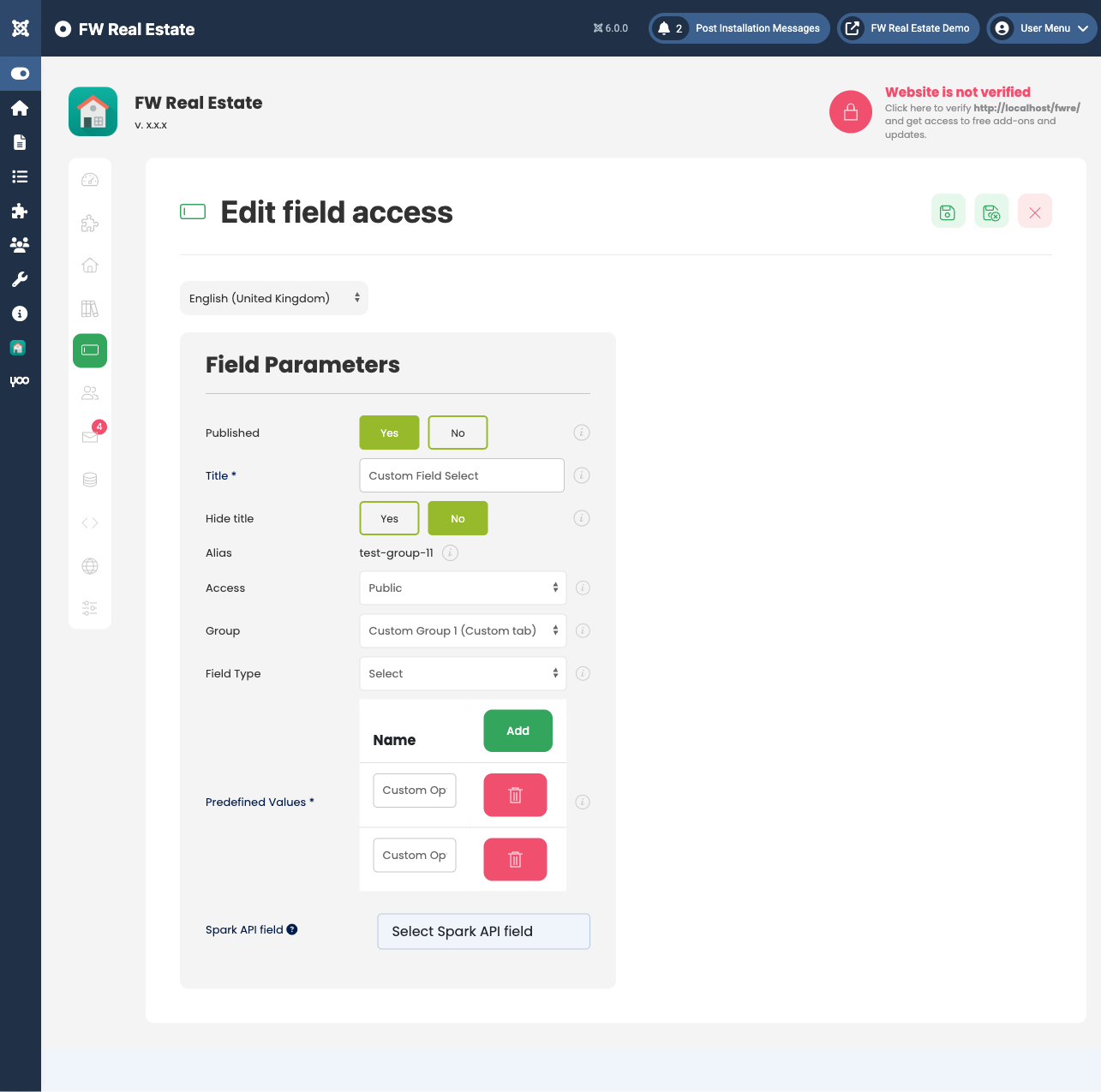
- Select — one value chosen from a list you define.
- Checkboxes — any number of values chosen from a list you define.
- Boolean — yes or no.
The option values for Select and Checkboxes are translatable, so a multilingual site shows each visitor the list in their own language.
Field Properties
Each field you define carries the following properties:
- Name — the label shown on the form and on the property page.
- Alias — the identifier used as the CSV column header and in code.
- Type — one of the four types above.
- Group — which section of the property form the field belongs to.
- Hide title — shows only the value on the property page, without the field's name, for a field whose value speaks for itself.
- Condition — show this field only while another field holds a chosen value (see below).
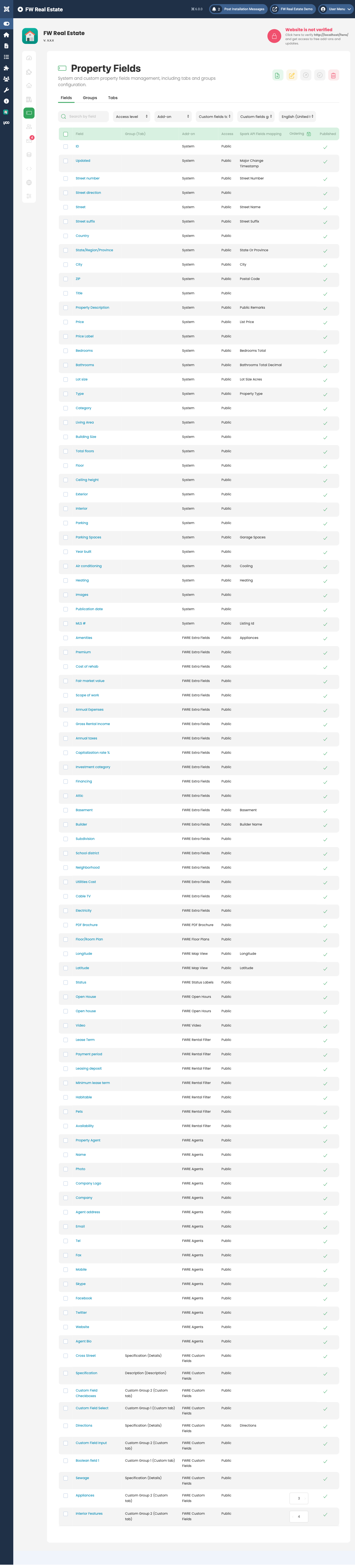
- Published — whether the field is currently in use.
- Ordering — its position among the other custom fields.
Conditional Fields
The Condition property is what keeps a long form usable. A field appears only when it is relevant — "Mooring length" only when "Waterfront" is yes, "Lease type" only when the property type is commercial. The person entering a property sees the fields that apply to that property, not the union of every field you have ever defined. To set a condition, pick the controlling field first, then choose the value it must hold for this field to appear.
Groups, Tabs, and Presets
Custom Fields includes its own structure editor:
- Groups — a set of fields displayed together as a card on the property form.
- Tabs — the tab on the form where those groups live.
- Presets — a named bundle of values. Applying one fills its declared custom fields in a single click.
A preset only sets the fields it declares. Any field left blank in the preset is not part of it and is never touched when the preset is applied — making it safe to apply to a property that already has data. Nothing is saved until you save the property, so an applied preset can still be adjusted or abandoned before it takes effect.
Custom Fields on the Property Page
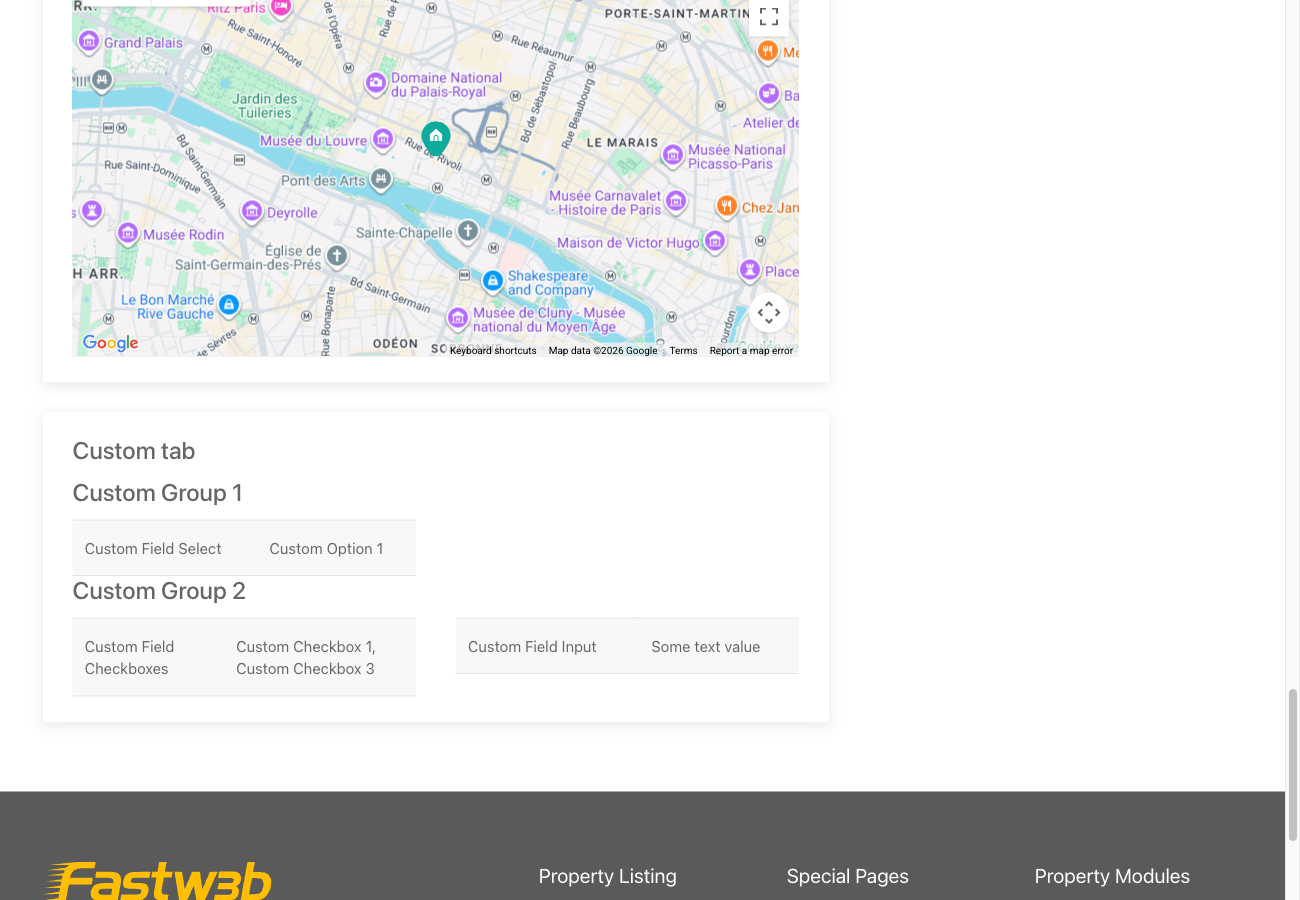
Custom fields appear on the property page grouped as you defined them, following the Information grouping setting (accordion, tabs, or plain list) in Configuration → Properties.
Notes
- Every custom field is a CSV column. They are included in import and export, keyed by their alias as the column header.
- Custom fields obey the Fields screen like any other field — each can be unpublished or restricted to an access level, globally or on a single property.
- Deleting a field does not delete stored values. They stop being shown, but the data remains — so a field deleted by mistake can be recreated without data loss.
To install this addon, open the Add-ons panel inside FW Real Estate. See Getting Started → Add-ons for details on free addons, paid addons, and site verification.