 FW Real Estate – Documentation
Install on Joomla
FW Real Estate tutorial for Joomla!
Installing FW Real Estate takes a few minutes through Joomla's built-in Extension Manager. You only need the single ZIP you just downloaded, with no manual file copies and no database changes.
Upload and Install
- Sign in to your Joomla administrator panel at
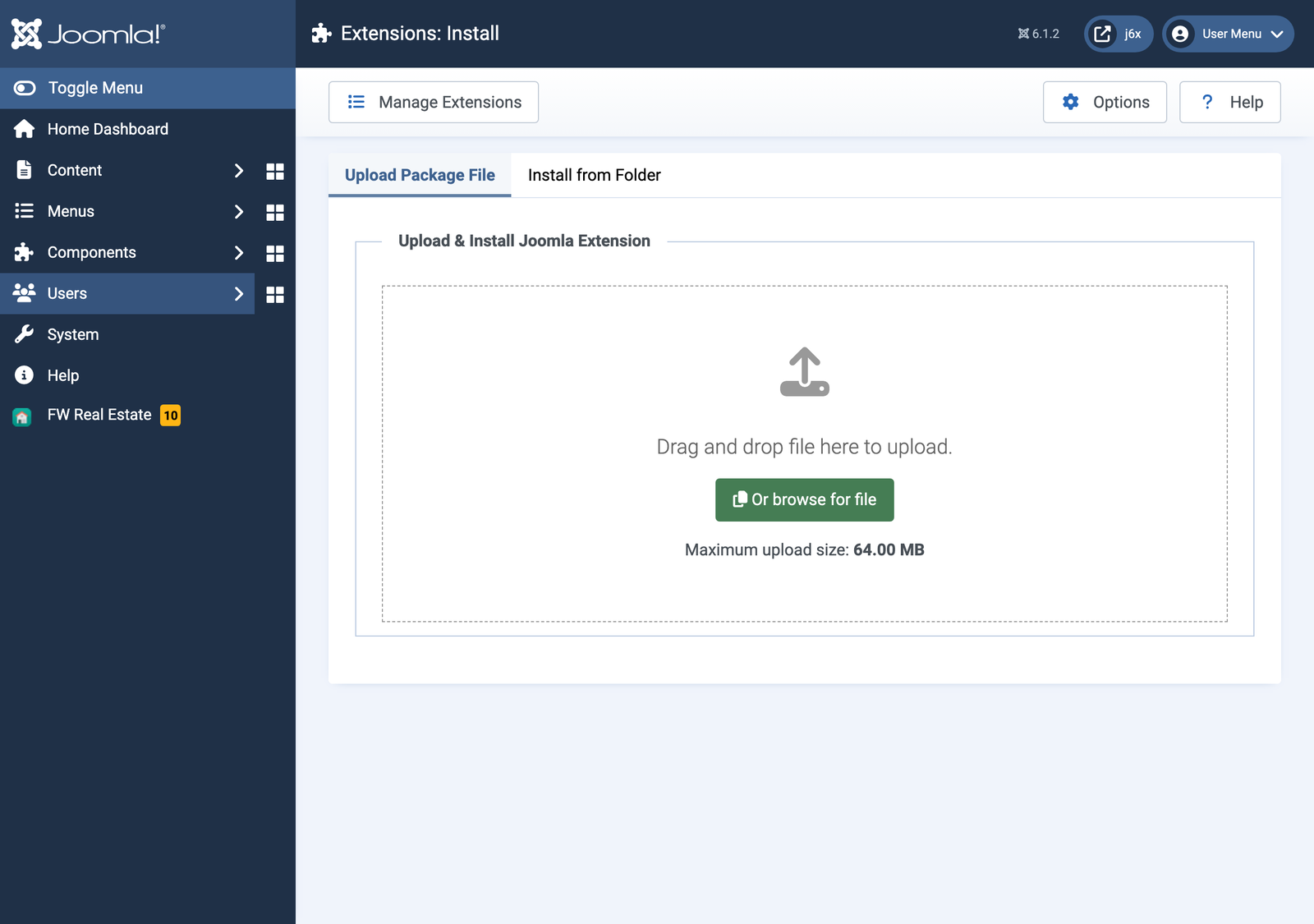
yoursite.com/administrator - Go to System → Install → Extensions
- Click the Upload Package File tab
- Drag the FW Real Estate ZIP (version 7.0.0) into the drop zone, or click Or browse for file
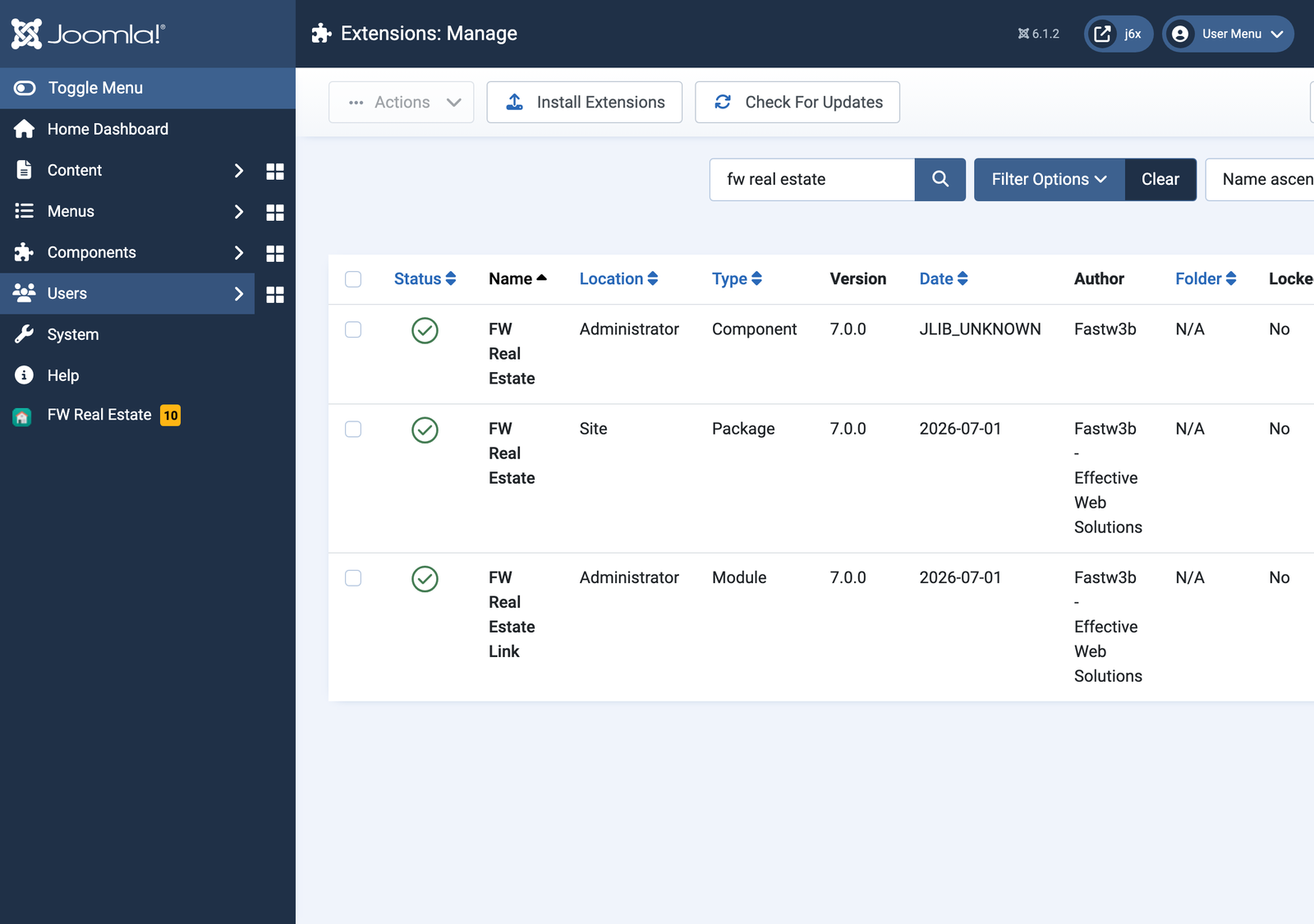
- Wait for the green success message (installation typically takes 5-10 seconds)
Find FW Real Estate in the Admin
Once installed, FW Real Estate appears in two places in the Joomla admin:
- Components → FW Real Estate: the main entry point
- The new FW Real Estate sidebar item added by the bundled admin module, for one-click access from any admin screen
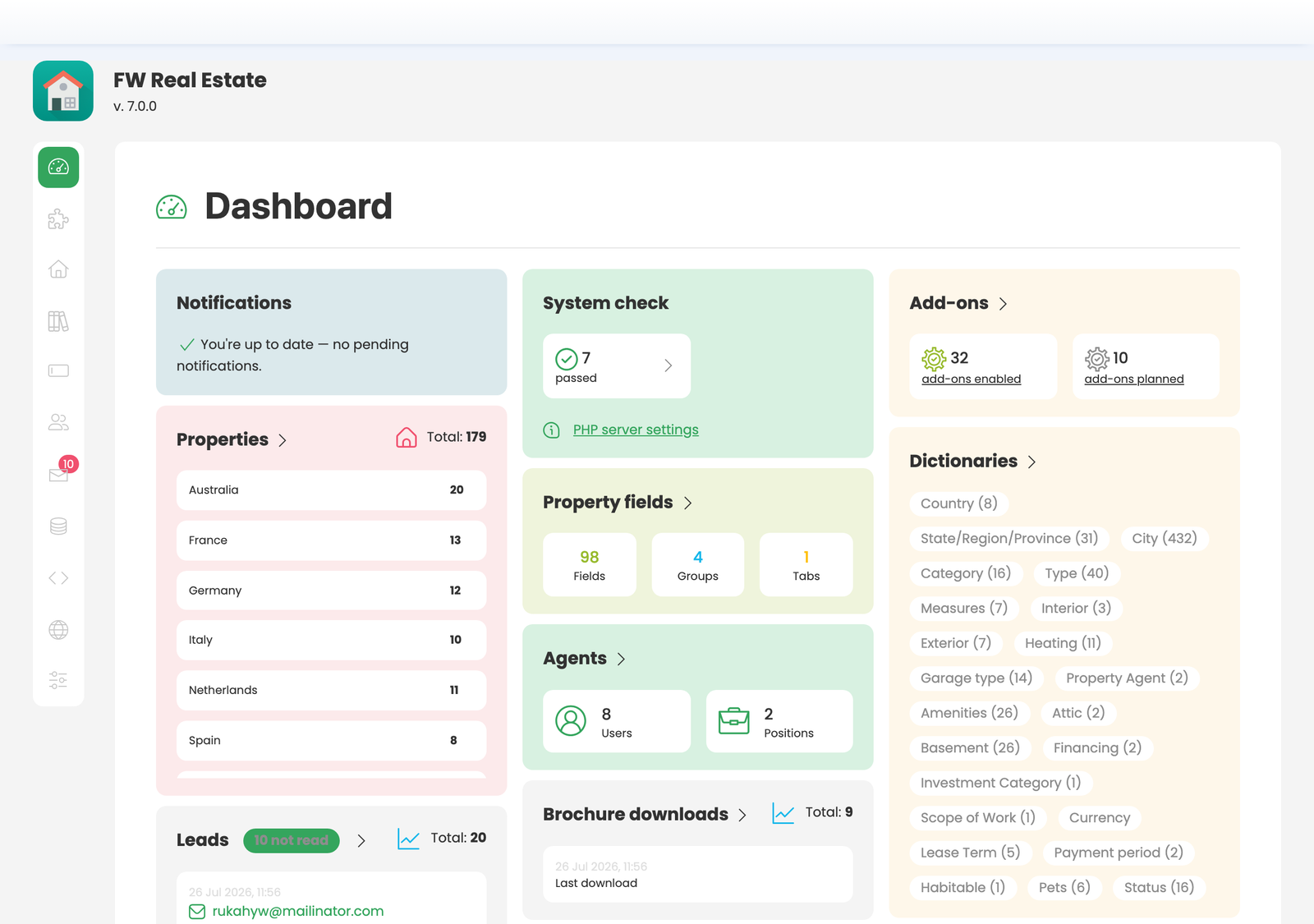
Open the component to see the dashboard, where you'll spend most of your time managing properties, settings, and add-ons.
Troubleshooting Install Failures
- "Package does not contain a valid manifest" or upload size error: your PHP
upload_max_filesizeorpost_max_sizeis below the package size. Raise both to32Mor higher inphp.iniand retry. - Installation hangs at "Installing component...": your
max_execution_timemay be too low. Raise to120seconds inphp.ini. - "Could not connect to the database": your Joomla install lost its DB connection during the install. Refresh and retry; the install is idempotent.
Next step: activate your license so updates and add-ons unlock.
Was this article helpful?