 FW Real Estate – Documentation
Updating to Latest Version
Updating FW Real Estate
FW Real Estate manages its own updates independently. It does not register a Joomla update site, so the component never appears under Joomla's own Updates panel — do not look there. Updates are handled entirely from within the component admin.
Verification is a prerequisite for receiving updates. The download endpoint requires a valid, authorized website key. If your site is not verified, no update will be offered. Before proceeding, confirm that the FW Real Estate admin header shows your site as verified and that your subscription is active.
Updating the Main Component
When a new version is available, the FW Real Estate admin header displays your current version number alongside a yellow Install v.X.X.X button. Click that button to begin the update.
Before any update proceeds, a pre-caution modal appears. It shows:
- Your currently installed version
- The new version number, with a link to the Change Log
- The release type and impact level (for example, "Maintenance release — Impact: Low")
- Three checkboxes you must tick before continuing:
- I read the information and Changelog carefully
- I made a backup of all my current data and am ready to proceed
- I'm aware that layout overrides can result in fatal errors after this update
The Start update button only becomes active once all three checkboxes are ticked. Once activated, the update downloads and installs automatically.
Always update the main component before updating any add-ons. This order is critical — an add-on build that requires a newer component engine will be skipped rather than partially installed if the component is out of date.
Manual Update via Package File
If the in-place update cannot reach the store, install the new pkg_fwrealestate.zip manually through System → Install → Extensions. This works exactly as well as the in-app update and produces the same result. The installer is safe to run over an existing installation — it brings the database schema forward and never drops data.
Updating Add-ons
Available add-on updates are checked automatically every time you open the component admin — no manual check is needed. When updates are available, the Add-ons section icon in the sidebar displays an orange badge showing the number of pending updates.
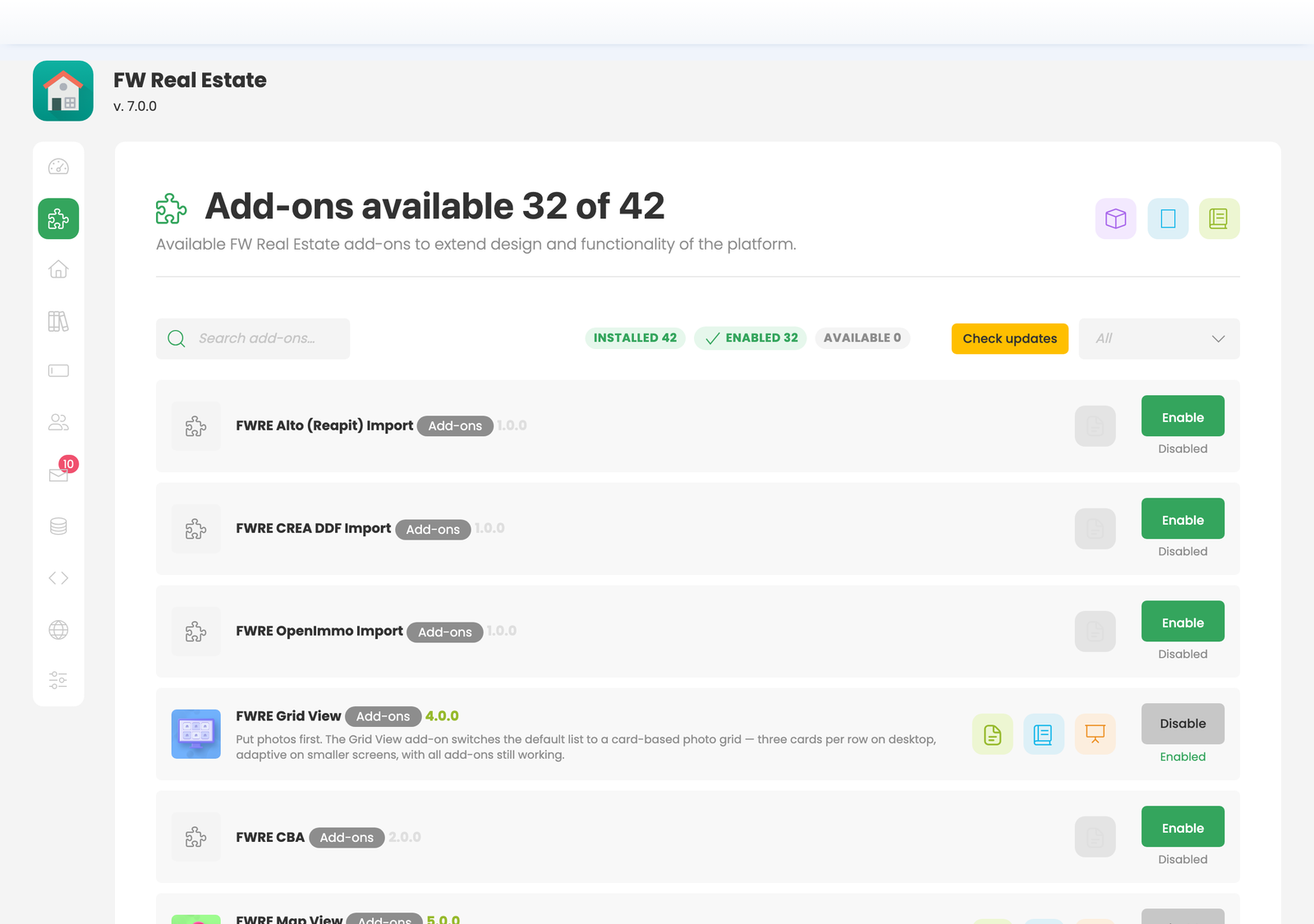
Inside the Add-ons section, each add-on with an available update displays:
- Its current version number
- A yellow Update v.X.X.X badge next to its name
- A yellow Update button on the right
To update all add-ons at once, click the yellow Update All button at the top right of the Add-ons screen.
Always update the main component first, then update add-ons. If an add-on requires a newer component version than what is currently installed, it will be skipped rather than half-installed, and the Add-ons screen will report it as skipped. Updating the component first prevents this.
Troubleshooting: No Update Button Shown
If the FW Real Estate admin header shows no update button, check the following:
- Verification: confirm the site is verified — the admin header shows verification status. An unverified site cannot access the update download endpoint.
- Subscription: confirm your subscription is active on your fastw3b.com account. An expired subscription will not return available updates.